
Table of Contents >> Show >> Hide
- Before You Download: A Quick Word About Permissions
- Method 1: Download Directly From TikTok.com on Your Computer
- Method 2: Save the Video in the TikTok App, Then Transfer It to Your Computer
- Method 3: Use Screen Recording for Personal or Permission-Based Copies
- What About Third-Party TikTok Downloaders?
- How to Choose the Best Method
- Common Problems and Easy Fixes
- Experience-Based Tips for Downloading TikTok Videos on a Computer
- Conclusion
Note: This guide focuses on safe, legitimate ways to save TikTok videos for personal use, creator backups, offline viewing, education, or work organization. Always respect the creator’s download settings, copyright, and TikTok’s platform rules.
TikTok is built for quick scrolling, but sometimes a video deserves a more permanent home than “I’ll find it later.” Maybe it’s your own recipe video, a tutorial you want to study offline, a campaign asset you need to organize, or a funny clip your group chat has already turned into a personality trait. Whatever the reason, learning how to download TikTok videos on a computer can save time, storage chaos, and the emotional damage of losing a great video in the endless For You feed.
The good news: downloading TikTok videos on a desktop or laptop is not complicated. The slightly less glamorous news: not every video can or should be downloaded. TikTok allows creators to control whether other people can save their videos. If the download option is missing, that usually means the creator has disabled downloads or the video has restrictions. In that case, the better move is to save the link, bookmark the video, or ask the creator for permission rather than trying to sneak around the settings like a raccoon in a Wi-Fi hoodie.
Below are three easy, practical ways to save TikTok videos to a computer, including the official desktop method, a phone-to-computer transfer method, and a screen-recording method for personal or permission-based use. Each option works best in different situations, so the smartest choice depends on what you’re saving and why.
Before You Download: A Quick Word About Permissions
Before clicking anything, remember one basic rule: just because a video is public does not mean it is free to reuse anywhere. TikTok videos may include original footage, copyrighted music, voiceovers, graphics, brand assets, captions, or edits that belong to the creator or another rights holder. Downloading for private reference is very different from reposting, selling, editing, or using someone else’s content in an ad.
If you are downloading your own TikTok videos, backing them up is a smart habit. If you are saving someone else’s content, use it responsibly. For school notes, research, inspiration boards, or offline viewing, keep the file private. For reposting, brand use, YouTube compilations, ads, or blog embeds, get permission first. When in doubt, share the TikTok link instead of downloading the file.
Method 1: Download Directly From TikTok.com on Your Computer
The easiest way to download a TikTok video on a computer is to use TikTok’s desktop website. This method is simple, clean, and does not require installing extra software. It is also the safest option because you are working directly through TikTok instead of handing a video link to a random third-party website that may have more pop-ups than a suspicious carnival game.
When This Method Works Best
Use this method when the creator allows downloads and you want a quick copy saved directly to your Windows PC, Mac, Chromebook, or laptop. It is especially useful for downloading your own published videos, saving public tutorials for offline reference, or organizing work-related content examples.
How to Download a TikTok Video From the Desktop Website
- Open your browser and go to TikTok.com.
- Log in to your TikTok account if needed.
- Find the video you want to download.
- Click the share icon or open the video in its own page.
- Look for a download option, such as “Download video,” if it is available.
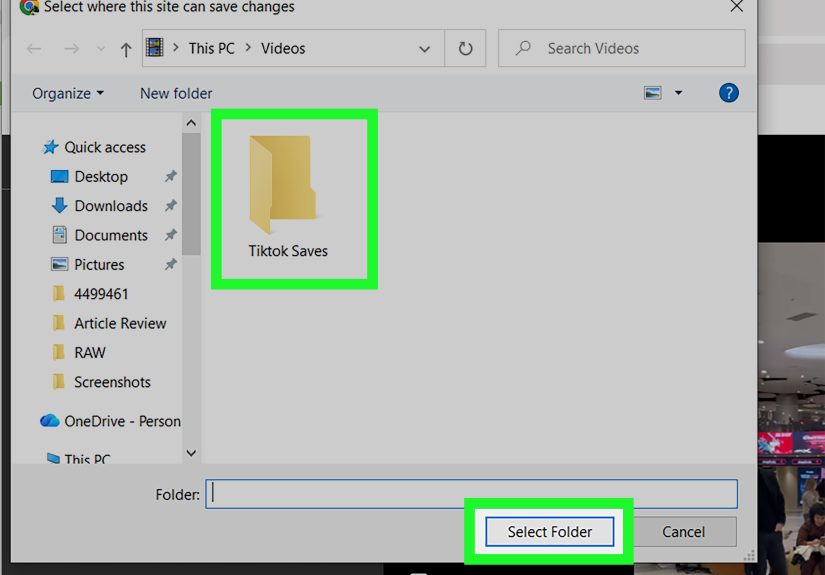
- Choose a folder on your computer and save the file.
Depending on your browser and the video’s settings, you may also be able to right-click the video and choose an option such as “Save video as.” However, this does not appear for every video. TikTok’s interface can also change over time, so the exact wording may vary slightly.
Why the Download Button May Be Missing
If you do not see a download option, the most common reason is that the creator does not allow downloads. TikTok gives creators a setting that controls whether other users can download their videos. Some accounts turn this off to protect their content, avoid reposting, or keep videos inside the TikTok platform.
Other possible reasons include regional restrictions, account privacy settings, age-related limitations, music or licensing restrictions, or temporary browser issues. Before assuming something is broken, try refreshing the page, updating your browser, or opening TikTok in another browser. If the option still is not there, treat that as a boundary rather than a challenge.
Pros and Cons of the Desktop Download Method
The biggest advantage is safety. You are not installing browser extensions, downloading mystery software, or pasting TikTok links into sites covered in fake “Start” buttons. The file usually saves quickly and is easy to find in your Downloads folder.
The downside is that this method only works when TikTok and the creator allow it. Downloaded videos may also include a TikTok watermark, which is normal. The watermark helps identify the platform and creator source, and it should not be removed for reposting or commercial use without permission.
Method 2: Save the Video in the TikTok App, Then Transfer It to Your Computer
If the desktop website does not give you the result you want, the TikTok mobile app may be the next easiest route. TikTok’s Save Video feature is commonly used inside the mobile app. After saving the video to your phone, you can move it to your computer using a cable, AirDrop, Google Drive, Dropbox, OneDrive, email, or another file-transfer method.
When This Method Works Best
This option is ideal when you usually browse TikTok on your phone but need the final file on your computer. It is also helpful for creators who want to move their own TikTok videos into editing folders, content calendars, client archives, or cloud storage.
How to Save a TikTok Video on Your Phone
- Open the TikTok app on your phone.
- Go to the video you want to save.
- Tap the share button.
- Tap “Save video” if the option appears.
- Wait for the video to save to your camera roll or gallery.
If “Save video” does not appear, the creator likely does not allow downloads. You can still copy the link, add the video to Favorites, or ask the creator for permission if you need the file for a specific purpose.
How to Transfer the Saved Video to Your Computer
Once the video is saved to your phone, you have several easy transfer options:
- USB cable: Connect your phone to your computer and import the video file.
- AirDrop: Send the video from an iPhone to a Mac wirelessly.
- Google Drive: Upload the video from your phone, then download it on your computer.
- Dropbox or OneDrive: Upload the file to cloud storage and access it from your desktop.
- Email or messaging apps: Send the file to yourself, though this may compress large videos.
For quality, cloud storage or a direct cable transfer is usually better than messaging apps. Some messaging platforms compress videos, which can make text blurry, reduce audio quality, or turn a crisp video into something that looks like it was filmed through a potato.
Best File Organization Tips
If you download TikTok videos often, do not let them pile up in a digital junk drawer. Create folders by purpose, such as “My TikTok Backups,” “Recipe Ideas,” “Workout Tutorials,” “Marketing Examples,” or “Client Research.” Rename files with clear descriptions, dates, or creator names. A file called “tiktok-video-7364.mp4” is not helpful three months later when you are trying to find the one pasta recipe that changed your worldview.
This method is especially useful for creators and social media managers. You can create a workflow where every saved TikTok goes into a review folder, then gets sorted into categories like hooks, editing styles, captions, transitions, product demos, or trend ideas. That turns random scrolling into actual research, which sounds much more professional when someone asks why you were watching videos at 2:00 p.m.
Method 3: Use Screen Recording for Personal or Permission-Based Copies
Screen recording is another way to save a TikTok video on a computer, but it should be used carefully. This method is best for recording your own videos, videos you have permission to save, short references for personal study, or content where downloading is not technically available but your use is private and respectful.
Screen recording should not be used to bypass a creator’s download settings for reposting, removing watermarks, selling content, or pretending someone else’s work is yours. Think of it as a notebook, not a content vacuum cleaner.
How to Screen Record TikTok on Windows
On Windows 11, you can use built-in tools such as Snipping Tool or Xbox Game Bar, depending on your system and what you want to record.
- Open TikTok.com in your browser.
- Open the video you want to record.
- Press Windows + Shift + R to open the Snipping Tool video recording overlay if available.
- Select the area of the screen that contains the TikTok video.
- Start recording, play the video, then stop when it ends.
- Save the recording to your chosen folder.
You can also use Xbox Game Bar by pressing Windows + G, though it works best for recording apps and certain windows. If recording does not work, check your Windows version, app permissions, storage space, and whether the browser window is supported.
How to Screen Record TikTok on Mac
Mac users can record the screen with the built-in Screenshot toolbar or QuickTime Player.
- Open TikTok.com in your browser.
- Press Shift + Command + 5 to open the Screenshot toolbar.
- Choose to record the entire screen or a selected portion.
- Select the area around the TikTok video.
- Click “Record,” play the video, and stop recording when finished.
- Save and rename the file.
QuickTime Player can also start a screen recording from the File menu. On newer macOS versions, the Screenshot toolbar handles much of this process directly. If you need audio, check your recording settings before starting. A silent recording of a dance tutorial is still useful, but it does make the choreography feel like a secret government briefing.
How to Improve Screen Recording Quality
For cleaner results, play the TikTok video in the largest practical view, close unnecessary tabs, turn off notifications, and make sure your internet connection is stable. Record in a quiet workspace if microphone audio is enabled. After recording, trim the beginning and end so the final file starts and stops cleanly.
Screen recordings may not match the quality of a direct download. They can capture browser controls, mouse movements, buffering, or notification pop-ups if you are not careful. Still, for private study, content planning, or saving your own material, screen recording can be a practical fallback.
What About Third-Party TikTok Downloaders?
A quick search will reveal many websites and browser extensions that claim to download TikTok videos, sometimes without watermarks. Be cautious. Some may work, but they can also come with privacy risks, aggressive ads, misleading buttons, malware, data collection, or shady permissions. Browser extensions are especially worth treating carefully because they may ask for access to websites you visit or data you type.
If you use any third-party tool, avoid entering your TikTok password, avoid downloading unknown software, and do not install extensions unless you trust the developer and understand the permissions. For most people, TikTok’s official download options, phone-to-computer transfer, or built-in screen recording tools are safer and easier.
How to Choose the Best Method
Choose the direct TikTok.com download method when you want the cleanest, fastest option and the creator allows downloads. Choose the mobile app transfer method when you found the video on your phone and want to move it to your computer without overthinking it. Choose screen recording when you are saving your own content, have permission, or need a private reference copy and no download button is available.
For creators, the best long-term system is to keep original video files before uploading to TikTok. That gives you the highest quality version without watermarks, compression, or platform limitations. Store your original edits in a folder by date or campaign. Then use TikTok downloads as backups, not as your only archive.
Common Problems and Easy Fixes
The Download Button Is Gone
The creator may have turned off downloads, the video may have restrictions, or TikTok may not offer downloads for that specific post. Try saving the link or adding the video to Favorites instead.
The Video Has a Watermark
That is normal for many TikTok downloads. The watermark helps credit the platform and creator. Do not remove it to repost someone else’s content without permission.
The File Quality Looks Bad
Try downloading through the official option instead of recording the screen. If transferring from your phone, use cloud storage or a cable instead of a messaging app that compresses video.
The Video Has No Sound
Check system volume, browser mute settings, and screen recording audio permissions. On Mac and Windows, recording system audio can depend on the tool and settings you use.
The File Is Hard to Find Later
Rename the video immediately. Use names like “chicken-taco-recipe-tiktok-may-2026.mp4” or “my-brand-launch-video-backup.mp4.” Future you will be grateful, and future you is already dealing with enough tabs.
Experience-Based Tips for Downloading TikTok Videos on a Computer
After saving enough short-form videos, one lesson becomes obvious: the download itself is usually the easy part. The real challenge is keeping your files useful after they land on your computer. A TikTok video that made perfect sense when you saved it can become mysterious later if the filename is random, the folder is messy, or you forgot why you downloaded it in the first place.
The first practical habit is to decide the purpose before saving. Are you downloading the video for entertainment, research, content inspiration, a client presentation, or a personal archive? That answer should determine where the file goes. For example, a cooking video might belong in a “Recipes to Try” folder, while a marketing hook example should go into a “Short-Form Video Research” folder. Do not mix personal memes, client work, and your own video backups in one giant Downloads folder unless you enjoy digital archaeology.
Another useful habit is renaming videos right away. Most TikTok downloads do not arrive with friendly names. If you leave them unchanged, you may later end up opening twenty clips just to find one seven-second tutorial. A strong filename includes the topic, creator if relevant, and date. For example, “desk-setup-idea-creatorname-2026.mp4” is far better than “video12345.mp4.” It is not glamorous, but neither is searching your laptop for half an hour while muttering, “I know I saved it somewhere.”
If you are a creator, keep a separate folder for your own TikTok videos. Better yet, keep three folders: “Original Exports,” “Posted TikToks,” and “Repurposed Clips.” Original exports are the clean files from your editing app. Posted TikToks are downloaded copies from TikTok. Repurposed clips are versions prepared for other platforms, newsletters, websites, or portfolios. This structure prevents confusion and helps you avoid accidentally uploading the wrong version.
For social media managers, downloaded TikTok videos can be helpful for competitive research, trend tracking, and creative planning. However, it is important to separate inspiration from imitation. Use saved videos to study pacing, captions, hooks, lighting, format, and audience reactions. Do not copy a creator’s script, edit, or concept too closely. A good research folder should help you understand patterns, not clone someone else’s work with a different logo slapped on top.
Cloud backup is also worth considering. If the video matters, keep a copy somewhere other than your laptop. Google Drive, Dropbox, OneDrive, or an external hard drive can protect your files if your computer crashes, gets replaced, or decides to enter its dramatic “not responding” era. For important creator assets, use at least two storage locations: one local and one cloud-based.
Finally, be careful with third-party download sites. Many look simple, but some are crowded with ads and fake buttons. If a site asks you to install software, log in with your TikTok password, disable browser protections, or grant strange permissions, leave. A seven-second video is not worth turning your browser into a haunted house. Stick with official tools whenever possible, and treat your computer like something you would prefer not to donate to malware.
The best experience comes from a simple workflow: use the official TikTok download when available, transfer from your phone when that is easier, screen record only for appropriate personal or permission-based cases, then organize the file immediately. That small system turns TikTok saving from a messy habit into a clean, repeatable process.
Conclusion
Downloading TikTok videos on a computer can be easy when you use the right method for the situation. The safest choice is downloading directly from TikTok.com when the creator allows it. If you found the video on your phone, saving it in the TikTok app and transferring it to your computer is often the most convenient path. For your own content, private study, or permission-based use, screen recording can work as a practical backup.
The key is to respect creator settings, avoid risky download tools, and keep your files organized. TikTok moves fast, but your computer does not have to become a landfill of mystery MP4s. Download thoughtfully, label clearly, and use saved videos in ways that are fair, useful, and safe.






 Close
Close