
Table of Contents >> Show >> Hide
- Before You Start: A Quick Legal and Practical Note
- What Does “Put a DVD on Android” Actually Mean?
- Best Video Format for Android: Keep It Simple
- Method 1: Convert a DVD to MP4 and Transfer It by USB
- Method 2: Put DVD Videos on a MicroSD Card
- Method 3: Upload the DVD File to Google Drive
- Method 4: Use a Media Player App Like VLC for Android
- Method 5: Stream DVD Files with Plex or a Home Media Server
- Method 6: Use Samsung Smart Switch for Galaxy Devices
- Common Problems and Easy Fixes
- Best Practices for Organizing DVD Videos on Android
- Experience-Based Tips: What Actually Works in Real Life
- Conclusion
Remember DVDs? Those shiny little discs that lived in zippered binders, got scratched by mysterious household gremlins, and somehow always contained either a favorite movie or a school concert filmed from row 47? Today, most Android phones do not include a tiny DVD slottragic, but understandable unless you want a phone the size of a toaster. Still, many people want to know how to put a DVD on Android so they can watch personal videos, family discs, home movies, educational content, or legally owned media on the go.
The good news is that it is very possible. The not-so-good news is that you usually need to convert the DVD into a video file first, then move that file to your Android phone or tablet. Think of it like moving furniture into a new apartment: the couch may fit, but you might have to turn it sideways, remove a cushion, and say “almost there” twelve times.
This guide explains the simplest ways to transfer DVD content to Android, including using a computer, choosing the best video format, transferring files by USB, storing videos on an SD card, using cloud storage, and watching with Android-friendly media players. It also includes practical experience-based tips at the end, because theory is cute, but real life involves low storage warnings, mystery cables, and a video file named “final_final_reallyfinal.mp4.”
Before You Start: A Quick Legal and Practical Note
Before ripping or copying any DVD, make sure you have the right to do so. Personal DVDs you created yourself, public-domain video discs, wedding videos, school projects, training materials, and other non-protected discs are generally the safest candidates. Commercial DVDs may include copy protection, and U.S. copyright rules around bypassing digital locks can be complicated. This article is for lawful personal use, organization, backup, and playback of content you are allowed to copy or convert.
In plain English: do not pirate movies, do not distribute copied DVDs, and do not assume “I found it in my drawer” automatically means “I can upload it to the entire internet.” Your Android phone wants entertainment, not a legal subplot.
What Does “Put a DVD on Android” Actually Mean?
When people say they want to put a DVD on Android, they usually mean one of three things:
1. Convert the DVD into a video file
This is the most common method. You use a computer with a DVD drive to convert the disc into a digital video file, usually MP4 or MKV. Then you copy the file to your Android device.
2. Transfer an existing DVD video file to Android
Maybe you already have a video file from a family DVD or old project. In that case, you only need to move it to your Android phone, tablet, SD card, or cloud storage.
3. Stream the DVD file from a home media server
If you have a larger video library, you can store files on your computer or network storage and stream them to Android using a media server app. This is best for people who enjoy organizing their media library almost as much as watching it.
Best Video Format for Android: Keep It Simple
The easiest format for Android playback is usually MP4 with H.264 video and AAC audio. That combination works well across many Android phones, tablets, TVs, and media apps. It also gives you a good balance of quality, file size, and compatibility.
MKV is another strong option, especially if you want to preserve multiple audio tracks, subtitles, or chapters. However, not every default Android video app loves MKV equally. A capable player like VLC for Android can usually handle it better.
Recommended settings for most users
For a standard DVD, use these beginner-friendly settings:
- Container: MP4
- Video codec: H.264
- Audio codec: AAC
- Resolution: Keep original DVD resolution or use 480p
- Subtitles: Burn in only if you always need them; otherwise save selectable subtitles if supported
- File name: Use a clean title, such as “Family_Vacation_2012.mp4”
Avoid strange formats unless you enjoy troubleshooting. Your phone may be powerful, but it still does not appreciate being handed a mystery codec from 2006 with the personality of a locked filing cabinet.
Method 1: Convert a DVD to MP4 and Transfer It by USB
This is the most reliable way to put a DVD on Android. You convert the DVD on a computer, then copy the finished video file to your phone with a USB cable.
Step 1: Insert the DVD into your computer
You need a computer with a built-in DVD drive or an external USB DVD drive. Many modern laptops abandoned disc drives years ago, probably to make room for thinner designs and our collective confusion. An external DVD drive is usually inexpensive and works fine for personal discs.
Step 2: Convert the DVD using video conversion software
For non-protected discs, HandBrake is a popular free option for converting video into MP4 or MKV. Open the DVD source, choose a preset such as “Fast 480p” or a general Android-friendly setting, select MP4, and start the encode. For discs you are legally allowed to convert and preserve in a container format, some users choose tools that create MKV files while keeping tracks and chapters intact.
Step 3: Check the file before transferring
Play the converted file on your computer first. Make sure the audio is synced, the video is complete, and the subtitles behave. Nothing is more annoying than transferring a two-hour movie only to discover the audio sounds like it is arriving by carrier pigeon.
Step 4: Connect Android to your computer
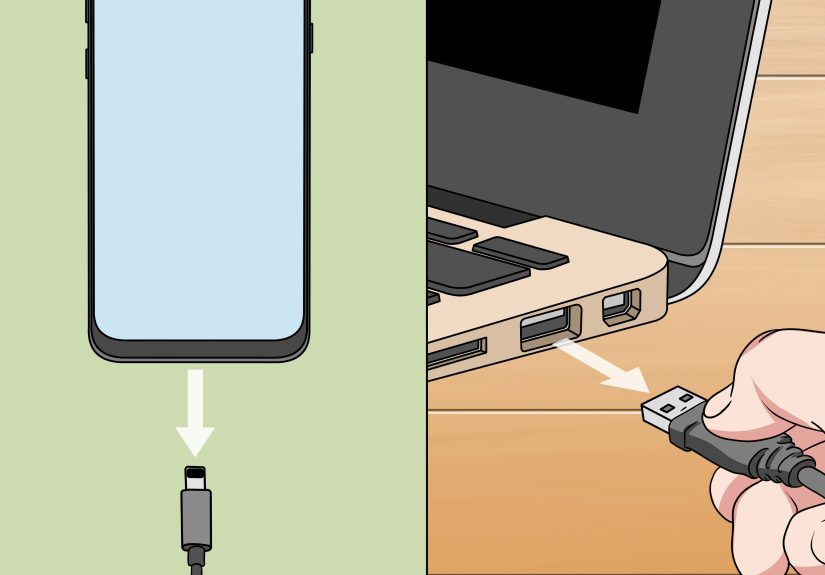
Use a USB cable that supports data transfer. Some cables only charge, which is rude but common. On your Android device, tap the USB notification and choose “File Transfer” or “Transfer files.” Your phone should then appear on your computer as a storage device.
Step 5: Copy the video to your Android device
Create a folder called “Movies,” “DVD Videos,” or “Family Videos,” then copy your MP4 or MKV file into it. Once the transfer finishes, safely disconnect your device and open the video using your preferred Android video player.
Method 2: Put DVD Videos on a MicroSD Card
If your Android phone or tablet has a microSD card slot, this method is wonderfully convenient. It keeps large video files away from your internal storage, which is helpful because Android storage fills up faster than a kitchen junk drawer.
How to do it
First, convert your DVD to MP4 or MKV on your computer. Insert the microSD card into your computer using a card reader. Copy the video file to a folder such as “Movies” or “Videos.” Then put the card back into your Android device and open the file with a video player.
You can also use the Files by Google app to move or copy videos between internal storage and an SD card. This is especially useful if you transfer the video to your phone first and later decide your internal storage is begging for mercy.
When this method works best
Use a microSD card when you have several DVD videos, long home movies, or limited phone storage. A single converted DVD can take around 700 MB to several GB depending on quality settings, audio tracks, and compression. If you are building a travel library, SD card storage is your best friend with tiny plastic legs.
Method 3: Upload the DVD File to Google Drive
Cloud storage is another simple way to watch DVD videos on Android, especially when you do not want to use cables. After converting the DVD into a video file, upload it to Google Drive from your computer. Then open the Drive app on Android and stream or download the file.
Pros of using Google Drive
Google Drive is convenient because your files are available across devices. You can organize videos into folders, rename them, and access them from your phone, tablet, or browser. This is great for personal training videos, class projects, family archives, or small collections.
Cons of using Google Drive
Large DVD files take time to upload, especially if your internet connection is not exactly sprinting. You also need enough cloud storage. If you plan to upload many full-length videos, check your storage limit first. Cloud storage is magical until it says, “You are out of space,” which is technology’s version of slamming a tiny door.
Method 4: Use a Media Player App Like VLC for Android
Your Android phone may include a default video player, but it may not support every format gracefully. VLC for Android is a popular free media player that can handle many video and audio formats, including files that make basic players stare into the distance.
After transferring your DVD video file to Android, open VLC and let it scan your device. Your video should appear in the library. VLC is especially useful for MKV files, subtitle tracks, unusual audio formats, and video libraries stored in different folders.
Why VLC is helpful
- It supports many file types beyond basic MP4.
- It can handle subtitles and multiple audio tracks.
- It works well for local storage, SD cards, and network sources.
- It reduces the chance of “file not supported” drama.
If you only use MP4 files, your default gallery or video app may be enough. But if you work with MKV, subtitles, or older DVD conversions, VLC is a smart backup plan.
Method 5: Stream DVD Files with Plex or a Home Media Server
If you have many converted DVDs, copying files one by one to your phone can get old fast. A media server like Plex lets you store videos on a computer or server and stream them to your Android device. This is better for people who have a larger personal media collection and want poster art, organization, and streaming convenience.
How it works
You install media server software on your computer, add your video folder, let the server scan the library, and then open the matching app on Android. Your phone streams the video over your home network or, depending on your setup and account features, remotely.
Who should use this method?
This is ideal for home users with many family DVDs, fitness videos, educational discs, old recordings, or personal projects. It is not the fastest method for one video, but it is excellent for long-term organization. If USB transfer is a lunchbox, a media server is a mini theater with shelves and labels.
Method 6: Use Samsung Smart Switch for Galaxy Devices
If you use a Samsung Galaxy phone, Smart Switch can help transfer videos, photos, music, documents, and other files between devices. It is not a DVD converter, so you still need to create a video file first. But once your DVD is converted, Smart Switch may be useful when moving media from an old device or computer setup to a new Galaxy phone.
This method is especially helpful when you are upgrading phones and want your videos to come along with everything else. Just remember that big video files can take time, so charge both devices and avoid starting the transfer five minutes before leaving the house.
Common Problems and Easy Fixes
The Android phone does not appear on the computer
Check the USB mode on your phone and select “File Transfer.” Try a different USB cable, because many charging cables do not move data. Also try another USB port. The problem is often the cable, not your phone, your computer, or your life choices.
The video will not play on Android
Convert the file to MP4 with H.264 video and AAC audio. If you already have an MKV or AVI file, try opening it in VLC for Android. If it still fails, re-encode the file using more compatible settings.
The file is too large
Lower the video quality slightly, choose a faster compression preset, remove extra audio tracks, or use a microSD card. Since DVDs are usually standard definition, you do not need to create a massive file pretending to be a 4K masterpiece.
Subtitles are missing
When converting, check subtitle options carefully. Some tools let you burn subtitles into the video, while others save them as selectable tracks. Burning subtitles makes them always visible; selectable subtitles give you more control.
Audio is out of sync
Try converting again with a different preset, avoid interrupting the encode, and test the file before transferring it. If the problem happens only in one player, try VLC or another Android media app.
Best Practices for Organizing DVD Videos on Android
A little organization saves a lot of scrolling later. Use clear file names, such as “Wedding_2008.mp4,” “Yoga_Lesson_01.mp4,” or “Grandma_Birthday_2015.mp4.” Create folders by category: Movies, Family Videos, Work Training, School Projects, or Kids Videos.
If you use an SD card, keep a backup copy somewhere else. SD cards are convenient, but they are also tiny enough to vanish into the same dimension as missing socks. For important family memories, keep at least two backups: one on a computer or external drive and one in cloud storage if possible.
Experience-Based Tips: What Actually Works in Real Life
After working with DVD-to-Android transfers, the biggest lesson is simple: do not rush the first conversion. Many people get excited, choose random settings, hit Start, and then wonder why the file is huge, silent, upside down emotionally, or invisible to the phone’s video app. A small test encode is your best friend. Convert five minutes first, move it to Android, and check playback. If the short test works, then convert the full DVD. This one habit can save hours.
Another real-world tip is to use MP4 unless you have a clear reason not to. MKV is excellent for preserving tracks, chapters, and subtitles, but MP4 is usually easier for everyday Android playback. If you are making videos for a parent, child, teacher, or anyone who does not want to learn codec vocabulary before dinner, MP4 is the friendly choice. It works in more default apps and is easier to share.
Storage planning also matters more than beginners expect. A phone with 128 GB of storage sounds enormous until apps, photos, system files, downloads, and three years of screenshots move in like noisy roommates. Before transferring a DVD library, check available storage. For a few videos, internal storage is fine. For a collection, use a microSD card if your device supports it, or consider cloud storage or a home media server.
USB transfer is usually fastest, but only when the cable supports data. This is the sneaky problem that fools many users. The phone charges, so the cable looks fine, but the computer never sees the device. Try another cable before changing settings for an hour. Also, unlock the phone during transfer and approve any permission prompt. Android often waits politely for your approval while you glare at the computer.
For travel, download videos directly to the device instead of relying on cloud streaming. Airport Wi-Fi, hotel Wi-Fi, and road-trip signal strength are not famous for kindness. If the video matters, store it locally before leaving. Use headphones, test playback offline, and make sure the battery is charged. Nothing says “modern entertainment” like a perfectly converted movie trapped behind a dead battery.
Finally, keep your original DVD or original digital file safe. Conversion is convenient, but it should not be your only archive. For family videos, school events, weddings, and personal recordings, keep backups on an external drive and cloud storage. The goal is not just to put a DVD on Android. The goal is to make your memories easier to watch without turning them into a fragile one-copy situation.
Conclusion
Putting a DVD on Android is not difficult once you understand the basic workflow: convert the DVD into an Android-friendly video file, transfer it to your device, then play it with a reliable media app. For most people, the simplest route is to convert the video to MP4 using H.264 and AAC, copy it by USB, and play it with the default video app or VLC. If you have lots of videos, an SD card, Google Drive, or a media server can make the experience smoother.
The key is to keep things practical. Use legal content, choose compatible formats, test before transferring huge files, and organize your videos with clear names. Your Android device may not have a DVD slot, but with the right method, it can still carry your favorite personal discs, old recordings, and family memories wherever you go. The DVD may be old-school, but watching it on Android? That is vintage meeting convenienceand honestly, they get along pretty well.

 Close
Close