Table of Contents >> Show >> Hide
- First: What Kind of Blink Are We Talking About?
- The 60-Second Checklist (Do This Before Anything Else)
- Fix #1: Force Restart Apple TV (Not Just “Unplug and Hope”)
- Fix #2: Rule Out HDMI Handshake Problems (A Blinking Light Can Still Be a Display Issue)
- Fix #3: Change Video Resolution Without Seeing the Screen
- Fix #4: Check Match Content Settings (HDR/Frame Rate Switching Can Look Like a Failure)
- Fix #5: Don’t Forget the Remote (Yes, It Can Be the Villain)
- Fix #6: If You See a Warning Symbol (or the Update Went Sideways)
- Fix #7: Reset from Settings (If You Can Get In)
- When the Blinking Light Suggests Hardware Trouble
- How to Prevent the Apple TV Blinking Light Problem (Future You Will Thank You)
- Quick FAQ
- Conclusion: Turn the “Blinking Mystery” into a Simple Diagnosis
- Experiences & “Real-Life” Fix Stories (Extra )
Your Apple TV is supposed to be the calm, reliable little black box that turns “What should we watch?” into
“One more episode.” So when that tiny status light starts blinking like it’s trying to send an SOS in Morse code,
it feels personal. (It’s not. Mostly.)
The good news: the blinking light is usually a clue, not a curse. It can mean anything from “I’m booting up”
to “I’m updating” to “Help, I’m stuck in a loop and I can’t find my home screen.” This guide breaks down what
the Apple TV blinking light means, how to troubleshoot it step-by-step, and when it’s time to stop DIY-ing and
let Apple handle it.
First: What Kind of Blink Are We Talking About?
Apple TV’s front status light changes behavior depending on what the device is doing. If your Apple TV is working
normally, you may see:
- Solid light: Apple TV is on and awake.
- No light: Apple TV is off or in standby (or not getting power).
- Slow blinking: Apple TV is starting up.
- One quick blink: Apple TV received a remote command.
- Fast blinking: Apple TV is updating software.
The “uh-oh” category is when the light keeps blinking for a long time and you never reach the Home screenor you
get a black screen, an Apple logo loop, or a warning symbol. That often points to a startup failure, a software
update that didn’t finish cleanly, an HDMI handshake problem, or (occasionally) a remote/interference issue.
The 60-Second Checklist (Do This Before Anything Else)
Before we get fancy, run this quick checklist. It fixes a surprising number of “blinking light” situations.
-
Power cycle properly: Unplug Apple TV from power, wait 30–60 seconds (yes, actually wait),
then plug it back in. - Confirm the TV input: Make sure your TV is set to the correct HDMI input for the port your Apple TV uses.
- Reseat HDMI: Unplug HDMI from both the Apple TV and the TV/receiver, then plug both ends back in firmly.
- Try a different HDMI port: Move Apple TV to another HDMI input (start with HDMI 1/Input 1 if your TV labels them).
- Bypass the middleman: If you use an AV receiver, soundbar, or HDMI switch, connect Apple TV directly to the TV temporarily.
If the blinking stops and you see the Home screen: congratulations, your Apple TV just needed a little attention.
If it’s still blinking and refusing to cooperate, keep going.
Fix #1: Force Restart Apple TV (Not Just “Unplug and Hope”)
A force restart is often the cleanest way to break a boot loop or wake up an unresponsive Apple TV.
On newer Siri Remote / Apple TV Remote (most Apple TV 4K & HD setups)
-
Press and hold the TV/Control Center button and the Back button together
until the Apple TV status light blinks rapidly, then release.
On older Apple TV remotes (varies by generation)
-
Some older remotes use Menu + another button combination to trigger a restart. If you’re using an older
aluminum/white remote, you may see different restart instructions depending on your Apple TV model.
If Apple TV restarts and the blinking becomes slow (startup) and then settles into normal behavior, you’re back in business.
If it returns to constant blinking and never boots, keep troubleshootingthis points more strongly to software corruption,
HDMI/display issues, or hardware trouble.
Fix #2: Rule Out HDMI Handshake Problems (A Blinking Light Can Still Be a Display Issue)
Here’s an annoying truth: sometimes Apple TV is actually running, but your TV can’t agree on the “language” (resolution,
frame rate, HDR format) so you get a black screen while the Apple TV looks busy.
Try a better (or just different) HDMI cable
If your TV and Apple TV support HDMI 2.1 features, use an Ultra High Speed HDMI cable.
For HDMI 2.0 setups, a Premium High Speed HDMI cable is recommended. In plain English:
old bargain-bin cables can work… until they don’t.
Temporarily connect Apple TV directly to your TV
AV receivers and HDMI switches can cause handshake issues, especially with 4K HDR content. A quick “direct-to-TV” test
tells you whether the problem is the Apple TV or the gear in between.
Fix #3: Change Video Resolution Without Seeing the Screen
If the light blinks, but the screen is black or flickers, your Apple TV may be outputting a resolution your TV can’t display.
Apple TV has a built-in “cycle through resolutions” trick you can trigger from the remote.
For Apple TV 4K or Apple TV HD
-
Press and hold Menu and Volume Down for about 5 seconds.
Apple TV will switch to a new resolution every ~20 seconds. - If the picture appears, choose OK to keep that resolution (or Cancel to quit).
For Apple TV (2nd or 3rd generation)
- Press and hold Menu and Up for about 5 seconds to start the same process.
This is one of the most underrated fixes because it helps when the Apple TV isn’t “broken”it’s just speaking a video format your TV doesn’t understand.
Fix #4: Check Match Content Settings (HDR/Frame Rate Switching Can Look Like a Failure)
Apple TV has settings that match your TV’s dynamic range (SDR/HDR/Dolby Vision) and frame rate. When enabled, your TV may
briefly go blank or flicker as it switches modesespecially at the start or end of playback. If your setup is already on the edge
(older TV firmware, receiver limitations, flaky HDMI cable), it can become a constant black-screen cycle.
Once you can access the interface, try:
- Go to Settings > Video and Audio > Match Content.
- Temporarily turn Match Dynamic Range and/or Match Frame Rate off.
- Confirm the video format is set to something stable (for many TVs, 4K SDR with matching enabled later is a reliable baseline).
If turning these off stabilizes your display, you can re-enable them one at a time after you’ve confirmed your HDMI chain (TV/receiver/cable) can handle it.
Fix #5: Don’t Forget the Remote (Yes, It Can Be the Villain)
Sometimes the Apple TV blinking light problem is “Apple TV is fine, but the remote is not.” If the remote is stuck in a weird state,
low on battery, or repeatedly reconnecting, it can make troubleshooting feel impossible.
Restart the Siri Remote / Apple TV Remote
-
Press and hold TV/Control Center and Volume Down for about 5 seconds,
until the status light on Apple TV turns off and on again. Then wait for a “Remote Disconnected” message, and let it reconnect.
Charge the remote (even if you “think” it’s charged)
Rechargeable Siri Remotes can appear alive but be too low to stay connected reliably. Give it at least 20–30 minutes on a charger
if you’re troubleshooting anything remotely-related.
Weird-but-real: remove the remote from the room
A small number of users have reported boot loops and flashing behavior that stops when the remote is moved far away (suggesting a stuck button,
Bluetooth glitch, or interference). It’s not the most glamorous fix, but it costs exactly $0 to try:
put the remote in another room, power-cycle the Apple TV, then restart/re-pair the remote after the Apple TV boots.
Fix #6: If You See a Warning Symbol (or the Update Went Sideways)
If an Apple TV software update fails, you may see a warning icon, a black screen, and a flashing indicator light. At this point, the fix depends heavily on your model.
If you have Apple TV 4K
Apple TV 4K models typically require service assistance for certain restore scenarios (especially when you can’t get into Settings).
If you repeatedly see a warning symbol and a flashing light, the practical next step is Apple Support/service.
If you have Apple TV HD or Apple TV (3rd generation) and earlier
Many of these models can be restored using a Mac or PC with the right cable. You’ll generally need:
- A Mac or PC (PC may use the Apple Devices app or iTunes, depending on Windows setup)
- High-speed internet (the restore may download software)
- USB-C cable (Apple TV HD) or Micro-USB cable (Apple TV 3rd gen)
Typical restore flow looks like this:
- Unplug the HDMI cable and the power cord from Apple TV.
- Connect the correct USB-C or Micro-USB cable from Apple TV to your computer.
- Reconnect power (for Apple TV HD/3rd gen, power is usually required during restore).
- On Mac, open Finder (or Apple’s device management interface). On Windows, open Apple Devices or iTunes.
- Select Apple TV when it appears, then choose Restore. Keep everything plugged in until completion.
- When finished, disconnect cables, reconnect HDMI and power, and set Apple TV up again.
Important: use a data-capable cable. Some USB cables charge but don’t transfer data, and that can make your Apple TV “invisible” to the computer.
Fix #7: Reset from Settings (If You Can Get In)
If your Apple TV eventually boots but behaves strangely (random reboots, constant blinking on wake, apps crashing), a reset can clean out
corrupted settings or software issues.
Reset options explained
- Reset: Fastest factory reset. Doesn’t require internet.
- Reset and Update: Factory reset plus a fresh tvOS install/update (requires internet).
You’ll typically find these under Settings > System > Reset. If your blinking light problem started right after an update,
“Reset and Update” is often the most logical choice (when available).
When the Blinking Light Suggests Hardware Trouble
Not every blinking light can be solved with button combos and optimism. Consider hardware trouble more likely if:
- The Apple TV has no video output at all across multiple known-good HDMI cables and TV ports.
- The device reboots endlessly and never reaches the Home screen, even after power-cycling and remote restart attempts.
- The blinking started after a power surge, lightning storm, or a questionable power strip that also makes your lamps do jazz improvisation.
- You repeatedly see warning symbols during updates (especially on Apple TV 4K models).
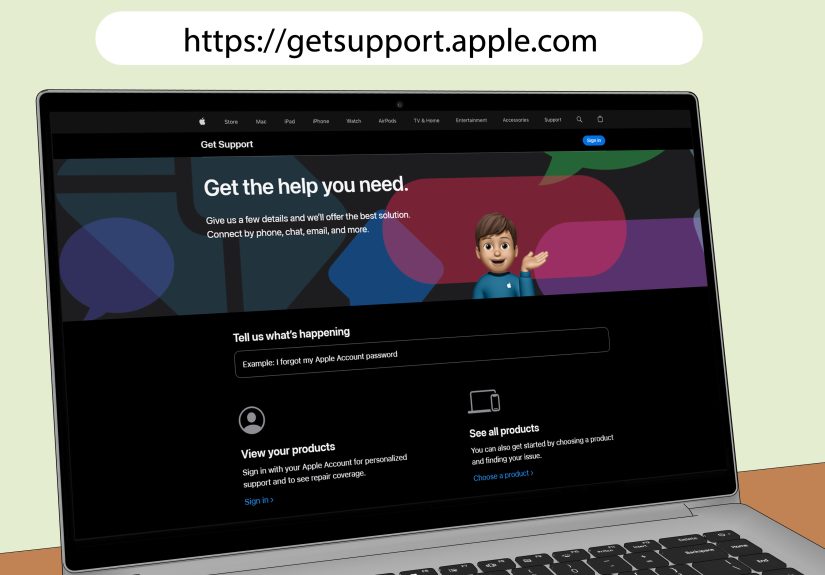
If you’re in this zone, it’s reasonable to contact Apple Support or an authorized service providerespecially if your Apple TV is still under warranty or AppleCare.
Continued repeated power cycles won’t usually “heal” failing hardware, and can make troubleshooting more frustrating than it needs to be.
How to Prevent the Apple TV Blinking Light Problem (Future You Will Thank You)
- Use a surge protector (a decent one, not a mystery strip from the bargain bin).
- Update when power is stableavoid running tvOS updates during storms or flaky electrical conditions.
- Invest in a reliable HDMI cable rated for your setup (especially for 4K HDR).
- Keep ventilation clear. Heat can make electronics act haunted.
- Minimize “HDMI daisy chains” if you’re troubleshootingeach extra device is another possible handshake failure.
Quick FAQ
Is an Apple TV blinking light ever normal?
Yes. Slow blinking can be normal during startup, and fast blinking is typical during updates. The problem is when blinking continues for a long time and you can’t get a picture or reach the Home screen.
My Apple TV light is off. Is it dead?
Not necessarily. It may be in standby. If you get no response at all, check the power outlet and power cord, then try a different outlet. If it still shows no light, the issue may be power-related.
Can I restore Apple TV 4K at home?
Sometimes you can resolve software issues with restarts, settings adjustments, and resets. But if an Apple TV 4K is stuck with a warning symbol and flashing light (or won’t boot at all), Apple’s guidance often points toward service support rather than a simple computer-based restore.
Why did this happen right after an update?
Updates can fail if power or internet drops mid-install, or if storage/software state gets corrupted. In those cases, a reset (or restore, depending on model) is usually the cleanest fix.
Conclusion: Turn the “Blinking Mystery” into a Simple Diagnosis
An Apple TV blinking light looks dramatic, but it’s usually just the device telling you what phase it’s stuck in: startup, update, HDMI negotiation,
or a genuine boot failure. Start simple (power and HDMI), then move to force restart, resolution cycling, remote restart, and finally reset/restore options.
If you’re on an Apple TV 4K that won’t boot and keeps flashingespecially with warning symbolsservice support may be the fastest path back to streaming peace.
Experiences & “Real-Life” Fix Stories (Extra )
Let’s talk about what this looks like in the wildbecause most Apple TV blinking light problems don’t start with a tidy checklist. They start with a person
on the couch, snacks in hand, whispering, “Why is it blinking at me like that?”
Experience #1: The “It’s Not Broken, It’s Just on the Wrong HDMI Input” Classic
One of the most common stories goes like this: the Apple TV light blinks, the screen is black, panic rises… and then someone realizes the TV is on HDMI 2
while the Apple TV is plugged into HDMI 1. This usually happens after a power outage, a curious kid, or a well-meaning family member who “cleaned up the cables.”
The fix is hilariously simple: switch inputs. The lesson is timeless: before diagnosing a boot loop, make sure you’re not watching the wrong door.
Experience #2: The Receiver/Soundbar Handshake Trap
Another frequent scenario: Apple TV runs through a receiver or HDMI switch, and everything worked perfectly… until it didn’t. After an update, the TV goes blank,
the Apple TV light keeps blinking, and it feels like the device is stuck. In many cases, the Apple TV is booting, but the receiver and TV can’t agree on HDR
or frame rate switching. Connecting Apple TV directly to the TV often “magically” brings the picture back. Once it’s stable, people either update their receiver’s
firmware, swap to a higher-quality HDMI cable, or disable Match Dynamic Range/Frame Rate until the system behaves.
Experience #3: The “Resolution Roulette” Save
Sometimes the blinking light comes with a black screen because Apple TV is outputting a format your TV can’t displayespecially after you’ve tried to force a new
video setting or moved the Apple TV to a different TV. The resolution-cycling shortcut (holding the right buttons to switch resolutions every ~20 seconds) has saved
many people from unnecessary factory resets. The first time you see the picture return mid-cycle feels like winning a tiny tech lottery.
Experience #4: The Remote That Caused Chaos
This one sounds made up until it happens: Apple TV appears to be stuck blinking, and nothing works… until the remote is moved far away. Some users report that a remote
in a weird Bluetooth stateor a button that’s effectively “stuck” under a casecan trigger strange behavior. Restarting the remote (TV/Control Center + Volume Down) and
re-pairing it after Apple TV boots can resolve it. It’s also the only troubleshooting step that makes you feel like you’re performing an exorcism with household objects.
Experience #5: The Update That Didn’t Finish
Finally, there’s the dreaded incomplete update. The Apple TV starts updating, the light blinks quickly, and then something interrupts the processWi-Fi drops, power flickers,
or the device reboots at the wrong time. After that, it may blink endlessly and never load properly. If you can reach Settings, “Reset and Update” is often the clean solution.
If you can’t reach anything, Apple TV HD and some older models can be restored with a computer and the correct cable. Apple TV 4K models, depending on the exact situation, may
require service support. The takeaway: updates are best done when your internet and power are stablebecause “tvOS drama” is not the kind of drama anyone asked for.
If you remember just one thing from all these real-world stories, let it be this: blinking lights are usually solvable, but the fastest solution comes from matching the fix
to the most likely causepower, HDMI, display settings, remote behavior, or software restore. Treat it like a detective story, not a horror movie.