Table of Contents >> Show >> Hide
- What Counts as a “Border” in Word?
- Way 1: Add a Page Border with the Built-In “Page Borders” Tool
- Way 2: Add a Text Border (or Paragraph Border) Using Borders & Shading
- Way 3: Create a Custom Border with Shapes, Text Boxes, or Tables (Maximum Control)
- Troubleshooting: When Borders Act Like They Have Free Will
- Best Practices: Make Borders Look Polished (Not Loud)
- Conclusion
- Real-World Experiences & Lessons Learned (So You Don’t Have to Learn the Hard Way)
- SEO Tags
Microsoft Word is basically a digital apartment: it can look clean and modern, or it can look like you moved in with one suitcase and never unpacked. Borders are one of the easiest upgradeslike adding trim, a picture frame, or (if you’re feeling bold) an actual decorative fence around your content.
In this guide, you’ll learn three reliable ways to add a page border or a text border in Word, plus how to apply borders to one page only, avoid printing disasters, and keep your document looking professional (and not like a middle-school “certificate” template from 2006).
What Counts as a “Border” in Word?
Word uses the word “border” for a few different things, which is why people end up clicking around like they’re trying to defuse a bomb with oven mitts. Here are the three most common border types:
- Page border: A frame around the entire page (great for cover pages, invitations, certificates).
- Text/paragraph border: A box (or line) around selected text or an entire paragraph (great for callouts, warnings, pull quotes).
- Object border: A border around a shape, picture, text box, or table (great for custom layouts and “Word won’t do what I want” moments).
The best method depends on what you’re trying to frameand whether you want Word to behave nicely (spoiler: it will, if you pick the right tool).
Way 1: Add a Page Border with the Built-In “Page Borders” Tool
This is the official, built-in way to add a border around a page. It’s quick, it’s clean, and it’s ideal for traditional page framesespecially when you want consistent margins and printable results.
Step-by-step (Word for Windows and Word for Mac desktop)
- Open your document in the desktop version of Microsoft Word.
- Go to the Design tab.
- Click Page Borders (usually in the “Page Background” area).
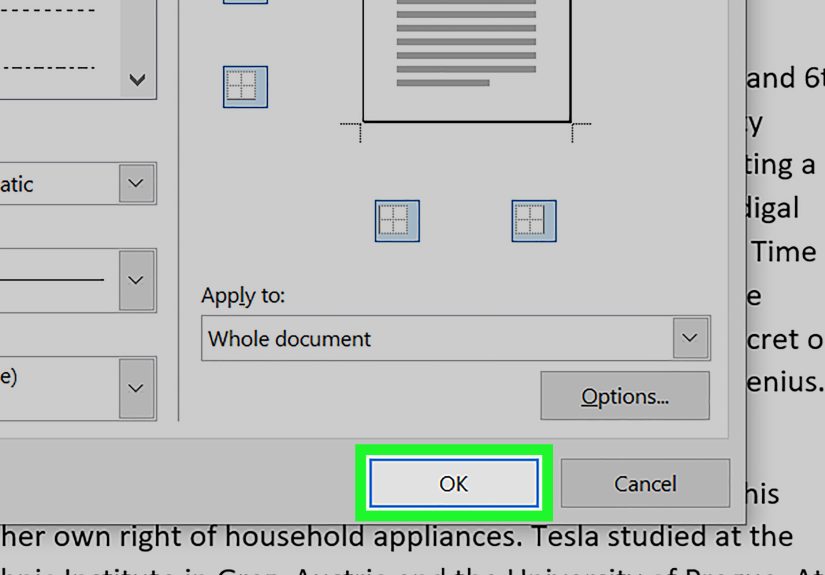
- In the Borders and Shading dialog, open the Page Border tab.
- Choose your border style:
- Setting: Box, Shadow, 3-D, or Custom
- Style: line type (solid, dotted, double, etc.)
- Color and Width: keep it readable and printer-friendly
- Art: decorative borders (use sparingly unless you’re designing a pirate treasure map)
- Use the Preview box to turn border sides on/off by clicking the lines.
- Click OK.
How to apply a page border to just one page (the cover-page trick)
If you add a page border and Word slaps it on every page like it’s getting paid per frame, you need sections. Borders can be applied to the whole document or a specific sectionso you’ll create a section that contains only the page you want bordered.
- Click at the very start of the page that should have the border.
- Go to Layout (or Page Layout in older versions) → Breaks → choose Next Page under Section Breaks.
- Now click at the end of that page (or the start of the next page).
- Repeat: Layout → Breaks → Next Page.
- Click anywhere on the bordered page (inside that section).
- Go to Design → Page Borders.
- In Apply to, choose:
- This section (border all pages in the section), or
- This section – First page only (perfect for a single-page section).
- Click OK.
Result: one page with a border, and the rest of the document stays blissfully unframed.
Fine-tune spacing so your border doesn’t get chopped off
If your border looks great on screen but prints like it got into a fight with a paper cutter, adjust the border distance. In the Page Border dialog:
- Click Options.
- Adjust the spacing from the edge (or from text, depending on the setting).
- Keep the border inside printable marginsespecially on printers with narrow “no-print” areas.
How to remove a page border
Go back to Design → Page Borders, then under Setting choose None, and click OK. Word will let go. Eventually.
Quick note about Word for the web
Word for the web is great for quick edits, but border controls are limited compared to desktop Word. If you don’t see the options you need, open the document in the desktop app for full border tools.
Way 2: Add a Text Border (or Paragraph Border) Using Borders & Shading
Need to frame a warning, highlight a definition, or make a key quote pop? Text borders are your best friend. They’re also way faster than building a text boxwhen you do them correctly.
The fast method: Use the Borders button (great for quick boxes and lines)
- Select the word, line, or paragraph you want to frame.
- Go to the Home tab.
- In the Paragraph section, click the Borders dropdown.
- Choose an option like Outside Borders, Bottom Border, or Box (names vary slightly by version).
This is perfect for adding a clean border quicklylike putting a highlighter on your content, but with better manners.
The pro method: Customize with “Borders and Shading”
If you want control over thickness, color, spacing, or whether the border hugs the text vs. the whole paragraph, you’ll use Borders and Shading.
- Select the text.
- Go to Home → Borders dropdown → choose Borders and Shading.
- On the Borders tab, pick:
- Setting: Box, Shadow, 3-D, or Custom
- Style, Color, and Width
- In Apply to, choose carefully:
- Text: the border wraps tightly around selected words/phrases
- Paragraph: the border spans the paragraph width (based on margins/indents)
- Use the Preview box to toggle sides on/off.
- (Optional but powerful) Click Options to change padding between text and border.
- Click OK.
Example: A clean “Important” callout box (that doesn’t scream)
Try this for a professional-looking note box:
- Type a short label like Important: then your sentence.
- Select the paragraph.
- Open Borders and Shading.
- Choose a thin solid line (avoid chunky borders unless you’re framing a ransom note).
- Set Apply to = Paragraph.
- Go to the Shading tab and add a very light fill if you want extra emphasis.
Bonus: Keep contrast readable. If you shade the background, make sure the text remains easy to readespecially if the document will be shared widely.
Way 3: Create a Custom Border with Shapes, Text Boxes, or Tables (Maximum Control)
Sometimes the built-in border tools aren’t flexible enough. Maybe you want a border that sits in a very specific position, includes extra whitespace, avoids headers/footers, or looks the same even when you export to PDF. That’s when you build your own border using Word objects.
Option A: Use a rectangle shape as a page frame
This method is basically: “Fine, Word, I’ll draw my own border.” It’s fantastic for custom layouts and designer-style frames.
- Go to Insert → Shapes → choose Rectangle.
- Draw a rectangle near the edges of the page.
- With the shape selected, go to Shape Format:
- Shape Fill → No Fill
- Shape Outline → choose color and Weight (thickness)
- Right-click the shape → choose Wrap Text → Behind Text (or In Front of Text if you prefer, but behind is usually safer).
- Resize the rectangle to fit neatly within margins so it prints cleanly.
Pro tip: If you want the border on every page, insert the shape into the Header (double-click the top margin area to open the header, then insert the shape there). That way it repeats across pages.
Option B: The “one-cell table” border (surprisingly effective)
Tables in Word are basically tiny layout engines wearing a trench coat. A 1×1 table can act like a stable frame, especially when you need consistent spacing and content inside the “bordered area.”
- Go to Insert → Table → choose 1×1.
- Click the table, then open Table Properties:
- Set a preferred width (or let it autofit, depending on your layout goal).
- Adjust cell margins for padding inside the border.
- Use Table Design → Borders to choose border style and thickness.
- Type your content inside the cell.
This is especially helpful for forms, signature blocks, and “boxed” content that needs to stay together when the document reflows.
Option C: Text box borders for floating callouts
Text borders (Way 2) are great, but sometimes you want a callout that sits in a specific spotlike a sidebar note. Text boxes are perfect for that.
- Go to Insert → Text Box → choose a style or Draw Text Box.
- Type your text.
- Select the text box, then go to Shape Format:
- Shape Fill: No Fill (or a light shading)
- Shape Outline: pick color and thickness
- Adjust layout with Wrap Text so the box behaves the way you want.
Text boxes are also handy when you want a border that won’t stretch across the whole paragraph width.
Troubleshooting: When Borders Act Like They Have Free Will
“I only wanted one page bordered, but Word bordered everything.”
That’s almost always a section issue. Use section breaks to isolate the page, then set Apply to = This section or This section – First page only.
“My border prints cut off or too close to the edge.”
Open Page Borders → Options and increase the distance from the edge. Also avoid pushing borders into your printer’s no-print area. When in doubt, keep the border comfortably inside the margins.
“My text border is spanning the whole page width.”
In Borders and Shading, check Apply to. If it’s set to Paragraph, the border will follow paragraph width. Switch to Text if you want the border to hug the selected words.
“I’m using Word for the web and can’t find border controls.”
Word for the web has fewer formatting options. If borders are essential, open the file in desktop Word for full access.
Best Practices: Make Borders Look Polished (Not Loud)
- Use borders with purpose: frame a cover page, highlight a key note, separate sectionsdon’t border everything like it’s a fenced-in neighborhood.
- Keep thickness reasonable: thin to medium lines print cleaner and look more modern.
- Match your theme: use theme colors for consistency (especially for corporate docs).
- Mind accessibility: ensure enough contrast if you add shading behind text.
- Test print/export: borders can shift or clip depending on printer settings and PDFs.
Conclusion
Adding a border in Microsoft Word doesn’t have to feel like a quest. If you need a classic frame, use Design → Page Borders. If you want to highlight content, use Home → Borders and customize with Borders and Shading. And when you want total creative control, build your own border with shapes, text boxes, or a one-cell table.
The real secret is choosing the method that matches your goalso you get a clean, professional result instead of a border that mysteriously appears on every page like an uninvited guest.
Real-World Experiences & Lessons Learned (So You Don’t Have to Learn the Hard Way)
In the real world, borders show up in exactly two situations: (1) you’re trying to make something look official, or (2) Word is trying to make you question your life choices. Here are the most common “border adventures” people run intoand how to win them.
1) The “certificate border” trap
Decorative “Art” borders can look fun on screen, but they often print thicker than expected, eat up space, or look fuzzy in PDFs. If the document is meant to be printed, stick to a clean line border or a simple double-line style. If you absolutely want a decorative frame, do a quick test export to PDF and check it at 100% zoom. What looked like “elegant vines” can become “pixel salad” fast.
2) The “Why is the border on every page?” moment
The biggest practical lesson: Word thinks in sections. If you’re framing only a cover page, don’t fight the softwarefeed it what it wants. Make the cover page its own section with a section break before and after. Then apply the page border to “This section – First page only.” Once you understand that borders are section-based, half of Word’s weirdness suddenly becomes… slightly less weird.
3) Borders that move when you edit (aka “layout whiplash”)
Text borders (Way 2) are usually stable because they’re tied to the paragraph. But custom borders built with shapes can shift if they’re anchored to text. If you insert a rectangle border and it slides when you add a paragraph, it’s not hauntedit’s anchored. The fix is to set wrapping intentionally (Behind Text is common), and consider placing repeating borders inside the header so the position stays consistent across pages.
4) Printing and margin reality checks
Most printers can’t print to the very edge of the paper. So if you set a page border too close to the edge, Word may show it perfectly on screen and then your printer trims it like it’s editing a bad haircut. Use Page Border Options to move the border inward and keep it inside printable margins. If you’re preparing something for professional printing, ask for the printer’s margin requirements and keep your border comfortably inside them.
5) The “text border hugs the whole line, not my words” confusion
This is a classic: you highlight a phrase, add a border, and Word wraps a big box across the paragraph width. That’s because the border is being applied to the paragraph, not the selected text. When you need a border around just a few words, go into Borders and Shading and set Apply to = Text. It’s a small dropdown that saves a lot of frustration.
6) Choosing the right tool for the job
If you want a border that behaves nicely when you edit the document, use a paragraph/text border. If you want a border that stays put like a picture frame, use a shape in the header. If you want a boxed section that keeps content together and aligns cleanly, use a one-cell table. Think of it like this: text borders move with text, shapes can be fixed-position, and tables are layout workhorses. Once you match the method to the outcome, borders stop being a battle and start being a design choice.
Bottom line: Borders in Word aren’t harduntil they are. But with these tricks (sections, Apply to settings, and smart use of shapes/tables), you’ll get predictable results, cleaner formatting, and fewer “why is this happening?” screenshots in your group chat.