
Table of Contents >> Show >> Hide
- What “Autoplay” Means in Apple Music (So You Turn Off the Right Thing)
- The 4 Easy Steps (iPhone & iPad)
- How to Disable Autoplay on Apple Music on Other Devices
- Troubleshooting: If You Can’t See the Infinity Icon (or Autoplay Won’t Stay Off)
- 1) Nothing is playing
- 2) You’re not in the queue view
- 3) Autoplay is tied to Apple Music subscriber features
- 4) Your app is outdated (or just having a day)
- 5) Your queue is overridden by Repeat/Shuffle behavior
- 6) You switch playlists and Autoplay returns
- 7) Autoplay syncs across devices (which is helpful… until it isn’t)
- Bonus: When Music Starts by Itself in the Car (That’s Usually Not Apple Music Autoplay)
- FAQ
- Conclusion
- Real-World Experiences: Life After Turning Off Autoplay (and Why It’s Weirdly Liberating)
You know that moment when your album ends, you feel emotionally complete… and then Apple Music decides you
“might also enjoy” a song that sounds like your earbuds fell into a blender? That’s Autoplay.
It’s handy when you want the vibe to keep going, and wildly unhelpful when you were aiming for silence, sleep,
or a clean exit after Track 12.
The good news: turning Autoplay off is fast, doesn’t require a detective’s license, and won’t delete your library
or ruin your recommendations. The even better news: once you know where the switch lives, you’ll wonder why it
ever felt mysterious in the first place.
What “Autoplay” Means in Apple Music (So You Turn Off the Right Thing)
In Apple Music, Autoplay is the feature that adds similar songs to your queue after
whatever you chose finishes (like at the end of an album, playlist, or hand-picked mini-queue). It’s controlled
by an infinity (∞) icon inside your Playing Next / Up Next queue.
Two quick clarifications that save a lot of annoyance:
-
Autoplay is not “music starts when I get in my car.” That’s usually Bluetooth/CarPlay behavior
(we’ll tackle that later). -
Autoplay is not Shuffle or Repeat. Those are separate controls. In fact, Autoplay can sometimes
make Shuffle/Repeat behave differently depending on what you’re playing.
The 4 Easy Steps (iPhone & iPad)
These steps are written for iPhone and iPad because that’s where most people get ambushed by surprise “bonus music.”
The same idea works everywhere: open the queue, find the infinity icon, turn it off.
Step 1) Start playing something (anything)
Open the Music app and play a song, album, playlistwhatever. Autoplay controls only show up
reliably when audio is actually playing.
Tip: If you’re testing this, pick something short. It’s more satisfying to watch the queue behave immediately.
Step 2) Open the full “Now Playing” screen
Tap the mini player bar at the bottom of the Music app (the one showing the current track) to expand it into the
full-screen player. This is where Apple hides the important knobs. (It’s a design tradition.)
Step 3) Open “Playing Next” (your queue)
Look for the queue iconusually a little list/bullets icon in the lower-right area of the Now Playing screen.
Tap it to open Playing Next (sometimes labeled Up Next depending on screen and version).
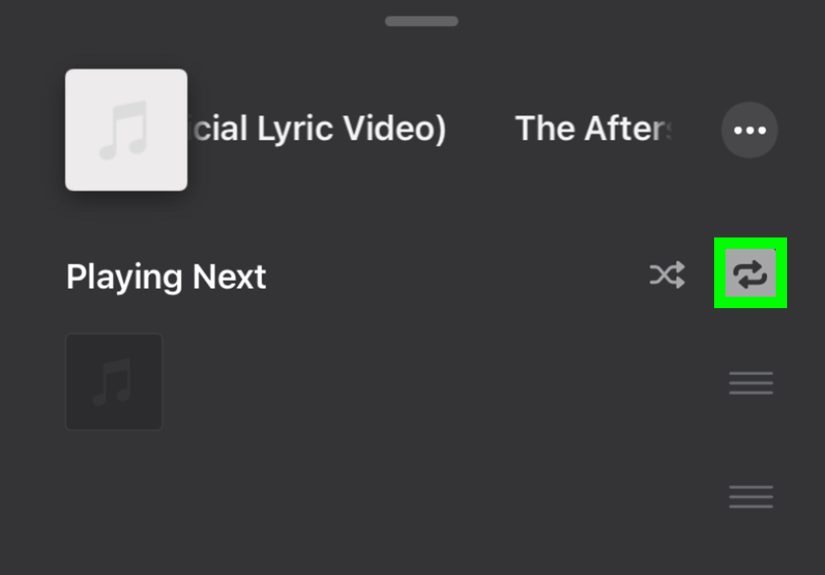
Step 4) Tap the infinity (∞) Autoplay button to turn it off
At the top of the queue, you should see the Autoplay control (the infinity symbol).
If it’s highlighted/active, tap it once to turn it off.
- When it’s ON: Apple Music will append “similar songs” to keep playback going.
- When it’s OFF: your music stops when your chosen queue ends (like a normal, peaceful universe).
Quick success check: your Autoplay section or “similar songs” list should disappear (or stop growing)
once you disable it. Let the current selection finish: if Autoplay is off and you didn’t queue anything else,
playback should end quietly.
How to Disable Autoplay on Apple Music on Other Devices
If you bounce between devices (phone, laptop, desktop, web player), here’s the simple rule:
Open the queue, find the ∞ icon, switch it off. The labels change a little, but the concept doesn’t.
On a Mac (Music app)
- Open the Music app and start playing a track.
- Click the Queue / Playing Next icon (top-right area of the Music window).
- Find the Autoplay (∞) icon at the top of the queue and click it to turn it off.
Pro tip: If you can’t find the control, make sure a song is actively playing and the queue panel is actually open.
On Windows (Apple Music app)
- Start playing something in the Apple Music app.
- Open the Playing Next queue (queue icon, typically near the top-right).
- Toggle Autoplay (∞) off at the top of the queue.
If the Windows app feels like it’s “helping” too much, you’re not imagining itdouble-check that the infinity icon
isn’t lit up.
On Android (Apple Music app)
- Play a song.
- Open the queue (Playing Next / Up Next).
- Tap the ∞ Autoplay icon to turn it off.
Android uses the same basic control: the infinity symbol lives in the queue view.
On the Apple Music Web Player (music.apple.com)
- Play music on the web player.
- Open Up Next (queue icon).
- Click the Autoplay (∞) button at the top of the queue to turn it off.
If you love the idea of a “one place” setting, the web player can be a helpful fallback when a device UI is acting weird.
Troubleshooting: If You Can’t See the Infinity Icon (or Autoplay Won’t Stay Off)
Sometimes the problem isn’t Autoplayit’s the interface playing hide-and-seek. Here are the most common causes and fixes.
1) Nothing is playing
Autoplay controls generally appear when a track is actively playing. Start a song, then open Now Playing → queue again.
2) You’re not in the queue view
The infinity icon lives in Playing Next / Up Next. If you’re staring at lyrics, album art, or the track list,
you’re in the wrong room. Tap the queue icon.
3) Autoplay is tied to Apple Music subscriber features
Autoplay (similar-song continuation) is designed for Apple Music subscribers. If you’re only playing local files or don’t have
an active subscription, the behavior and controls may not match what tutorials show.
4) Your app is outdated (or just having a day)
Update iOS/iPadOS/macOS/Windows app updates and restart the Music app. A quick reboot fixes more “missing button” mysteries
than anyone wants to admit.
5) Your queue is overridden by Repeat/Shuffle behavior
If Repeat or Shuffle looks grayed out or acts strangely, check whether Autoplay is on. These controls can interact depending on what’s playing.
6) You switch playlists and Autoplay returns
Some people notice Autoplay re-enables when jumping between albums/playlists or after a fresh session. If it happens to you:
turn it off again in the queue, then test across devices (especially if you’re signed in to the same account everywhere).
7) Autoplay syncs across devices (which is helpful… until it isn’t)
If you turn Autoplay off on one device, it can carry over to other devices signed into the same Apple accountand the reverse
can also happen. If it “mysteriously” reappears, check your other devices (including a family iPad that lives on the couch).
Bonus: When Music Starts by Itself in the Car (That’s Usually Not Apple Music Autoplay)
If your real complaint is “my iPhone starts blasting music the moment my car turns on,” Autoplay might not be the culprit.
Cars and Bluetooth accessories sometimes send a “play” command automatically.
Try these practical fixes:
-
Check the car stereo settings: many head units have an “auto play” or “resume playback” option.
Turning that off stops the car from commanding playback. -
Use a Shortcuts automation: create a Personal Automation that triggers when your phone connects to your car’s Bluetooth
and runs “Pause.” (It’s the modern equivalent of telling your car, politely, to chill.) - Reduce accessory-triggered playback: some headphones and speakers can trigger play via touch controls or auto-detect features.
FAQ
Will turning off Autoplay stop my playlist from playing through?
No. Your album/playlist/queue will still play normally. Turning off Autoplay just stops Apple Music from adding extra “similar songs”
after your selected music ends.
Does Autoplay turn off everywhere or only on this device?
In many cases, Autoplay can sync across devices signed in to the same Apple account. If it feels inconsistent, check Autoplay on your other devices.
Why do I even have Autoplay on?
Because discovery is fununtil you’re trying to stop listening. Autoplay is great for workouts, parties, and “one more song” momentum.
It’s less great for focus sessions, bedtime, or when you’re trying to end a playlist like a responsible adult.
Conclusion
Disabling Autoplay in Apple Music is basically a four-move combo: play something, open Now Playing, open the queue, tap the infinity icon.
Once you do it once, you’ll be able to do it in under five secondsfast enough to stop Apple Music before it sneaks in a “similar track”
that’s only similar in the sense that it contains sound.
Real-World Experiences: Life After Turning Off Autoplay (and Why It’s Weirdly Liberating)
The first time you disable Autoplay, the silence at the end of an album can feel… suspicious. Like your phone is about to tap you on the shoulder
and ask, “Are you sure you don’t want one more song?” But after a few days, you start to notice something: turning Autoplay off isn’t just a settings tweak,
it’s a tiny reclaiming of control.
For example, I used to put on a playlist while cooking and let it run until dinner was done. Autoplay would quietly append a bunch of “similar songs,”
and the next thing I knew it was midnight and my kitchen soundtrack had drifted from indie pop into something that sounded like a haunted ukulele audition.
Once Autoplay was off, the playlist actually ended. It was like the Music app finally respected my bedtime the way my streaming service never does.
Another surprisingly big win: focus sessions. If you use music to get work donelo-fi beats, ambient soundtracks, jazz, whatever
Autoplay can derail you when you least expect it. You choose a calm album, get into a groove, and then Autoplay tosses in a “similar” track that’s louder,
faster, or just emotionally confusing. Turning it off makes your listening more intentional. When the album ends, you get a natural stopping point to stand up,
stretch, and decide what’s next instead of being dragged along by the algorithm.
The funniest (and most relatable) moment is the car situation. You connect your phone, start driving, and suddenly Apple Music is playing
something you definitely did not pickusually at a volume that suggests your car has strong opinions about your taste. Disabling Autoplay won’t always stop
the car from sending a “play” command, but it helps reduce the “and here are 40 more songs you didn’t ask for” effect once something starts.
Pair it with a Shortcuts automation that pauses on Bluetooth connect and you’ll feel like you just won the smallest, pettiest battle of your lifein the best way.
There’s also a social angle. At a small hangout, you put on one album as background music. Autoplay quietly extends it, and eventually the vibe shifts into
music that doesn’t match the room. People don’t always say anything, but you can feel itthe conversational rhythm changes, someone starts skipping tracks,
and suddenly you’re DJ’ing instead of relaxing. With Autoplay off, your chosen album ends, and you get a clean moment to ask, “Want more music?” That pause
is the difference between hosting and being held hostage by “similar songs.”
In short: turning off Autoplay doesn’t make Apple Music worse. It makes it behave. You can always turn it back on when you want discovery modeworkouts,
long drives, parties, cleaning marathons. But when you want a clear beginning and end, Autoplay off is the digital equivalent of closing the door gently
instead of having it swing back open yelling, “WAIT, THERE’S MORE.”





