Table of Contents >> Show >> Hide
- What Is “Hearing Aid Mode” on an iPhone?
- How to Disable Hearing Aid Mode on an iPhone: 4 Quick Steps
- Why You Might Want to Turn It Off
- What If the Toggle Is Off but the iPhone Still Acts Like Hearing Aid Mode Is On?
- Does Turning Off Hearing Aid Compatibility Affect Bluetooth?
- Will Turning It Off Improve Call Quality?
- Older iPhone Models vs. Newer iPhones
- Quick Troubleshooting Tips if the Setting Will Not Stay Off
- Common Questions About Disabling Hearing Aid Mode on iPhone
- Real-Life Experiences With This Setting
- Conclusion
If your iPhone suddenly starts behaving like it has a side hustle as a hearing-aid control center, do not panic. You probably do not need a repair, a reset, or a dramatic goodbye speech to your phone. In most cases, you just need to turn off a setting Apple calls Hearing Aid Compatibility or adjust a related hearing-device control.
This guide walks you through how to disable hearing aid mode on an iPhone in four quick steps, what that setting actually does, and what to do if your audio still insists on taking a detour through hearing devices after you switch it off. We will also cover a few common mix-ups, because Apple loves helpful features, but sometimes those features show up uninvited like a neighbor borrowing your ladder.
What Is “Hearing Aid Mode” on an iPhone?
On modern iPhones, the setting most people mean by “hearing aid mode” is Hearing Aid Compatibility. It lives in the Accessibility settings and is designed to improve compatibility with certain hearing aids, especially those using telecoil or “T” mode. On older iPhones, Apple used the wording Hearing Aid Mode, which is why many people still search for that phrase today.
In plain English, this feature changes the phone’s acoustic behavior to help reduce interference and improve call quality for some hearing aid users. That is great when you need it. It is less great when you turned it on by accident, inherited a phone with the setting already enabled, or are troubleshooting strange call audio and want to rule out every possible culprit.
If you are using Made for iPhone hearing devices, there may also be separate settings for audio routing, Live Listen, ringtone playback, and whether your hearing devices stay paired to the phone. That means flipping off the main toggle is sometimes enough, but not always the whole story.
How to Disable Hearing Aid Mode on an iPhone: 4 Quick Steps
Here is the fast path most users need.
Step 1: Open the Settings app
Unlock your iPhone and tap Settings. Yes, the gray gear. The one we all pretend we do not fear until it is time to fix something weird.
Step 2: Tap Accessibility
Scroll down and tap Accessibility. Apple tucks hearing-related controls here along with other features designed to make the iPhone easier to use.
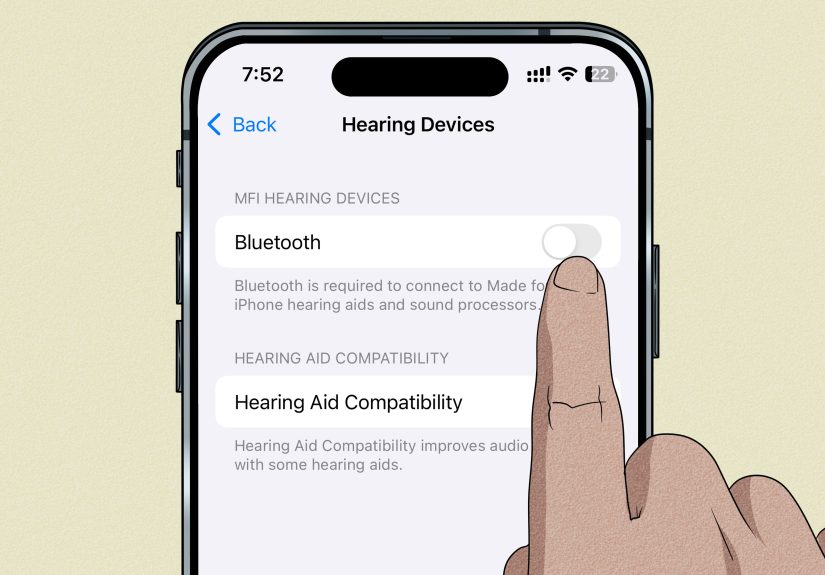
Step 3: Tap Hearing Devices
In the Accessibility menu, find and tap Hearing Devices. If you have compatible hearing aids paired to your iPhone, this section may show extra controls and device information.
Step 4: Turn off Hearing Aid Compatibility
Look for the Hearing Aid Compatibility switch and toggle it off. Once it is off, the iPhone will stop using that compatibility setting for calls.
That is it. For many users, this is the entire fix. If your goal was simply to disable hearing aid mode on iPhone, you can stop here, stretch, and accept your imaginary gold star.
Why You Might Want to Turn It Off
There are several common reasons people disable this setting:
- You turned it on by accident. It happens more often than people admit.
- You no longer use a hearing aid with your iPhone. If the feature is not serving a purpose, there is no reason to keep it active.
- You are troubleshooting call quality. Sometimes users toggle the setting off to compare audio performance.
- You are trying to stop audio from routing strangely. The main toggle is not always the culprit, but it is one of the first things worth checking.
- You bought a used iPhone. Previous settings can linger like mystery leftovers in a fridge.
What If the Toggle Is Off but the iPhone Still Acts Like Hearing Aid Mode Is On?
If you turned off Hearing Aid Compatibility and your iPhone is still routing calls or media to hearing devices, you may be dealing with a different setting entirely. This is where a lot of people get tripped up. The phrase “hearing aid mode” gets used loosely, but Apple spreads hearing-related controls across a few different places.
Check if hearing devices are still paired
If you use Made for iPhone hearing devices, your iPhone may still be connected to them even after you disable Hearing Aid Compatibility. In that case, the phone can continue sending audio to those devices.
To check, go back to Settings > Accessibility > Hearing Devices. If you see a paired device listed, tap it and review the available options.
Forget the hearing device
If you want to completely stop the connection, tap the device name and choose Forget this device. This unpairs it from your iPhone so it will not reconnect automatically until you pair it again later.
This is the nuclear option for people who are done troubleshooting and want a clean slate. It is also useful if your hearing devices are behaving like clingy Bluetooth roommates.
Turn off Live Listen
Live Listen is another feature that can make it seem like your iPhone is in some kind of hearing-assist mode. It uses the iPhone microphone to send sound to compatible hearing devices. Helpful in the right moment, confusing in the wrong one.
If it is active, go to Settings > Accessibility > Hearing Devices, tap your device, and end Live Listen.
Review phone and media audio routing
Some hearing-device settings let you decide whether phone calls and media audio are routed to the hearing device. If music, videos, or calls keep landing in your hearing aids instead of the iPhone speaker, this is the menu to inspect.
You can also check Settings > Accessibility > Touch > Call Audio Routing if call audio keeps going to the wrong place.
Does Turning Off Hearing Aid Compatibility Affect Bluetooth?
Not directly. Hearing Aid Compatibility is not the same thing as regular Bluetooth. Turning off the compatibility toggle changes the phone’s acoustic settings for hearing-aid support, but it does not automatically disable Bluetooth and it does not instantly erase paired devices.
That is an important distinction. If your issue is really a Bluetooth connection problem, you may need to unpair the device, reconnect it, restart the iPhone, or review the hearing aid maker’s app and pairing instructions.
In other words, turning off hearing aid mode on iPhone is a settings change, not a full breakup. If you want the breakup, use Forget this device.
Will Turning It Off Improve Call Quality?
Maybe, but it depends on your setup. If you do not use telecoil-based hearing support and the feature was enabled unnecessarily, turning it off may help you compare whether your call audio sounds more natural. If you do use compatible hearing aids, turning it off could make calls sound worse for that specific use case.
The safest way to think about it is this: Hearing Aid Compatibility is a specialized tool, not a universal audio booster. If you need it, it can help. If you do not need it, it may be one more setting complicating the picture.
Older iPhone Models vs. Newer iPhones
If you are following older tutorials online, you may see instructions that mention Hearing Aid Mode instead of Hearing Aid Compatibility. That is not necessarily wrong; it is just older Apple wording. On newer iPhones running recent versions of iOS, the path most users need is:
Settings > Accessibility > Hearing Devices > Hearing Aid Compatibility
So if a tutorial sounds like it was written during the era of tiny jeans pockets and home buttons everywhere, do not be surprised if the label is different.
Quick Troubleshooting Tips if the Setting Will Not Stay Off
Restart your iPhone
Sometimes the old classic still works. Turn the iPhone off, wait a few seconds, then power it back on. It is not glamorous, but neither is cleaning a microwave, and both get results.
Update iOS
If the setting behaves oddly, install the latest iOS update available for your device. Accessibility and connectivity bugs occasionally get cleaned up in software updates.
Check the hearing aid manufacturer’s app
Brands like Starkey, Oticon, Jabra Enhance, ReSound, and Phonak may use their own apps or pairing methods. If the hearing aid reconnects automatically or keeps streaming audio, part of the behavior may be controlled by the device ecosystem rather than the main iPhone toggle alone.
Reset network settings only if necessary
This is more of a last resort. If Bluetooth connections are badly tangled, resetting network settings can help, but it also wipes saved Wi-Fi networks and other connection preferences. Use it only when simpler fixes fail.
Common Questions About Disabling Hearing Aid Mode on iPhone
Can I turn off hearing aid mode without unpairing my device?
Yes. You can switch off Hearing Aid Compatibility and keep the hearing device paired. That said, paired hearing devices may still receive calls or media if routing settings remain enabled.
Where is hearing aid mode on iPhone?
On current iPhones, it is usually the Hearing Aid Compatibility toggle in Settings > Accessibility > Hearing Devices.
Why does my iPhone keep sending sound to my hearing aids?
Your hearing devices may still be paired, Live Listen may be on, or your phone and media audio may still be routed to the hearing device.
Is hearing aid mode the same as Live Listen?
No. They are separate features. Hearing Aid Compatibility changes acoustic settings, while Live Listen uses your iPhone as a remote microphone for compatible hearing devices.
Do I need to disable Bluetooth too?
Usually no. Bluetooth is separate. Turn it off only if you want to stop all Bluetooth connections, not just hearing-aid related behavior.
Real-Life Experiences With This Setting
In real life, the reason people search for how to disable hearing aid mode on an iPhone is rarely dramatic. It is usually one of those little daily annoyances that slowly grows teeth. Someone takes a call and the audio sounds slightly off. Someone else is trying to watch a video and cannot figure out why the sound is not coming from the speaker. Another person pairs a family member’s hearing devices during setup, then later forgets which setting changed what. Before long, everybody is poking through menus like they are defusing a tiny glass bomb.
A common experience goes like this: an iPhone user helps a parent or grandparent connect hearing aids for better call clarity. Everything works well for a while. Then weeks later, the phone seems to “remember” too much. Calls route unexpectedly, ringtones behave differently, or media audio disappears into the hearing devices when that is not what the user wanted. The person holding the phone may not even know the feature is called Hearing Aid Compatibility. They just know something feels off. That confusion is normal, because the label sounds technical while the problem feels personal and immediate.
Another everyday scenario involves used phones or hand-me-down devices. A person upgrades, passes the old iPhone to a relative, and forgets that Accessibility settings were customized long ago. The new user starts exploring the phone and stumbles into unusual call behavior. Nothing is “broken,” but the setup does not match the new owner’s needs. In those moments, turning off Hearing Aid Compatibility can feel ridiculously satisfying. It is like finding the one light switch in a hotel room that finally controls the lamp that has been glowing all night.
There are also users who do rely on hearing aids but still need to disable the setting temporarily. Maybe they are comparing sound quality, troubleshooting a connection issue, or trying to determine whether the hearing aid itself or the iPhone is causing a problem. That kind of testing is practical. It is not about rejecting the feature. It is about isolating variables and making the technology behave in a predictable way. When accessibility features work, they are wonderful. When they are misconfigured, they can feel like a polite chaos generator.
People also often assume one switch controls everything. It would be nice if that were true. In practice, the experience is more layered. You might turn off Hearing Aid Compatibility and still have a paired device sending audio somewhere unexpected. That leads to the classic moment of muttering, “I turned it off, so why is it still doing this?” The answer is usually that a different setting, such as audio routing, Live Listen, or the paired-device connection, is still active. Once users understand that, the whole system suddenly feels less mysterious.
The best experience usually comes from treating the iPhone’s hearing settings like a toolbox instead of one giant master button. Turn off the main compatibility toggle if you do not need it. Review routing if calls are acting strange. Unpair devices if you want a clean reset. That mindset helps people feel back in control, and honestly, control is half the battle with personal tech. The other half is remembering where Apple hid the button this time.
Conclusion
If you want to disable hearing aid mode on an iPhone, the fastest route is simple: go to Settings > Accessibility > Hearing Devices and turn off Hearing Aid Compatibility. For many users, that solves the problem in under a minute.
If it does not, the next suspects are usually paired hearing devices, Live Listen, or audio-routing settings. Once you know the difference between those features, fixing the issue becomes much less frustrating. The good news is that Apple gives you several ways to control hearing-related features. The slightly less thrilling news is that you may need to check more than one menu.
Still, once you know where to look, it is a quick job. Four steps for the main toggle, a few extra checks if audio is still misbehaving, and your iPhone can go back to being a phone instead of a part-time hearing-device manager.