Table of Contents >> Show >> Hide
- What Are Instagram Drafts?
- Important Things to Know Before Looking for Instagram Drafts
- How to Find Instagram Post Drafts
- How to Find Instagram Reel Drafts
- How to Find Instagram Story Drafts
- Why Can’t I Find My Instagram Drafts?
- How to Delete Instagram Drafts
- Instagram Drafts vs. Scheduled Posts: What Is the Difference?
- Best Practices for Using Instagram Drafts
- Quick Troubleshooting Checklist
- Experience-Based Tips: What Using Instagram Drafts Is Really Like
- Final Thoughts
Instagram drafts are a beautiful little safety netuntil you need to find them. One minute you are polishing a caption like it is a tiny novel, the next minute you save it for later, close the app, come back, and wonder if your draft has moved to a witness protection program.
The good news: your Instagram drafts are usually still there. The slightly annoying news: Instagram does not keep all drafts in one universal “Drafts” folder. Feed posts, Reels, and Stories each have their own hiding spot inside the app. That means finding your unfinished content depends on what kind of content you created in the first place.
This guide explains exactly how to find Instagram drafts for posts, Reels, and Stories, how to save them properly, why drafts sometimes disappear, and what to do when Instagram acts like it has never met you before.
What Are Instagram Drafts?
Instagram drafts are unfinished posts, Reels, or Stories that you save inside the Instagram app so you can return to them later. They are useful when you want to prepare content in advance, test captions, compare filters, add hashtags, or avoid posting something while your brain is running on coffee fumes and questionable confidence.
A draft can save different elements depending on the format. A feed post draft may keep your photo or video, edits, caption, tags, location, and selected settings. A Reel draft may preserve clips, timing, audio, effects, cover choices, and caption details. A Story draft may keep creative elements such as text, stickers, filters, GIFs, links, drawings, and layout edits.
However, drafts are not the same as archived posts, saved posts, scheduled posts, or content stored in your camera roll. Drafts are unfinished creations inside Instagram’s publishing workflow. Think of them as your content’s dressing roomnot the stage, not the closet, and definitely not a permanent backup vault.
Important Things to Know Before Looking for Instagram Drafts
Drafts Are Organized by Content Type
There is no single master folder where Instagram stores every draft. Post drafts live in the post creation area. Reel drafts live in the Reel creation area and may also appear from your profile’s Reels section. Story drafts live inside the Story camera gallery area.
Drafts Are Usually Saved on the Device You Used
If you created a draft on your iPhone, do not expect it to magically appear on your Android tablet, desktop browser, or your cousin’s phone. Instagram drafts are generally tied to the device and app installation where they were created. This is one of the biggest reasons users think their drafts are “gone.” They are often checking the right account on the wrong device.
Story Drafts Do Not Last Forever
Instagram Story drafts are temporary. They may disappear after about seven days, so they should not be treated as long-term storage. If you are creating an important Story campaign, save the original images or videos to your camera roll as a backup. Your future self will thank you with less dramatic sighing.
Drafts Are Mostly a Mobile App Feature
If you are using Instagram on a desktop browser, you may not see the same draft options available in the mobile app. For the smoothest experience, use the updated Instagram app on iPhone or Android.
How to Find Instagram Post Drafts
Instagram post drafts are used for regular feed posts, including single photos, videos, and carousel posts. These drafts are found inside the post creation flow, not in your profile settings.
Steps to Find Post Drafts on Instagram
- Open the Instagram app.
- Tap the plus icon, usually at the bottom or top of the screen depending on your app layout.
- Select Post.
- Look for a Drafts section near your recent photos or gallery area.
- Tap the draft you want to continue editing.
- Make any final changes, then tap Next and share when ready.
If you do not see a Drafts section, make sure you are in the Post creation area rather than Reel or Story mode. Instagram’s interface changes often, and the “Drafts” label may appear only when at least one post draft exists.
How to Save a Feed Post as a Draft
- Start creating a new Instagram post.
- Choose a photo, video, or carousel from your phone.
- Make at least one edit, such as adding a caption, applying a filter, tagging someone, or adding a location.
- Tap the back arrow before publishing.
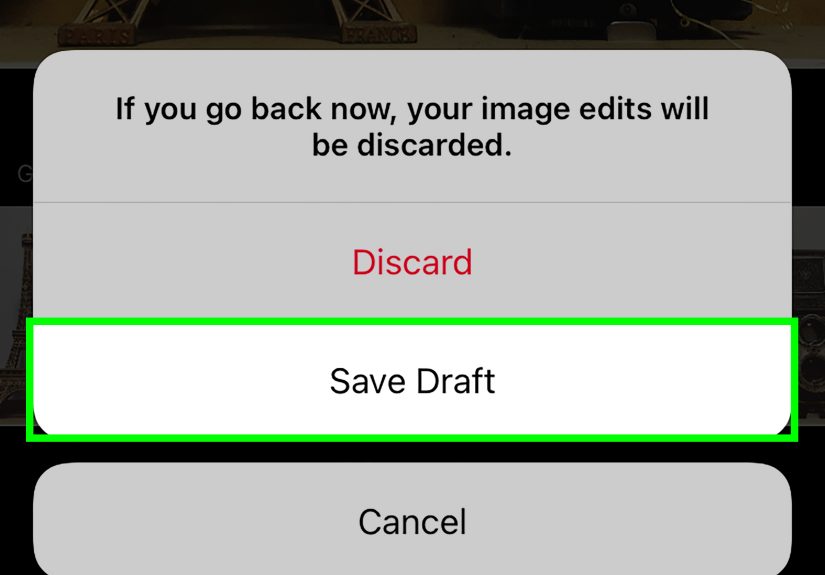
- Choose Save Draft when Instagram asks what you want to do.
Here is a small but important detail: if you select a photo and immediately back out without making any change, Instagram may not offer the Save Draft option. The app needs something to save. Give it a caption, filter, tag, or other edit before trying to save. Instagram is many things, but it is not a mind reader.
How to Find Instagram Reel Drafts
Reel drafts are slightly easier to spot than post drafts, but they still have their own location. If you recorded or edited a Reel and saved it before publishing, look in the Reel creation area first.
Method 1: Find Reel Drafts from the Create Menu
- Open Instagram.
- Tap the plus icon.
- Select Reel.
- Look for Drafts on the Reel screen.
- Tap the draft you want to edit or publish.
Method 2: Find Reel Drafts from Your Profile
- Go to your Instagram profile.
- Tap the Reels tab.
- Look for a draft thumbnail or a section labeled Drafts.
- Tap the Reel draft to reopen it.
Only you can see your Reel drafts. They are not visible to your followers, your friends, your competitors, or that one person who watches every Story but never likes a post.
How to Save a Reel as a Draft
- Create or upload a Reel.
- Add edits such as clips, audio, text, captions, effects, or a cover image.
- Tap Next.
- Instead of sharing, tap Save Draft.
Reel drafts are especially helpful because short-form video often takes more time than it looks. A 12-second Reel can somehow require 42 minutes of trimming, three caption rewrites, and a small emotional journey. Drafts let you stop before your patience files a complaint.
How to Find Instagram Story Drafts
Story drafts are found inside the Story creation area. They are useful for preparing quick updates, sales reminders, behind-the-scenes content, polls, countdowns, and link stickers before you are ready to post.
Steps to Find Story Drafts on Instagram
- Open Instagram.
- Swipe right from your home feed or tap the plus icon and choose Story.
- Tap the gallery thumbnail, usually in the lower-left corner.
- Look for a Drafts section near the top of your gallery.
- Tap the Story draft you want to continue editing.
If your Story drafts are missing, remember that they are temporary. They may be automatically deleted after about seven days. For anything important, always save your media to your phone before relying on Story drafts.
How to Save a Story as a Draft
- Create a new Story.
- Add text, stickers, music, GIFs, filters, drawings, polls, or other edits.
- Tap the back arrow or close button before posting.
- Select Save Draft when prompted.
Story drafts are great for quick planning, but they are not built for long-term content storage. If you are preparing a holiday campaign, product launch, or multi-day event sequence, keep backup files outside Instagram. A folder in your camera roll, cloud drive, or social media planner is much safer than hoping the app remembers your creative masterpiece forever.
Why Can’t I Find My Instagram Drafts?
If your Instagram drafts are not showing, do not panic. In many cases, the issue is simple. The draft may be in a different content section, saved on another device, expired, or removed after an app change.
You Are Looking in the Wrong Draft Location
This is the most common problem. Feed post drafts, Reel drafts, and Story drafts are not stored together. If you created a Reel, it will not appear in post drafts. If you created a Story, it will not appear in Reel drafts. Instagram makes you play hide-and-seek by format.
You Switched Devices
Drafts often stay on the device where they were created. If you saved a draft on your old phone, then logged into Instagram on a new one, the draft may not appear. Before replacing or resetting a phone, publish, download, or recreate any important drafts.
You Deleted or Reinstalled the App
Uninstalling Instagram may remove local draft data. Reinstalling the app can fix some bugs, but it can also wipe drafts. If your drafts matter, avoid uninstalling the app until you have saved your original photos or videos somewhere else.
Your Story Draft Expired
Story drafts are temporary. If it has been around a week since you saved the Story, it may no longer be available. This is normal behavior, not necessarily a bug.
The App Needs an Update
Instagram updates frequently. If your draft folder looks different or does not appear, check the App Store or Google Play Store for updates. After updating, close and reopen the app.
The Draft Was Never Actually Saved
It happens. You may have backed out, tapped Discard by mistake, or closed the app before the draft finished saving. To avoid this, wait for Instagram to confirm that the draft has been saved before leaving the app.
How to Delete Instagram Drafts
Drafts can pile up quickly. One day you have two unfinished posts; the next day you have a graveyard of old captions, blurry coffee photos, and a Reel idea that seemed fun at midnight but now feels legally questionable.
Delete Post Drafts
- Open Instagram and tap the plus icon.
- Select Post.
- Open the Drafts section.
- Look for Manage, Select, or a similar option.
- Choose the drafts you want to remove.
- Tap Discard or Delete.
Delete Reel Drafts
- Go to the Reel drafts area from the plus icon or your profile’s Reels tab.
- Open your Reel drafts.
- Select the draft you want to delete.
- Use the edit, select, or menu option to discard it.
Delete Story Drafts
- Open the Story camera.
- Tap the gallery thumbnail.
- Open Drafts.
- Select the draft or drafts you no longer need.
- Tap Delete or Discard.
Menu labels may vary slightly by app version, but the general idea is the same: open the draft area for that format, select the unwanted draft, and discard it.
Instagram Drafts vs. Scheduled Posts: What Is the Difference?
A draft is unfinished content saved for later editing or posting. A scheduled post is content set to publish at a specific time. Drafts are better for rough ideas and work-in-progress content. Scheduling is better when the content is finished and you already know when it should go live.
For example, if you are testing three captions for a product photo, save it as a draft. If the caption, hashtags, tags, and media are final and you want it to post Friday at 10 a.m., schedule it instead.
Best Practices for Using Instagram Drafts
Use Drafts for Batch Content Creation
If you run a small business, creator account, or personal brand, drafts can help you batch content. Create several posts in one sitting, save them as drafts, then publish throughout the week. This keeps your posting schedule consistent without forcing you to create from scratch every day.
Keep Captions in a Separate Notes App
Instagram drafts are convenient, but they are not bulletproof. Save important captions, hashtags, product details, and calls to action in a notes app, document, or content calendar. That way, if a draft disappears, your words are not gone forever.
Save Original Media to Your Phone
Before editing inside Instagram, keep the original photo or video in your camera roll. This is especially important for Reels and Stories that use multiple clips. Instagram drafts can fail; your camera roll is the backup plan wearing sensible shoes.
Name Your Files Before Uploading
Instagram does not let you name drafts in a detailed way. If you are managing many assets, organize the original files on your phone or computer with clear names, such as “summer-sale-reel-clip-1” or “client-testimonial-carousel.” It makes rebuilding a lost draft much easier.
Review Drafts Before Posting
Always review a draft before sharing. Check for typos, broken tags, missing cover images, old promo codes, incorrect dates, and hashtags that no longer fit. Drafts are helpful, but they will not stop you from posting “Big Sale Tomorrow” three weeks after the sale ended. Rude, but true.
Quick Troubleshooting Checklist
- Check the correct format: Post, Reel, or Story.
- Use the same device where you created the draft.
- Make sure you are logged into the correct Instagram account.
- Update the Instagram app.
- Restart the app and try again.
- Check your phone storage.
- Avoid uninstalling Instagram if you still need your drafts.
- Remember that Story drafts may expire after about seven days.
Experience-Based Tips: What Using Instagram Drafts Is Really Like
After working with Instagram drafts for everyday posting, creator planning, and small business content, one thing becomes very clear: drafts are useful, but they work best when you treat them as a temporary workspace rather than a permanent filing cabinet. They are perfect for holding a nearly finished idea, but they are not ideal for storing your entire content strategy.
For feed posts, drafts are most helpful when you are trying to get the caption right. Maybe you have a product photo, a customer testimonial, or a travel shot that looks great, but the caption still feels flat. Saving it as a draft gives you time to come back with fresher eyes. Many creators write a simple caption first, save the draft, then return later to improve the hook, add a stronger call to action, and clean up hashtags. This method works because a caption often sounds better after you stop staring at it like it owes you money.
For Reels, drafts are a lifesaver because video editing inside Instagram can be surprisingly detailed. You may need to trim clips, adjust timing, test audio, choose a cover, add text overlays, and decide whether the first two seconds are interesting enough to stop the scroll. Saving a Reel draft lets you step away before publishing something rushed. A practical habit is to save two versions of a Reel idea: one with the original timing and one with faster cuts. Watch both later and choose the one that feels more natural.
Story drafts are best for short-term planning. For example, a boutique might prepare a Story with a poll, a behind-the-scenes clip, and a product link before a new arrival goes live. A fitness coach might create a morning reminder Story the night before. A restaurant might build a daily special Story during prep time and post it closer to lunch. These drafts are convenient, but because they are temporary, they should be posted soon or backed up elsewhere.
The biggest mistake people make is assuming Instagram drafts are cloud storage. They are not. If you create a draft, then switch phones, clear app data, uninstall Instagram, or wait too long with a Story draft, you may lose it. The safest workflow is simple: keep the original media in your camera roll, save captions in a notes app, and use Instagram drafts only for final assembly.
Another helpful habit is to clean drafts weekly. Old drafts create clutter and make it harder to find the content you actually want. Set aside a few minutes every Friday to delete abandoned ideas, update posts that are still relevant, and publish anything that is ready. It is like cleaning your desk, except the desk is inside your phone and somehow full of half-edited latte photos.
For brands and creators, drafts are also great for approval workflows, as long as you do not rely on them alone. Prepare the content in Instagram so you can see how it will look, but keep the caption, assets, and notes in a shared document or content calendar. That way, if the draft disappears, your campaign does not disappear with it.
In short, Instagram drafts are excellent for pausing, polishing, and planning. Use them to avoid rushed posts, improve your creative work, and keep content moving. Just remember the golden rule: drafts are a workspace, not a backup system.
Final Thoughts
Finding your Instagram drafts is easy once you know Instagram’s little secret: each content type has its own draft location. Post drafts are found through the Post creation flow. Reel drafts are found through the Reel creation flow or your profile’s Reels tab. Story drafts are found inside the Story camera gallery area and may disappear after about seven days.
If your drafts are missing, check the correct content type, use the same device, update the app, and avoid reinstalling Instagram before saving important content elsewhere. Drafts can make your Instagram workflow smoother, calmer, and more organizedas long as you do not treat them like a magical vault guarded by social media elves.