
Table of Contents >> Show >> Hide
- What “Network Cable Unplugged” Actually Means
- Start Here: The Fastest Checks First
- Restart the Equipment Before You Blame Windows
- Check Windows Before You Dive Into Driver Drama
- Fix the Network Adapter in Device Manager
- Adjust Advanced Adapter Settings That Often Cause This Error
- Use Bigger Windows Fixes Only After the Basics
- Special Cases People Forget About
- A Smart Step-by-Step Order That Saves Time
- Common Mistakes That Make the Problem Worse
- Conclusion
- Real-World Experiences With “Network Cable Unplugged” Errors in Windows
- SEO Tags
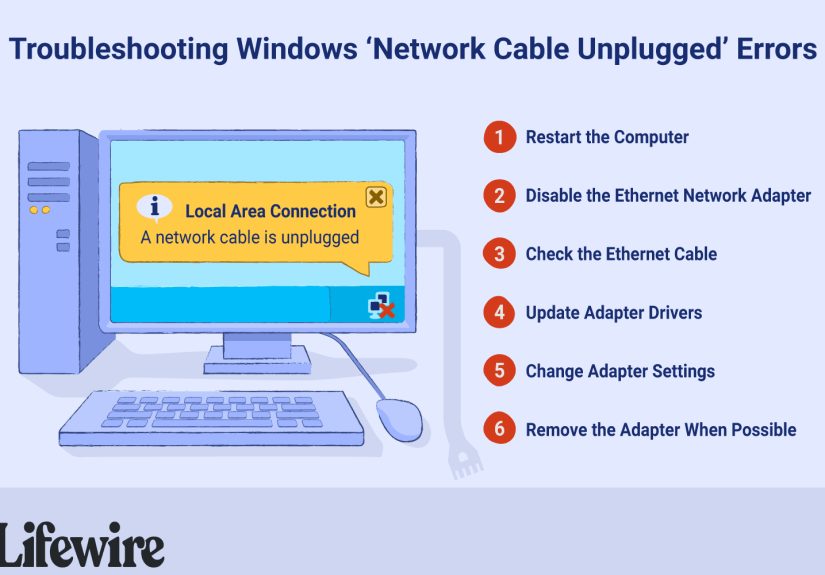
Few Windows errors are as dramaticand as unhelpfulas the classic “Network cable unplugged” message. You know the one: the Ethernet cable is clearly plugged in, the router is sitting there like it has done nothing wrong, and Windows still acts like the cable ran away to start a new life. Annoying? Absolutely. Fixable? Usually, yes.
This guide walks through the smartest way to fix network cable unplugged errors in Windows without wasting half your day clicking random settings and threatening your PC with emotional speeches. The good news is that this problem is usually caused by a small group of issues: a loose or damaged cable, a dead router or switch port, a disabled or glitchy Ethernet adapter, buggy drivers, overly aggressive power-saving features, or incorrect adapter settings.
The goal is simple: restore the physical Ethernet link, get Windows to recognize it correctly, and make sure the connection stays stable. The steps below work best for Windows 10 and Windows 11, but most of the logic also applies to older versions of Windows.
What “Network Cable Unplugged” Actually Means
Before jumping into fixes, it helps to understand what Windows is really saying. In most cases, this error appears when your Ethernet adapter does not detect a physical link. That means the computer thinks there is no live wired connection between your PC and the router, modem, switch, wall jack, dock, or USB-to-Ethernet adapter.
That is why this message is different from “No internet” or “Unidentified network.” If Windows says the cable is unplugged, it usually means the problem is happening before IP addresses, DNS, websites, or streaming complaints even enter the chat.
Start Here: The Fastest Checks First
1. Reseat the Ethernet cable on both ends
Pull the Ethernet cable out of the PC and the router or switch, then plug it back in firmly until it clicks. That click matters. A cable that looks connected but is not fully latched can trigger the error instantly.
Also verify that the cable is connected to the correct port. On some equipment, people accidentally plug into the WAN or Internet port instead of a LAN port. That mistake is more common than anyone wants to admit.
2. Try a different cable
If you have a spare Ethernet cable nearby, swap it in. Do not overthink it. Cables fail, clips break, internal wires get bent, pets do pet things, and desk chairs quietly roll over cords like tiny forklifts.
A bad cable is one of the most common causes of this error, especially if the message appeared suddenly after you moved your desk, changed routers, or cleaned up cable clutter with a little too much confidence.
3. Try a different router, switch, or wall port
Sometimes the cable is fine, but the port is not. Move the Ethernet cable to another LAN port on your router or switch. If you are in an office or dorm, try another wall jack if one is available.
If the connection comes back on a different port, congratulations: Windows was not lying, just technically dramatic.
4. Look for link lights
Check the LEDs near the Ethernet port on your PC, dock, adapter, router, or switch. A blinking or solid link light usually means the hardware sees a wired connection. No light often points to a physical link problem: cable, port, adapter, or device power.
This is a tiny check that can save a lot of random clicking in Windows.
Restart the Equipment Before You Blame Windows
5. Power cycle the modem, router, and PC
Unplug the power from your modem and router, wait about 30 seconds, then power them back on. If you use a modem-router combo, restart that single device. After the network equipment fully boots, restart your Windows PC too.
Why does this help? Because network devices sometimes get stuck negotiating the Ethernet link properly. A restart forces the connection to rebuild from scratch. Is this glamorous? No. Is it weirdly effective? Constantly.
Check Windows Before You Dive Into Driver Drama
6. Make sure the Ethernet adapter is enabled
Open Settings > Network & Internet > Advanced network settings, then look for your Ethernet adapter. If it is disabled, enable it.
You can also open the classic adapter view and confirm that the Ethernet connection is not grayed out. A disabled adapter can produce behavior that looks like a cable problem when the real issue is simply that Windows is not using the device.
7. Run Windows network diagnostics
On Windows 11, use the Get Help troubleshooter for network and internet issues. On some systems, you can still run network diagnostics from the network icon or the troubleshooting area in Settings.
Will the troubleshooter solve everything? No. But it can quickly flag a disabled adapter, missing driver, or obvious configuration problem. Think of it as a useful first opinion, not the final boss.
Fix the Network Adapter in Device Manager
8. Update the Ethernet driver
Open Device Manager, expand Network adapters, right-click your Ethernet adapter, and choose Update driver. Let Windows search automatically first. If that does not help, download the latest driver from your PC or motherboard maker and install it manually.
This matters because buggy or outdated Ethernet drivers can cause Windows to misread the link state, especially after a Windows update, BIOS update, motherboard driver package change, or dock firmware update.
Common adapter names include Realtek PCIe GbE Family Controller, Intel Ethernet Connection, Killer Ethernet, USB GbE adapters, and docking-station Ethernet devices. Install the correct driver for your exact hardware, not “something close enough.” That approach works better for pizza toppings than for network adapters.
9. Uninstall and reinstall the Ethernet driver
If updating the driver does not work, uninstall the adapter in Device Manager, then restart the PC. Windows often redetects the device and reinstalls the driver automatically.
This is especially useful when the driver has become corrupted or the adapter is stuck after an update. It is one of the best fixes for Ethernet connections that worked yesterday and mysteriously forgot how to be Ethernet today.
10. Check for warning icons in Device Manager
If your Ethernet adapter shows a yellow warning icon, red X, or error code, that is an immediate clue. In that case, the problem may be the driver, the device state, or the hardware itself rather than the cable alone.
If Windows does not see the adapter at all, the issue may involve a BIOS setting, a failed port, a dock problem, or a disconnected internal device on the motherboard.
Adjust Advanced Adapter Settings That Often Cause This Error
11. Turn off power-saving features
In Device Manager, right-click the Ethernet adapter, choose Properties, and open the Power Management tab. If you see the option “Allow the computer to turn off this device to save power,” uncheck it.
Then check the Advanced tab for settings such as Energy Efficient Ethernet, Green Ethernet, or Power Saving Mode. If your connection is unstable or repeatedly falls back to “network cable unplugged,” try disabling those features.
This is especially helpful on some Realtek and Intel adapters, laptops with aggressive sleep behavior, and systems connected through docks or USB Ethernet devices.
12. Set Speed & Duplex to Auto Negotiation
In the adapter’s Advanced settings, find Speed & Duplex and make sure it is set to Auto Negotiation if that option is available. That is usually the safest setting.
If auto-negotiation is already enabled and the connection still fails, a temporary test with a fixed setting such as 100 Mbps Full Duplex can sometimes help identify compatibility problems between the PC and the router, switch, dock, or older wall infrastructure. Use this as a diagnostic step, not your first move.
A practical example: an older office switch or flaky wall jack may fail to negotiate gigabit properly, while a lower fixed speed can briefly restore the link and confirm where the weakness lives.
Use Bigger Windows Fixes Only After the Basics
13. Perform a network reset
If the physical cable and port checks looked good, the adapter is enabled, and the driver changes did not solve it, use Network reset in Windows. This reinstalls network adapters and resets several networking components to default behavior.
This fix is useful when the issue appeared after a Windows update, VPN software install, third-party firewall tool, security suite, dock utility, or driver package that changed the networking stack in a messy way.
Be aware that a network reset may remove saved adapter settings, custom VPN entries, or other network-related tweaks. In other words, it is effective, but it does not travel light.
14. Reset TCP/IP and renew the connection
If Windows starts detecting the cable again but the connection still behaves strangely, open Command Prompt as administrator and use commands like:
These commands are better for post-link issues than true cable-detection problems. If Windows still says the cable is unplugged, focus on hardware, drivers, and adapter settings first.
Special Cases People Forget About
15. Check docks, dongles, and USB Ethernet adapters
If you use a USB-C dock or USB-to-Ethernet adapter, disconnect and reconnect it. Try another USB port if possible. Some docks also need their own drivers, firmware, or management utility running correctly before Ethernet works normally.
If Ethernet works when plugged directly into another adapter or another computer, your dock may be the real troublemaker.
16. Test with another computer
Connect the same Ethernet cable to another laptop or desktop. If the second device works, the issue is likely your Windows PC, adapter, driver, or port. If the second device also fails, the problem is probably the cable, router port, switch, wall jack, or ISP equipment.
This one test can save a ridiculous amount of guessing.
17. Consider BIOS or hardware failure
If the Ethernet adapter is missing from Windows entirely, never lights up, and refuses to work even with known-good cables and ports, the Ethernet controller or motherboard port may be failing. On some desktops, a cheap USB or PCIe Ethernet adapter is the quickest way to confirm the diagnosis.
On laptops, especially thin models, a damaged port or dock compatibility issue is also possible.
A Smart Step-by-Step Order That Saves Time
If you want the shortest logical path, use this order:
- Reconnect the cable firmly on both ends.
- Try another Ethernet cable.
- Try another router, switch, or wall port.
- Check link lights.
- Restart modem, router, switch, dock, and PC.
- Confirm the Ethernet adapter is enabled.
- Run Windows diagnostics.
- Update the Ethernet driver.
- Uninstall and reinstall the adapter.
- Disable power-saving features and Energy Efficient Ethernet.
- Confirm Speed & Duplex is set correctly, usually Auto Negotiation.
- Use Network reset if the issue still refuses to leave.
Common Mistakes That Make the Problem Worse
- Replacing random Windows settings before testing the cable.
- Assuming the router port is fine without trying another one.
- Installing the wrong network driver.
- Ignoring docks and USB adapters.
- Using IP or DNS commands before restoring the physical Ethernet link.
- Forgetting that power-saving features can break wired stability after sleep or restart.
Conclusion
The network cable unplugged error in Windows usually looks scarier than it is. In most cases, the fix comes down to one of four things: a bad cable, a bad port, a confused driver, or a network adapter setting that got a little too clever for its own good.
Start with the physical connection, then check the adapter, then repair the driver, and only then move to resets and deeper settings. That order is faster, cleaner, and much less likely to turn a five-minute fix into a two-hour troubleshooting documentary.
And remember: when Windows says the cable is unplugged, it is not always wrong. Sometimes it is just pointing at the wrong suspect.
Real-World Experiences With “Network Cable Unplugged” Errors in Windows
One of the most common real-life experiences with this error happens in home offices. Someone moves a desk, rearranges a monitor arm, or finally decides to tame the cable jungle behind the PC. Everything looks cleaner, but the next boot brings the dreaded “network cable unplugged” message. In these cases, the problem is often a cable clip that broke earlier and finally stopped holding tension, or a cable that got pinched behind furniture. The fix feels almost insulting: replace the cable, and everything works again.
Another very common situation shows up after a Windows update or motherboard driver update. The cable is plugged in, the router is fine, and the same cable works on a different laptop. But the original PC suddenly loses Ethernet and insists nothing is connected. This is where updating or reinstalling the Ethernet driver often saves the day. Many people assume the router failed, when the real culprit is the adapter driver acting like it needs a coffee and a nap.
Laptop docks create their own flavor of chaos. A user connects through a USB-C dock all week without trouble, then one morning the wired connection disappears. Wi-Fi still works, but Ethernet shows no link. In practice, that may be caused by a dock firmware quirk, a USB controller hiccup, or the dock utility not loading correctly after sleep. Reconnecting the dock, changing USB-C ports, or reinstalling the dock’s Ethernet driver often resolves it. The dock, of course, never apologizes.
Office environments add another twist: old wall jacks and aging switches. A desktop may show “network cable unplugged” in one room but work perfectly in another. That experience often leads people to blame the computer first, because the PC is the thing they can actually see. But after testing the same machine on another port, the truth comes out: the wall jack, patch cable, or switch port was the weak link all along. This is where checking link lights and trying another port saves a massive amount of guesswork.
There are also cases where the problem appears only after waking from sleep. The Ethernet connection drops, Windows says the cable is unplugged, and the connection returns only after a reboot. That pattern strongly suggests power management or energy-saving features on the adapter. Disabling settings like Energy Efficient Ethernet or the option that lets Windows turn off the adapter can make the issue disappear permanently.
Probably the most frustrating experience is when the fix is tiny but hidden. The cable works. The port works. The driver is current. Then someone opens Device Manager and notices the adapter is disabled, set to the wrong speed, or carrying a strange configuration left behind by old software. One small setting change later, Ethernet comes back like nothing happened.
The lesson from all these experiences is simple: this error feels mysterious, but it usually is not. It rewards calm, methodical troubleshooting. Start with what is physical, move to what is configured, and only then reset the whole network stack. That approach solves the problem more often than panic-clicking your way through every menu in Windows.







 Close
Close