Table of Contents >> Show >> Hide
- Quick Answer: How to Turn On Voice Directions in Apple Maps
- How to Get Voice Directions on Apple Maps on iPhone
- How to Get Voice Directions on Apple Maps on iPad
- How to Change Spoken Directions Settings in Apple Maps
- How to Change the Apple Maps Voice
- Why Apple Maps Voice Directions May Not Be Working
- Helpful Tips for Better Apple Maps Navigation
- Best Use Cases for Voice Directions on iPhone and iPad
- Real-Life Experiences Using Apple Maps Voice Directions
- Final Thoughts
- SEO Tags
If Apple Maps has ever silently traced your route while you sat there waiting for a helpful “turn left in 500 feet,” you are not alone. Apple Maps is usually pretty good at acting like a calm backseat driver, but only if the right settings are turned on. The good news is that getting voice directions on an iPhone or iPad is not complicated. The less-good news is that Apple hides some of the most important controls in places you would never check unless a tiny cartographer whispered them into your ear.
This guide walks you through how to turn on voice directions in Apple Maps, how to make them louder, how to change the voice, and how to fix the app when it suddenly decides to become strong and silent. Whether you use Apple Maps for daily commuting, weekend errands, or avoiding the classic “I totally knew this was the exit” lie, these steps will help you hear every turn clearly.
Quick Answer: How to Turn On Voice Directions in Apple Maps
To get spoken directions on Apple Maps, open Maps, enter a destination, tap Directions, choose your route, and tap Go. Once navigation starts, tap the Audio Control button on the map and make sure the app is set to Unmuted instead of Muted or Alerts Only.
If you still do not hear anything, go to Settings > Apps > Maps > Spoken Directions and check the voice volume and related options. On some devices, changing the Apple Maps voice also means changing your Siri or Apple Intelligence & Siri voice settings.
How to Get Voice Directions on Apple Maps on iPhone
1. Open Maps and start a real route
This part matters more than people think. Apple Maps does not usually speak just because you searched for a location. You need to start live navigation.
- Open the Maps app.
- Enter an address, business name, or drop a pin.
- Tap Directions.
- Select your preferred route.
- Tap Go.
That last button is the difference between “previewing” and “actually being guided.” If you are only looking at steps, Apple Maps may show the route but stay quiet. In other words, it is not being rude. It is just waiting for a commitment.
2. Check the Audio Control button during navigation
Once your route starts, look at the map screen for the Audio Control button. Tap it and you should see voice options such as:
- Unmuted all directions are spoken
- Alerts Only only certain driving alerts are spoken
- Muted no directions are spoken
If you want full voice guidance, choose Unmuted. If Apple Maps is only chiming in occasionally, it may be stuck on Alerts Only. If it says nothing at all, it is probably muted.
3. Adjust the navigation voice volume
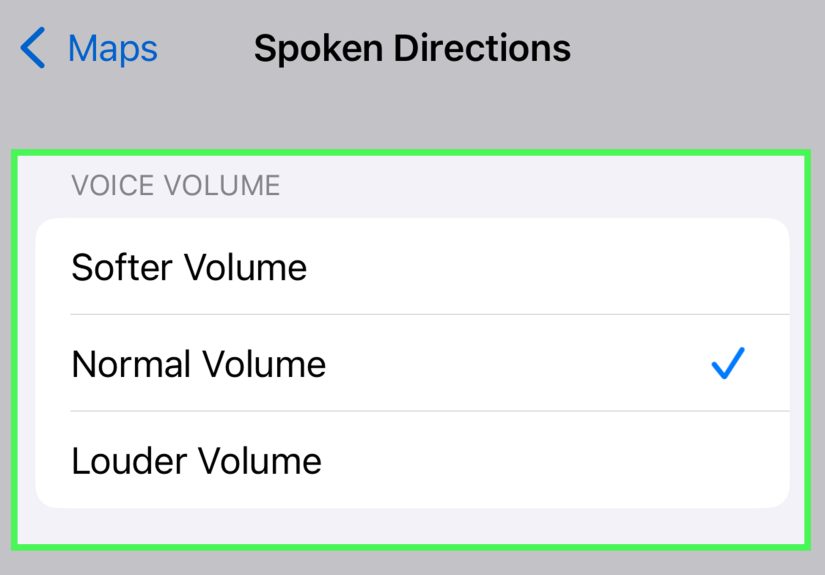
Apple Maps also gives you volume options for spoken directions. Depending on your device and software version, you may see settings such as Louder, Normal, or Softer.
This is useful when the app is technically talking but getting steamrolled by your playlist, a podcast, or the dramatic hum of highway driving. If you are using Bluetooth in the car, remember that your car’s audio volume also plays a role. Sometimes the iPhone is doing its job perfectly while the car stereo is pretending otherwise.
How to Get Voice Directions on Apple Maps on iPad
The process on iPad is very similar, but there are a couple of small details worth knowing.
- Open Maps on your iPad.
- Search for your destination.
- Tap Directions.
- Choose a route.
- Tap Go to begin navigation.
Once navigation starts, tap the Audio Control button on the map and choose the spoken guidance mode you want. If you only see Steps instead of Go, you may be viewing a route preview rather than starting live navigation. That can prevent spoken directions from kicking in.
For people who use an iPad in the car, on a bike mount, or for larger on-screen directions, this matters a lot. The bigger display is nice, but only if the device also gives you the verbal cues that keep your eyes off the screen.
How to Change Spoken Directions Settings in Apple Maps
If you want Apple Maps to behave better long-term, do not stop at the in-route audio button. Head into the settings menu and tune it properly.
Go to Settings for Apple Maps spoken directions
On iPhone or iPad, open:
Settings > Apps > Maps > Spoken Directions
Inside this area, you may see options like:
- Voice Volume choose how loud the directions sound by default
- Directions Pause Spoken Audio pauses podcasts or audiobooks so directions are easier to hear
- Directions Wake Device wakes the screen when spoken directions arrive during driving or cycling
- Directions on Radio on supported cars, directions can play while the radio is on
If you listen to spoken-word audio often, Directions Pause Spoken Audio is a great setting. Instead of forcing you to choose between the plot twist in your audiobook and the correct freeway exit, Apple Maps briefly steps in, gives the direction, and lets your audio resume. Civilization has peaked.
How to Change the Apple Maps Voice
Apple Maps uses Siri for voice navigation, so if you want a different voice, accent, or language, you need to adjust Siri-related settings rather than a separate “Maps voice store,” which sadly does not exist.
On iPhone
Go to:
Settings > Siri or Settings > Apple Intelligence & Siri
Then look for:
- Language
- Voice
On iPad
Go to:
Settings > Apple Intelligence & Siri
Then choose a different language or voice option. This change affects more than Maps, so think of it as a household decision for your Apple assistant. If you pick a new voice, you are not just changing navigation. You are recasting Siri.
For example, if you prefer a different accent or a voice that sounds clearer over road noise, this setting can make everyday navigation much less annoying. A voice you can understand quickly is not a cosmetic upgrade. It is a practical one.
Why Apple Maps Voice Directions May Not Be Working
If Apple Maps is not speaking, the problem is usually one of a few common issues. Here is how to troubleshoot it without immediately blaming your phone, your car, or the concept of modern technology.
You never actually started navigation
Seeing a route on-screen is not the same as starting turn-by-turn guidance. Tap Go, not just Directions or Steps.
The app is muted
Open the route screen and tap the Audio Control button. Switch from Muted or Alerts Only to Unmuted.
Your volume is too low
Raise the iPhone or iPad volume. If you are connected to Bluetooth, CarPlay, AirPods, or a vehicle speaker system, also raise the external volume there. Many “Apple Maps has no sound” complaints are really “my car volume was at 2” situations.
Location Services are not enabled properly
Apple Maps needs location access to guide you accurately. If the app cannot determine where you are, spoken directions can fail or become unreliable. Check location permissions if navigation seems confused, delayed, or suspiciously philosophical.
Your internet connection is weak
Live turn-by-turn navigation works best with a solid connection. If you are in a poor coverage area, route guidance can become less reliable. This is especially noticeable when rerouting, loading traffic conditions, or switching modes on the fly.
Your spoken directions settings need a reset
Return to Settings > Apps > Maps > Spoken Directions and review everything. If spoken audio is not pausing correctly, the volume is too soft, or your car radio is swallowing directions, the fix is often hiding there.
Helpful Tips for Better Apple Maps Navigation
Use Siri to launch directions faster
You can say things like “Give me driving directions home” and let Siri open Maps and set the route. This is especially handy when your hands are full, your coffee is in one hand, and your sense of direction is in another zip code.
Pick the right mode
Apple Maps offers spoken guidance for driving, cycling, and walking. Make sure you are in the right travel mode. Walking directions can behave differently from driving directions, especially with arrival timing and route cues.
Use CarPlay when available
If your vehicle supports CarPlay, Apple Maps can provide spoken turn-by-turn directions there as well. That can give you cleaner audio output, easier route control, and a better interface for road navigation.
Keep your settings practical, not dramatic
A good setup for many people is Unmuted plus Directions Pause Spoken Audio turned on. That gives you clear guidance without making the app shout over every song like it is auditioning for a traffic-themed podcast.
Best Use Cases for Voice Directions on iPhone and iPad
Voice directions are not just for drivers who get lost in their own neighborhood. They are useful in lots of everyday situations:
- Commuting: hear reroutes and turns without staring at the phone
- Walking in busy areas: keep your eyes on sidewalks and traffic
- Cycling: get cues without stopping every few minutes to check the map
- Traveling: use spoken guidance in unfamiliar cities
- Running errands: jump between destinations without juggling multiple apps
For example, if you are driving to a new doctor’s office across town, spoken directions help you stay focused on traffic instead of trying to decode the blue route line while sitting at a red light. If you are walking through a downtown area, hearing “turn right at the next intersection” is much easier than pretending you are casually reading your phone while secretly trying not to miss the block.
Real-Life Experiences Using Apple Maps Voice Directions
One of the biggest differences between using Apple Maps with voice directions turned on and using it silently is stress level. A silent map makes you feel like you are taking a quiz. A speaking map feels more like having a patient guide riding along. On an iPhone, that difference is huge during rush hour. You can keep the phone mounted, listen for directions, and focus on lane changes instead of glancing down every ten seconds like a nervous contestant on a driving game show.
A lot of people first realize the value of voice guidance when they are in a place they almost know. Not a completely unfamiliar city, but a familiar area with one or two weird intersections, surprise road closures, or that one exit you always miss because it appears with the drama of a jump scare. In those situations, Apple Maps voice directions can save time and reduce the mental load. Hearing a calm instruction before the turn gives you time to react naturally instead of braking late and muttering things that do not belong in a family blog.
Walking directions are another underrated use case. When you are navigating on foot, constantly staring at a screen can make you slower, less aware of your surroundings, and more likely to bump into a sign, a stranger, or your own pride. Spoken directions on an iPhone let you keep the phone in your hand or pocket while still knowing when to turn. This is especially useful in tourist-heavy areas, large downtown districts, or college campuses where every building somehow looks both important and impossible to identify.
On an iPad, the experience is slightly different but still useful. Some people use an iPad in the car because the larger screen is easier to read at a glance. Others use it for trip planning before leaving home. Once voice directions are enabled, the iPad becomes much more practical as a navigation tool. The big display helps with route overview, while the spoken prompts take over when you need real-time guidance. It is a good combination for users who like visual context but do not want to babysit the map every minute.
There is also the audio comfort factor. Changing the Siri voice for Apple Maps can sound minor, but it can genuinely improve the experience. A voice that is clearer, more natural to your ear, or easier to hear over car noise makes directions feel less repetitive. Over time, that matters. Daily commuters know this better than anyone. If you hear navigation prompts twice a day, five days a week, you want a voice that feels helpful instead of weirdly robotic, overly soft, or determined to pronounce every street name like it is starring in an avant-garde theater production.
And then there is the “podcast interruption” issue, one of the great modern inconveniences. When spoken directions are set up correctly, Apple Maps can pause spoken audio so your podcast or audiobook does not battle the navigation voice. That small feature makes the entire trip feel smoother. Instead of audio chaos, you get a quick direction, a clean pause, and a return to your show. It is the kind of tiny quality-of-life improvement that does not sound exciting until you use it, and then suddenly it feels essential.
Final Thoughts
If you want voice directions on Apple Maps, the key is simple: start live navigation, tap the audio controls, and make sure the app is not muted. After that, head into Settings > Apps > Maps > Spoken Directions to fine-tune volume and behavior. If you want a different navigation voice, change your Siri or Apple Intelligence & Siri voice settings. And if Apple Maps goes quiet when you need it most, check the route status, audio output, internet connection, and location permissions before declaring war on your device.
Once everything is set correctly, Apple Maps becomes much more useful on both iPhone and iPad. It is easier, safer, and a lot less annoying than trying to decode turns in silence while juggling real life around you. Navigation should feel like help, not homework.