Table of Contents >> Show >> Hide
- Why iPad Storage Fills Up So Fast
- Start With the Storage Map
- Delete, Offload, or Leave It Alone?
- The Biggest Storage Hogs and How to Handle Them
- How to Back Up Your iPad Before You Start Deleting Things
- Smart Long-Term Habits That Keep Storage Under Control
- What Not to Do
- Real-World Experiences With iPad Storage Management
- Final Thoughts
Your iPad starts life as a shiny little productivity hero. Then, somewhere between “I’ll just download one movie” and “Why do I still have 19 screenshots of the same recipe?”, it turns into a digital junk drawer. One day you try to install an update, save a video, or download a new app, and your iPad politely informs you that storage is full. Not ideal.
The good news is that managing storage on your iPad is not rocket science, nor does it require ritual chanting over the Settings app. With the right strategy, you can free up space, protect your important files, and keep your tablet running smoothly without deleting something precious by accident. This guide walks through how to check what is eating your space, when to delete apps versus offload them, how to back up your iPad, and the smartest ways to prevent the problem from coming back next week wearing a fake mustache.
Why iPad Storage Fills Up So Fast
Most people assume apps are the main problem, but that is only part of the story. On many iPads, storage disappears into a pile of photos, videos, downloaded files, message attachments, offline content from streaming apps, and app data that quietly grows in the background. A tiny note-taking app may be harmless, but a video editor, drawing app, game, or cloud storage app can swell into a serious space hog over time.
That is why the first rule of iPad storage management is simple: do not guess. Your biggest problem may not be the app you use the most. Sometimes the villain is a folder of downloaded PDFs, a few giant 4K videos, or a messaging thread stuffed with years of memes and vacation clips. Technology has a sense of humor, and unfortunately, you are usually the punchline.
Start With the Storage Map
Check What Is Using Space
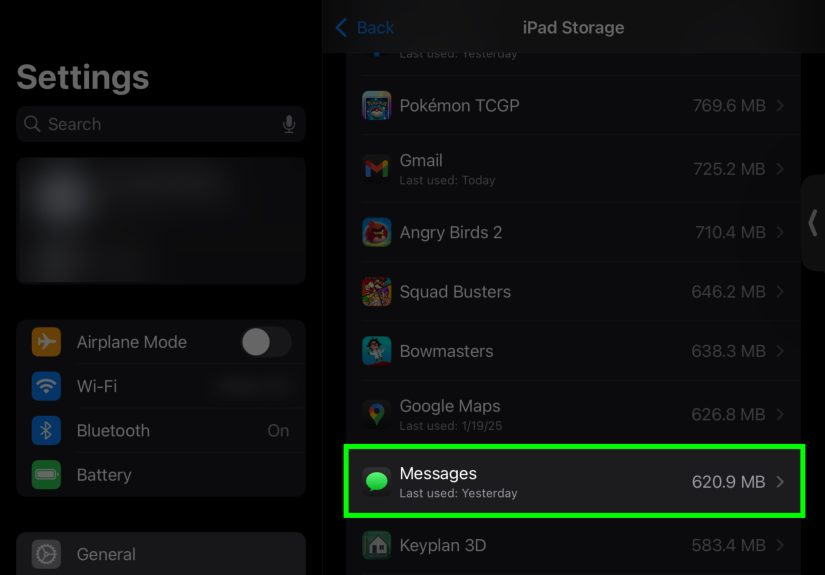
Before you delete anything, open Settings > General > iPad Storage. This is mission control. Here, you can see how much storage is available, which apps use the most space, and which recommendations iPadOS suggests for freeing room.
This screen is useful because it shows the difference between the app itself and the data stored inside it. In other words, a small app can still occupy a ridiculous amount of space if it is full of downloads, media, cached files, or project files. Think of it as discovering that the tiny backpack in your closet somehow contains a bowling ball, three sweaters, and a frying pan.
Pay Attention to Apple’s Recommendations
Your iPad may suggest actions such as reviewing large attachments, offloading unused apps, or optimizing photo storage. These recommendations are worth checking because they usually target the biggest sources of wasted space first. Start there before manually deleting random things in a panic.
Delete, Offload, or Leave It Alone?
When to Delete an App
Deleting an app removes the app and its related data from your iPad. This is the right move when you know you no longer need the app or when it has become a storage black hole. Old games, duplicate productivity apps, abandoned drawing tools, and streaming apps you installed for one vacation are common candidates.
If you are not sure whether you still need something, ask yourself one brutally honest question: “Would I even remember this app existed if I did not see it right now?” If the answer is no, it might be time for a graceful farewell.
When to Offload an App
Offloading is the kinder, gentler cousin of deleting. It removes the app itself but keeps its documents and data on your iPad. That means if you reinstall the app later, your information can come back with it. This is perfect for apps you use only occasionally, such as tax software, a seasonal travel app, or a game you pretend you are “taking a break from.”
You can offload an app manually from the iPad Storage screen, or you can turn on Offload Unused Apps so your iPad handles some of this automatically. It is a nice feature for people who want more space without performing monthly digital archaeology.
The Biggest Storage Hogs and How to Handle Them
Photos and Videos
For many people, photos and videos are the largest category on the iPad. And honestly, that makes sense. A few years of family pictures, travel clips, screen recordings, and slow-motion experiments can chew through storage at an impressive rate.
Start by deleting the obvious clutter: blurry duplicates, accidental screenshots, giant screen recordings, and videos you only needed once. Then check the Recently Deleted album. Deleted photos and videos do not disappear immediately, so if you need space now, emptying that album can help.
If you use iCloud Photos, turn on Optimize iPad Storage. This stores full-resolution originals in iCloud while keeping smaller, device-friendly versions on the iPad. It is one of the smartest ways to save local storage without losing access to your photo library. Just remember that when iCloud Photos is enabled, deleting a photo from one Apple device deletes it across your synced devices too. That is not a glitch. That is how the feature works.
Messages and Attachments
Message threads can quietly turn into digital storage monsters. One group chat full of videos, GIFs, voice notes, and photo attachments can consume more space than an app you actually paid for. Review large attachments in Messages and delete the ones you no longer need. You can also remove entire conversations if they no longer matter.
This is especially useful if your family or friends treat the Messages app like a private version of a streaming platform.
Downloads in the Files App
The Files app is another place where storage vanishes quietly. PDFs, ZIP files, presentations, scanned documents, and random downloads from Safari tend to pile up because they are useful right up until the moment you forget they exist. Review the Downloads folder and delete anything you no longer need.
If a file is stored in iCloud Drive, you may also be able to remove the downloaded copy from your iPad while keeping the file in the cloud. That gives you access when needed without letting the file squat on your device rent-free.
Offline Content in Streaming and Media Apps
Netflix, Disney+, YouTube, Spotify, podcast apps, and reading apps often store downloads for offline use. That is wonderful on a flight and less wonderful three months later when your iPad is still carrying downloaded episodes of a show you never finished.
Open those apps and review their downloads. Deleting offline content from inside the app is often more effective than deleting the app itself. Music libraries, podcast queues, and saved videos are sneaky space eaters.
Safari Data and Cache
If Safari feels bloated, clearing your browsing history and website data can free up some space and remove cookies and cached website files. On current iPadOS versions, go to Settings > Apps > Safari > Clear History and Website Data. This will sign you out of some websites, so do not be surprised if your iPad suddenly acts like it has never met you before.
This step will not solve every storage problem, but it can help trim the little bits of web clutter that accumulate over time.
How to Back Up Your iPad Before You Start Deleting Things
Here is the golden rule: before any major cleanup, make a backup. Deleting the wrong file is a terrible time to discover that your “system” was mostly hope.
Back Up With iCloud
The easiest option is iCloud Backup. Go to Settings > your name > iCloud > iCloud Backup, turn it on, and run a backup. This lets your iPad save important device data, app data, and settings to your iCloud storage. It is especially handy if you are replacing your iPad or need to restore it later.
Keep in mind that iCloud storage is not the same thing as device storage. Buying more iCloud space does not magically increase the built-in storage of your iPad. It simply gives you more cloud room for backups, photos, files, and synced content.
Back Up to a Mac or PC
You can also back up your iPad to a computer. On a Mac, use Finder. On Windows, use the Apple Devices app or iTunes, depending on your setup. This is a great choice if you prefer a local backup or do not want to rely entirely on cloud storage.
A computer backup can also be useful before a major iPadOS update or before deleting a large amount of data. It is the digital equivalent of taking “before” pictures before you start renovating the kitchen.
Use Third-Party Cloud Services for Specific Content
If your main problem is photos, videos, or documents, third-party cloud services can help. Google Photos can back up your photo library. Microsoft OneDrive can upload photos, videos, and files. Dropbox is also useful for photos and document storage. These are excellent for protecting specific content, but they are not the same as a full Apple device backup.
That distinction matters. A cloud photo service may save your pictures, but it will not necessarily preserve all of your app settings, Home Screen layout, or device state. Use the right backup for the right job.
Smart Long-Term Habits That Keep Storage Under Control
Review Storage Once a Month
You do not need to obsess over storage every day, but checking it once a month is a smart habit. Look for apps with unusually large data footprints, downloaded media you forgot about, and folders that have become accidental museums.
Keep Fewer Files Local
If you work with PDFs, videos, or large design projects, do not keep every file downloaded all the time. Store what you can in iCloud Drive, OneDrive, Dropbox, or another trusted cloud service, and keep only the files you actively need on the device.
Be Careful With Creative Apps
Drawing apps, video editors, music tools, and note apps can store surprisingly large projects. If you use your iPad for work or school, export finished projects and archive them elsewhere instead of letting them pile up forever on the device.
Leave Some Free Space
An iPad that is packed to the absolute brim is more likely to struggle with updates, downloads, and temporary processing tasks. Try to leave breathing room. Your iPad is not a suitcase, and “sitting on it harder” will not create more space.
What Not to Do
Do not delete photos before confirming they are safely backed up. Do not assume iCloud and local storage are the same thing. Do not wipe a large app if you have important files trapped inside it. And do not install random “cleaner” apps expecting them to perform magic. In most cases, iPad storage management is best handled with Apple’s built-in tools and trusted cloud services.
Real-World Experiences With iPad Storage Management
One of the most common experiences people have with iPad storage is the surprise factor. They are not doing anything extreme. They are just using the device normally. Maybe they stream shows on weekends, download a few files for work, save family photos, and keep a handful of school apps installed. Then one ordinary Tuesday, they cannot install an app update because storage is full. It feels unfair, like being told your closet is packed when all you can see is one jacket and a pair of shoes. The missing piece is usually hidden data.
A parent might discover that the real problem is not the iPad itself, but years of videos from school plays, soccer games, and birthday parties. A student may learn that lecture recordings, annotated PDFs, and offline Netflix downloads are quietly occupying half the device. Someone who uses an iPad for art might realize that a few large drawing files and time-lapse recordings are bigger than twenty casual apps combined. The pattern is almost always the same: the mess is not random, but it is invisible until you look in the right place.
Another common experience is the emotional hesitation around deleting anything. People worry they will remove a file they need, lose an app setup they care about, or erase photos that only exist on that device. That is why backing up first changes the whole experience. Once a backup is in place, storage cleanup feels less like a dangerous cliff dive and more like finally cleaning the garage with the confidence that you are not accidentally throwing away your passport.
Many users also report that the best breakthroughs come from small changes, not dramatic ones. Turning on Optimize iPad Storage for photos, offloading unused apps, clearing old downloads, and deleting giant message attachments often make a bigger difference than deleting ten tiny apps. It is not glamorous, but it works. Storage management is usually won by removing the bulky stuff, not by heroically deleting a weather app you opened twice in 2024.
There is also the learning curve around cloud storage. At first, people often assume buying more iCloud storage will instantly make the iPad itself feel bigger. Then they realize device storage and cloud storage are neighbors, not twins. That moment clears up a lot of confusion. Once users understand that iCloud helps with backups and syncing while local storage still has physical limits, their cleanup decisions become smarter.
In real life, the most successful iPad owners are not the ones who never run low on space. They are the ones who build a routine: check storage, back up regularly, keep fewer downloads, and treat screenshots like the temporary creatures they are. That approach is boring in the best possible way. It prevents the frantic midnight cleanup before a software update, the angry deletion spree before a trip, and the classic “Why is my iPad full when I only have six apps?” mystery. In other words, good storage habits save space, time, and a surprising amount of dignity.
Final Thoughts
If you want to manage storage on your iPad well, focus on three things: understand what is taking space, back up before you clean up, and build habits that stop clutter from returning. Start with the iPad Storage screen, review your biggest categories, offload what you rarely use, delete what no longer matters, and protect the files you actually care about with iCloud or a computer backup.
Your iPad does not need a miracle. It needs a plan. And maybe fewer duplicate screenshots of your grocery list.