Table of Contents >> Show >> Hide
- What “Lock Home Screen Layout” Actually Means on Samsung
- The Fastest Way to Unlock the Home Screen Layout on Samsung
- Alternative Method: Use the Settings App
- What You Can Do After You Unlock the Samsung Home Screen
- Troubleshooting: Why You Still Can’t Edit Your Samsung Home Screen
- Best Practices After Unlocking the Home Screen Layout
- Experience-Based Insights: What This Feels Like in Real Life
- Final Thoughts
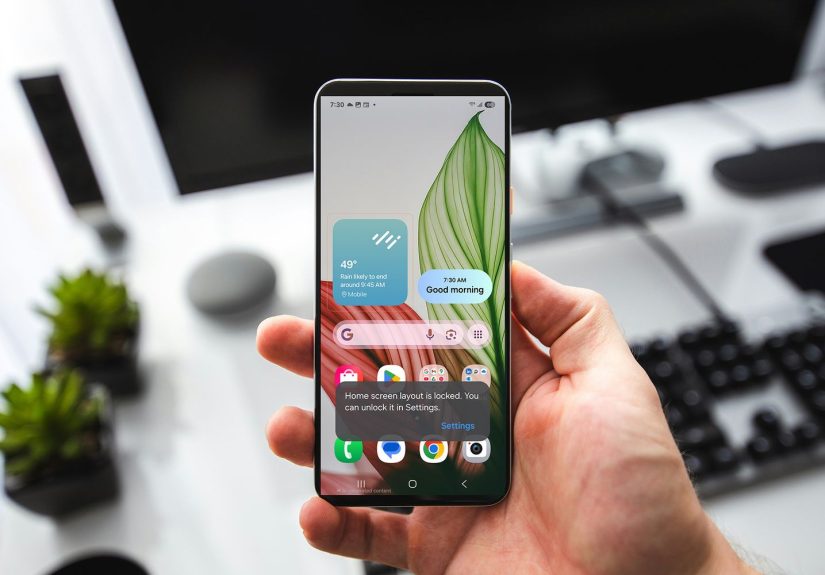
Your Samsung phone is supposed to make life easier. Tap app, open thing, continue being a productive and mysterious modern human. But when the Home screen layout is locked, suddenly your phone acts like a museum exhibit: look, but do not touch. You try to move an app, resize a widget, or clean up that chaotic folder labeled “Stuff,” and Samsung politely says, “Absolutely not.”
The good news is that unlocking the Home screen layout on Samsung is usually very simple. The better news is that once you unlock it, you can finally rearrange apps, move folders, resize widgets, and make your phone feel like your phone again instead of a rental unit with strict decorating rules.
In this guide, you’ll learn exactly how to unlock the Home screen layout on Samsung, what the setting actually does, why it sometimes feels confusing, and what to do if the option seems missing or your icons still refuse to cooperate. We’ll also cover practical Samsung Home screen tips, common mistakes, and experience-based advice so you can customize your Galaxy device without turning your layout into a digital junk drawer.
What “Lock Home Screen Layout” Actually Means on Samsung
Before diving into the steps, let’s clear up one of Samsung’s favorite little plot twists: Home screen layout lock is not the same thing as your lock screen.
The Home screen layout setting controls whether you can move, remove, or resize items on your Home screen. When it’s turned on, your app icons, folders, and widgets stay fixed in place. That’s helpful if you’ve already built a clean setup and don’t want accidental swipes turning your layout into abstract art.
Meanwhile, your actual screen lock is the security feature that protects your phone with a PIN, password, pattern, fingerprint, or face unlock. So if you came here thinking “unlock Home screen layout” means bypassing your Samsung phone’s security screen, pump the brakes. We’re talking about customization, not device access.
This distinction matters because Samsung uses the word “lock” in both places, and that can send people wandering into the wrong menu like tourists with bad directions. The fix you want is in Home screen settings, not in the part of Settings where you manage biometrics or screen lock type.
The Fastest Way to Unlock the Home Screen Layout on Samsung
If you just want the quickest method, here it is. This is the easiest way to unlock the Home screen layout on most Samsung Galaxy phones running recent versions of One UI.
Method 1: Unlock it from the Home screen
- Go to your Samsung Home screen.
- Touch and hold an empty area on the screen.
- Tap Settings.
- Find Lock Home screen layout.
- Turn the toggle off.
That’s it. Once the toggle is off, your Home screen is unlocked and editable again. You should now be able to move app icons, drag folders around, delete shortcuts, and resize supported widgets without your phone acting like an overprotective landlord.
If you’re wondering whether the setting worked, test it right away. Press and hold an app icon and drag it somewhere else. If it moves, congratulations: the layout is unlocked and freedom has returned.
Why this method works so well
Samsung places most Home screen controls behind the long-press menu. That means you can get to wallpapers, widgets, themes, and layout settings from one place. It’s fast, logical, and surprisingly easy once you know it exists. The only problem is that many people do not know it exists until they accidentally discover it while trying to move something.
Alternative Method: Use the Settings App
If the long-press method doesn’t work, or you simply prefer the scenic route, you can unlock the Samsung Home screen layout through the main Settings app.
Method 2: Unlock it through Settings
- Open Settings.
- Tap Home screen.
- Locate Lock Home screen layout.
- Turn the toggle off.
This path is helpful if your Home screen is crowded, if long-press gestures are acting finicky, or if you just trust the Settings app more than surprise menus. It is also a good place to adjust related options such as Home screen layout, Home screen grid, Apps screen grid, and whether newly downloaded apps automatically appear on the Home screen.
One important note: on Samsung, the phrase Home screen layout can refer to two different ideas. One is the toggle that locks or unlocks your arrangement. The other is the setting that lets you choose between Home and Apps screens or Home screen only. Similar wording, very different jobs. Samsung loves a naming overlap almost as much as people love making folders for apps they swear they’ll organize later.
What You Can Do After You Unlock the Samsung Home Screen
Once you unlock the Home screen layout on Samsung, the fun begins. Or at least the highly satisfying digital tidying begins.
Move apps where they actually make sense
You can press and hold an app, then drag it to a new location. Put your most-used apps where your thumb naturally lands. If you use your phone one-handed, keep essentials in the lower half of the display. Your thumb will thank you, and your wrist might write you a thank-you card.
Create folders that are useful instead of mysterious
Drag one app on top of another to create a folder. This is a great way to group social apps, travel apps, work tools, or shopping apps. It is also a great way to pretend you are organized while still keeping 14 food delivery apps in one brightly colored square.
Resize widgets for a cleaner layout
Many Samsung widgets can be resized after placement. This is especially useful for Calendar, Weather, Clock, Samsung Notes, and media widgets. If a widget previously felt too large or awkwardly shaped, unlocking the layout lets you experiment until it fits your screen instead of bullying the rest of your icons.
Change the Home screen grid
If your screen feels cramped or too empty, go to Settings > Home screen > Home screen grid. A denser grid can fit more apps, while a roomier one creates a simpler look. This matters more than people think. A slightly better grid can make your entire phone feel calmer and easier to use.
Choose between Home screen only and Home + Apps screen
Some Samsung users prefer having every app on the Home screen. Others want a separate Apps screen so the Home screen stays minimal. Neither choice is wrong. One says “I am streamlined.” The other says “I enjoy options.” Pick the one that matches how your brain works, not what some productivity influencer said at 6:00 a.m. while drinking celery water.
Troubleshooting: Why You Still Can’t Edit Your Samsung Home Screen
If you turned off Lock Home screen layout and your Samsung Home screen still feels stubborn, one of these issues is probably responsible.
1. You are in the wrong settings area
This is the most common mix-up. If you’re inside Lock screen and AOD or Screen lock type, you are editing device security, not Home screen customization. Back out and head to Settings > Home screen instead.
2. You are using a custom launcher
If you installed Nova Launcher, Microsoft Launcher, Niagara, or another Android launcher, Samsung’s One UI Home settings may not control your active Home screen. In that case, the layout lock might live inside the launcher’s own settings, or not exist at all in the same form.
If things feel inconsistent, check which launcher is set as default. On Samsung, One UI Home is the stock launcher. If you want Samsung’s native Home screen controls back, switch to One UI Home as your default launcher.
3. Good Lock or Home Up is changing behavior
Samsung’s Good Lock app can supercharge customization, especially through the Home Up module. That is great if you love tweaking layouts. It is less great if you forgot you installed it three months ago and now your Home screen behaves like it attended experimental design school.
Home Up can add custom grid controls, backup options, and even more advanced layout tools. On newer One UI versions, especially with DIY-style Home screen features, the customization possibilities grow dramatically. If your layout seems different from standard Samsung behavior, Good Lock may be the reason.
4. Your foldable settings are affecting the layout
On some Samsung foldables, the cover screen and main screen can have mirrored or separate layouts. If you rearrange items on one screen and the result looks odd on another, check foldable-specific Home screen settings. Samsung has added special controls for mirrored layouts and cover screen behavior on these devices.
5. Your phone needs a quick reset, not a dramatic one
Sometimes the Home screen simply needs a moment to get its life together. Restart the phone and try again. You can also update One UI if a software update is available. This is especially smart if the issue started after an update, a restore, or a device transfer.
Best Practices After Unlocking the Home Screen Layout
Unlocking the layout is easy. Avoiding a Home screen disaster afterward takes a tiny bit of discipline.
Make one change at a time
Do not rip apart your entire setup in one chaotic burst of energy. Start with your top row, dock apps, and widgets. Live a little. But not too much.
Keep your most-used apps in thumb range
The best Samsung Home screen layout is not the prettiest one on the internet. It is the one that lets you get where you need to go quickly. Put Phone, Messages, Camera, Maps, and your everyday apps where you can reach them comfortably.
Use folders sparingly
Folders are helpful until they become junk drawers. If you open a folder and immediately feel emotionally taxed, that folder needs fewer apps or a better name.
Relock the layout when you’re finished
This is the underrated move. After you finish customizing your Samsung Home screen, go back and turn Lock Home screen layout on again. That way, your carefully arranged icons stay put, especially if your phone spends time in your pocket, bag, car cup holder, or tiny human hands.
Experience-Based Insights: What This Feels Like in Real Life
In real-world use, unlocking the Home screen layout on Samsung is one of those tiny fixes that feels much bigger than it sounds. It usually starts with mild annoyance. Maybe you tried to move the Camera app closer to your thumb. Maybe a widget got bumped and resized into a weird rectangle. Maybe your phone somehow placed an app where your weather widget used to live, and now your morning routine begins with confusion and betrayal. Whatever the trigger, the locked layout setting often turns a basic customization task into an unexpectedly stubborn problem.
A very common experience is this: someone upgrades to a newer Galaxy phone, transfers data, and assumes everything will behave exactly like the old device. Then they try to clean up the Home screen and realize the layout will not budge. At that point, many people think the phone is glitching. Others assume Samsung removed the feature entirely. A few brave souls even start deleting apps because they think the problem is “too many icons.” It usually turns out to be the layout lock toggle quietly doing its job a little too well.
Another frequent scenario happens after a user finally creates a Home screen they love. They lock it to prevent accidental changes, which is smart. Weeks later, they forget they enabled the setting. Then they try to add a new app, move a folder, or resize a clock widget and spend five minutes wondering whether the touchscreen suddenly lost ambition. That moment of confusion is practically a Samsung rite of passage.
There is also a productivity angle here. Once the layout is unlocked, people often realize how much their setup affects everyday speed. Moving navigation apps lower on the screen, grouping banking apps together, or shrinking an oversized widget can make the phone feel faster without changing the processor, storage, or battery. That is because a cleaner layout removes friction. You stop hunting. You stop overswiping. You stop opening the wrong app because two icons looked similar while you were half awake.
For people who really enjoy personalization, unlocking the Home screen can become the gateway to a much bigger Samsung customization journey. You start by moving two icons. Then you change the grid. Then you add a widget stack. Then you discover Good Lock and suddenly your Saturday afternoon disappears into a vortex of layout experiments. This can be delightful if you enjoy tinkering. It can also be dangerous if you are the kind of person who says, “I’ll just make one quick change,” and then redesigns the entire phone.
The most balanced experience is usually this: unlock the layout, make intentional edits, test the setup for a day or two, and lock it again once everything feels right. That gives you the flexibility to customize your Samsung Home screen without living in a permanent state of accidental icon migration. In other words, use the lock as a finishing move, not a mystery obstacle. When you handle it that way, the feature stops being frustrating and starts being genuinely useful.
Final Thoughts
If you’ve been trying to figure out how to unlock the Home screen layout on Samsung, the solution is usually simple: open the Home screen settings and turn off Lock Home screen layout. From there, you can move apps, resize widgets, change your grid, adjust your Home screen layout, and make your Galaxy phone easier to use every day.
The key is understanding that Samsung separates Home screen customization from screen security. Once you know which menu you actually need, the process is quick and painless. And once your setup looks exactly how you want it, you can always lock the layout again to keep your design safe from stray taps, pocket chaos, and spur-of-the-moment nonsense.
So yes, unlocking your Samsung Home screen layout is a small tweak. But in everyday use, it can make your phone feel cleaner, faster, and far less annoying. And really, that is the dream.