
Table of Contents >> Show >> Hide
- What Is an SD Memory Card?
- Before You Use an SD Card: Check Compatibility
- How to Use an SD Memory Card on Android
- How to Use an SD Memory Card on a Windows PC
- How to Use an SD Memory Card on a Mac
- Best File System for an SD Card: FAT32, exFAT, or NTFS?
- Common SD Card Problems and How to Fix Them
- Best Practices for Using an SD Memory Card
- Real-World Experience: What Actually Helps When Using SD Cards
- Conclusion
- SEO Tags
An SD memory card is one of those tiny tech accessories that looks harmless enough to misplace in a couch cushion, yet it can hold thousands of photos, hours of video, school files, music, app data, backups, and the occasional mysterious folder named “DCIM” that seems to appear everywhere like a digital houseplant. Whether you are using an Android phone, a Windows PC, or a Mac, learning how to use an SD card properly can save storage space, speed up file transfers, and prevent the kind of panic that begins with, “Wait, where did my vacation photos go?”
This guide explains how to use an SD memory card on Android, PC, and Mac in plain English. You will learn how to insert a card, format it correctly, move files, choose the right file system, avoid common mistakes, and troubleshoot problems when your device acts like the card is invisible. No wizard hat required.
What Is an SD Memory Card?
An SD memory card is a small removable storage device used in phones, cameras, tablets, laptops, game systems, drones, dash cams, and other electronics. “SD” stands for Secure Digital, but most people simply know it as “that little card that stores my photos.”
There are two main physical sizes you will see today: full-size SD cards and microSD cards. Full-size SD cards are common in cameras and some laptops. MicroSD cards are smaller and are often used in Android phones, tablets, action cameras, drones, and portable gaming devices. A microSD card can usually be placed inside an SD adapter so it fits into a full-size SD card slot.
SD, SDHC, SDXC, and SDUC: What the Labels Mean
The label on the card tells you its storage family. Standard SD cards usually go up to 2GB. SDHC cards range from more than 2GB up to 32GB. SDXC cards range from more than 32GB up to 2TB. SDUC cards go beyond 2TB and can theoretically reach much larger capacities, though everyday users mostly see SDHC and SDXC cards.
For most Android phones, cameras, PCs, and Macs, an SDXC or microSDXC card is the practical choice if you need 64GB, 128GB, 256GB, 512GB, or 1TB of space. Before buying one, check your device’s maximum supported capacity. A phone that supports up to 512GB may not behave nicely with a 1TB card, no matter how persuasive the online sale price looks.
Before You Use an SD Card: Check Compatibility
Before inserting an SD card into any device, ask three quick questions: Does the device support this card size? Does it support this storage capacity? Does the card have the speed rating needed for your purpose?
If you only want to store documents, music, or casual photos, almost any decent card from a reliable brand will work. If you plan to record 4K video, shoot burst photos, run apps from a card, or use it in a drone or action camera, speed matters. A slow card can cause dropped frames, failed recordings, corrupted files, or performance that feels like your device is walking through peanut butter.
Understanding SD Card Speed Classes
SD cards often show speed symbols such as Class 10, U1, U3, V30, V60, or A1/A2. These markings are not decoration; they tell you how the card performs under certain conditions.
Class 10 generally means a minimum sustained write speed of 10MB/s. U1 also indicates a minimum write speed of 10MB/s, while U3 indicates 30MB/s. Video Speed Class ratings such as V30, V60, and V90 are especially useful for video recording. For Android app performance, Application Performance Class ratings such as A1 or A2 can matter because they relate to random read and write operations, not just big video files.
Simple rule: for photos and documents, a Class 10 or U1 card is usually fine. For 4K video, drones, action cameras, or heavy Android storage use, choose at least U3 or V30 from a trusted brand. Your files deserve better than a mystery card with a suspiciously shiny sticker.
How to Use an SD Memory Card on Android
Using an SD card on Android depends on your phone or tablet. Some Android devices still include a microSD slot. Others do not. Some allow the card to be used only for photos and files, while others support using it as internal storage. Manufacturers can change the available options, so your exact menu names may vary slightly.
Step 1: Insert the microSD Card
Power off your Android device if the manufacturer recommends it. Use the SIM eject tool to open the tray. Place the microSD card into the correct slot with the metal contacts facing the right direction. Slide the tray back in carefully. Do not force it; if it feels wrong, it probably is wrong. Tiny trays are dramatic like that.
After turning the device back on, Android should detect the card. You may see a notification asking whether you want to set it up. If no notification appears, open Settings, then look for Storage, Battery and device care, or a similar storage menu.
Step 2: Choose Portable Storage or Internal Storage
Android may offer two setup options: portable storage or internal storage. Portable storage is the safest and most flexible option for most people. It lets you store photos, videos, music, and documents on the card, and you can remove the card later to use it in a PC, Mac, camera, or another compatible device.
Internal storage, sometimes called adoptable storage, treats the card more like part of the phone’s built-in storage. This can help devices with limited internal space, but there are trade-offs. The card may be encrypted and tied to that Android device. If you remove it and insert it into a computer, your files may not be readable. Apps may also run slower if the card is not fast enough.
For most users, choose portable storage unless you specifically need more space for apps and your phone clearly supports internal storage formatting.
Step 3: Format the SD Card on Android
If the card is new or has been used in another device, Android may ask to format it. Formatting prepares the card for use, but it also erases everything on it. Back up important files first. This is not a suggestion from your overly cautious uncle; it is the difference between “good thing I saved a copy” and “why is my camera roll now a blank desert?”
To format on most Android devices, go to Settings, open Storage, select the SD card, tap the menu icon, and choose Format. On Samsung devices, the path may look more like Settings > Battery and device care > Storage > SD card > Format.
Step 4: Move Files to the SD Card
To move files, open your phone’s file manager or the Files by Google app. Select photos, videos, downloads, or documents, tap Move or Copy, then choose the SD card as the destination. Many camera apps also let you set the SD card as the default storage location for new photos and videos.
If your phone supports it, you may be able to move some apps to the SD card. Open Settings, go to Apps, choose an app, tap Storage, and look for a Change or Move to SD card option. Not every app can be moved. Some apps need to stay on internal storage because widgets, background services, and security features can break when they live on removable storage.
How to Use an SD Memory Card on a Windows PC
Using an SD card on a Windows PC is usually straightforward. Many laptops include a full-size SD card slot. If your computer does not have one, use a USB card reader. For microSD cards, use a microSD-to-SD adapter or a USB reader with a microSD slot.
Step 1: Insert the Card
Insert the card into the SD slot or card reader. Windows should detect it and show it in File Explorer under This PC. The card may appear as a removable drive with a letter such as E:, F:, or G:.
If nothing appears, try another USB port, another reader, or another computer. Also check whether the lock switch on a full-size SD adapter is set to “Lock.” That tiny slider can ruin your afternoon with the confidence of a villain in a low-budget spy movie.
Step 2: Copy, Move, or Delete Files
Open the SD card in File Explorer. You can drag and drop files just as you would with any folder. To copy photos from the card to your PC, open the card, select the files, and drag them to Pictures, Documents, Desktop, or another folder. To move files from your PC to the card, drag them in the opposite direction.
Use folders to stay organized. For example, create folders named Photos, Videos, School, Music, or Backups. Future you will appreciate this. Future you is tired of opening 42 folders named “New Folder.”
Step 3: Format the SD Card in Windows
To format an SD card in Windows, open File Explorer, right-click the SD card drive, and choose Format. Select a file system, enter a volume label if you want, keep Quick Format checked for normal use, and click Start. Remember: formatting deletes the card’s contents.
For cards 32GB or smaller, FAT32 is commonly used. For cards larger than 32GB, exFAT is usually the better choice because it supports large files and works well across Windows and macOS. NTFS can be useful for Windows-only storage, but it is not ideal if you want easy compatibility with cameras, Android devices, and Macs.
Step 4: Safely Eject the Card
Before removing the card, click the USB or removable device icon in the system tray and choose Eject. You can also right-click the drive in File Explorer and select Eject. This helps prevent file corruption, especially if Windows is still writing data in the background.
How to Use an SD Memory Card on a Mac
Many older Macs include an SD card slot, while many newer models require a USB-C card reader. Once connected, the SD card should appear in Finder and sometimes on the desktop, depending on your settings.
Step 1: Insert the SD Card
Insert the card into the Mac’s SD slot or connect a card reader. Open Finder and look under Locations in the sidebar. If the card does not appear, open Finder Settings and make sure external disks are enabled for the desktop or sidebar.
Step 2: Transfer Files on Mac
To copy files from the SD card to your Mac, open the card in Finder, select the files, and drag them to a folder such as Pictures, Movies, Downloads, or Documents. To put files onto the card, drag them from your Mac to the SD card. If you are importing photos, the Photos app or Image Capture app can help organize the transfer.
Step 3: Format the SD Card on Mac
To format an SD card on macOS, open Disk Utility. Select the card from the sidebar, click Erase, choose a name, select a format, and click Erase. Choose exFAT if you want the card to work with both Mac and Windows and you need support for large files. Choose MS-DOS (FAT) for smaller cards or older devices that require FAT32-style compatibility.
Do not choose APFS or Mac OS Extended unless you plan to use the card only with Macs. Those formats are excellent for Apple-focused storage but may confuse Windows PCs, Android devices, cameras, and other gadgets.
Step 4: Eject Before Removing
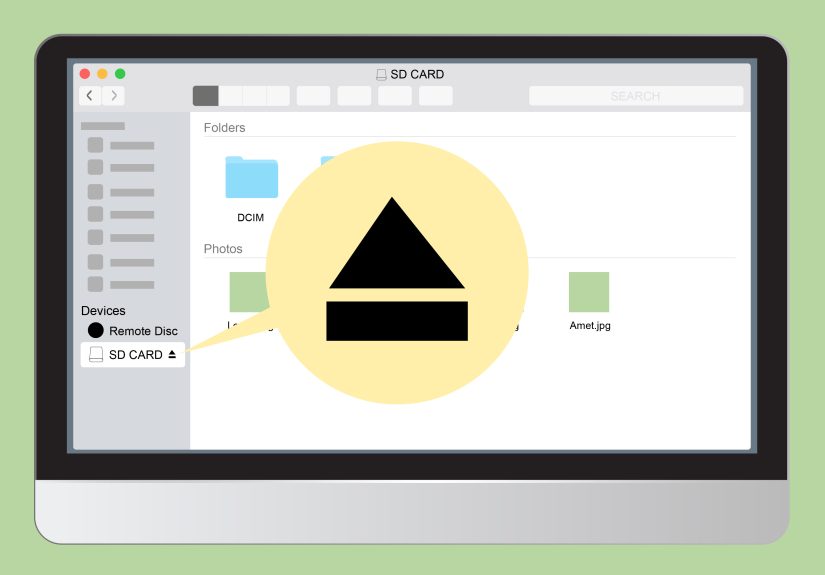
On a Mac, eject the card before pulling it out. Click the eject icon next to the card in Finder, or drag the card icon to the Trash, which turns into an eject symbol. Once it disappears from Finder, you can remove it safely.
Best File System for an SD Card: FAT32, exFAT, or NTFS?
The file system determines how your device stores and organizes data on the card. The best choice depends on where you plan to use the SD card.
FAT32
FAT32 is widely compatible with older devices, cameras, game systems, and small cards. Its biggest limitation is that individual files cannot be larger than 4GB. That is a problem for long videos, high-resolution footage, large ZIP files, and big backups.
exFAT
exFAT is the best general choice for most modern SDXC and microSDXC cards. It supports large cards and large files, and it works across Windows and macOS. Many Android devices, cameras, drones, and newer gadgets also support exFAT, though compatibility can vary by device.
NTFS
NTFS is a Windows file system. It is powerful, but it is not the friendliest option for removable cards used across multiple devices. A Mac can read NTFS by default but usually cannot write to it without extra software. Many cameras and Android devices may not support it properly.
Practical recommendation: use exFAT for cards larger than 32GB unless your device specifically requires FAT32. Use FAT32 for older devices or smaller cards. Avoid NTFS unless the card will stay in the Windows world.
Common SD Card Problems and How to Fix Them
The Device Does Not Detect the Card
Remove the card and inspect it for dust, cracks, or bent contacts. Reinsert it carefully. Try another card reader, another USB port, or another device. If a phone does not detect the card, restart the phone and check the storage settings again.
The Card Says It Needs to Be Formatted
This can happen when the file system is unsupported, damaged, or not recognized by the device. Do not format immediately if the card contains important files. First, try reading it on another computer. If the files are visible, copy them somewhere safe, then format the card in the device where you plan to use it.
The Card Is Read-Only or Write-Protected
Full-size SD cards and microSD adapters often have a physical lock switch. Slide it away from the locked position. If the card still appears read-only, try another adapter or reader. If every device says it is read-only, the card may be failing.
Files Transfer Slowly
Slow transfers can come from the card, the reader, the USB port, or the file type. A fast card in an old USB 2.0 reader will still move slowly. For large files, use a modern card reader and a compatible high-speed port. Also remember that copying thousands of tiny files often takes longer than copying one large file of the same total size.
Files Keep Getting Corrupted
Corruption can happen when you remove a card without ejecting it, use a poor-quality card, lose power during writing, or keep using a card that is wearing out. Back up important files, reformat the card with the SD Association’s official formatter or your device’s built-in tool, and replace the card if problems return.
Best Practices for Using an SD Memory Card
Buy cards from trusted brands and reliable retailers. Counterfeit SD cards are surprisingly common, and they may show a fake capacity. A “1TB” card sold for the price of lunch should be treated with the same suspicion as a “designer” watch from a gas station parking lot.
Format the card in the device where you will use it most. If the card is for an Android phone, format it in the phone. If it is for a camera, format it in the camera. If it is for moving files between Windows and Mac, format it as exFAT using Windows, macOS, or the official SD Memory Card Formatter.
Do not fill the card to the absolute limit. Leave some free space so the device can write smoothly. Always eject before removing. Keep cards in a case when not in use. Avoid heat, moisture, bending, and static electricity. Most importantly, remember that SD cards are not permanent archives. They are convenient, portable storagenot a substitute for backups.
Real-World Experience: What Actually Helps When Using SD Cards
After using SD and microSD cards across Android phones, Windows laptops, Macs, cameras, and card readers, the biggest lesson is simple: the card is rarely the only thing that matters. The device, format, reader, cable, and your habits all affect whether the experience feels smooth or cursed.
For Android, the most reliable setup is usually portable storage. It is less glamorous than turning the card into internal storage, but it is safer and easier to manage. When a card is portable, you can remove it, plug it into a PC or Mac, and copy files without drama. When a card is formatted as internal storage, it may be locked to that phone. That can be useful for app storage, but it also means you should not treat it like a normal removable card. If the phone breaks, the card may not rescue your files the way you expect.
For Windows PCs, the best habit is to name the card clearly after formatting. A label like “CAMERA_128GB” or “ANDROID_SD” is much better than “Removable Disk.” When several drives are connected, clear names reduce mistakes. Nobody wants to format the wrong drive because three storage devices all decided to wear the same boring name tag.
For Macs, Disk Utility is powerful but deserves attention. Always select the actual SD card, not your internal drive. Use the sidebar carefully, check the capacity, and choose exFAT when the card needs to work with both Windows and Mac. If you are formatting a card for a camera or Android device, it may still be better to format it inside that device afterward so the device creates the folders and structure it expects.
Another practical lesson: card readers matter more than people think. A high-speed SD card connected through a cheap, old, or damaged reader may perform like a sleepy turtle. If large video files transfer painfully slowly, try a better reader before blaming the card. For modern laptops, a good USB-C reader can make backups noticeably faster.
It is also smart to build a simple backup routine. For photos, copy files from the SD card to your computer, then copy them again to cloud storage or an external drive. Only erase the SD card after checking that the files open correctly. A backup you have not tested is basically a wish wearing a file name.
Finally, replace cards before they become legends. If an SD card has survived years of camera trips, phone swaps, formatting experiments, backpack dust, and one suspicious laundry incident, do not wait for it to fail during something important. Use older cards for temporary transfers, not once-in-a-lifetime photos or critical files. SD cards are affordable; lost memories and ruined projects are not.
Conclusion
Learning how to use an SD memory card on Android, PC, or Mac is mostly about choosing the right format, using the correct storage mode, transferring files carefully, and ejecting the card before removal. Android users should understand the difference between portable and internal storage. Windows users should choose FAT32 or exFAT based on card size and compatibility. Mac users should rely on Disk Utility and avoid Apple-only formats unless the card will stay in the Apple ecosystem.
Use trusted cards, back up important files, format carefully, and do not ignore early signs of failure. A good SD card can be a tiny storage superhero. Treat it well, and it will quietly carry your files without asking for applause.





 Close
Close