
Table of Contents >> Show >> Hide
- What Is Synapse?
- Why Use Synapse Instead of the Regular App Menu?
- How to Install Synapse on Linux
- How to Launch Synapse for the First Time
- Setting a Custom Keyboard Shortcut
- How to Use Synapse to Open Programs Quickly
- Using Synapse to Find Files and Folders
- Running Commands with Synapse
- Useful Synapse Preferences to Check
- Best Practices for Faster Synapse Searches
- Common Synapse Problems and Fixes
- Synapse vs. Other Linux Launchers
- Who Should Use Synapse?
- Practical Workflow Examples
- Security and Privacy Considerations
- of Real-World Experience: Living with Synapse on Linux
- Conclusion
Linux is wonderfully powerful, endlessly customizable, and occasionally guilty of making you dig through menus like you are searching for a lost sock in a laundry basket. That is where Synapse comes in. Synapse is a lightweight, keyboard-driven application launcher for Linux that helps you open programs, find files, run commands, and move around your desktop faster without constantly reaching for the mouse.
Think of Synapse as a productivity shortcut with a small window and a very good memory. Press a hotkey, start typing, choose the result, and hit Enter. That is the basic magic. Instead of clicking through application menus, scanning icons, or trying to remember where your text editor lives, you can launch it in seconds. For many Linux users, especially those who prefer fast keyboard workflows, Synapse feels like adding a turbo button to the desktop.
This guide explains what Synapse does, how to install it, how to configure it, and how to use it effectively on Linux. You will also find practical examples, troubleshooting tips, and real-world experience notes for making Synapse part of your daily workflow.
What Is Synapse?
Synapse is a semantic application launcher and desktop search tool for Linux. In plain English, it lets you quickly launch applications and access useful files or actions by typing a few letters. It was designed for speed and keyboard control, so it works especially well for users who want to spend less time navigating menus and more time actually doing things.
The word “semantic” matters because Synapse is not only a simple app search box. It can use activity information from the desktop, including the Zeitgeist engine on supported systems, to make results more relevant. For example, recently opened files or frequently used applications may appear faster because Synapse learns from your habits. It is not reading your mind, thankfully, but it may occasionally make you wonder if it borrowed your notes.
Synapse is written in Vala and has historically been popular on GNOME-based desktops, Linux Mint, Ubuntu derivatives, and other Linux environments where users want a fast launcher similar in spirit to tools like Alfred on macOS, Spotlight, GNOME Do, Kupfer, Albert, or Ulauncher.
Why Use Synapse Instead of the Regular App Menu?
Most Linux desktop environments already have a menu, dock, panel, or search function. So why bother with Synapse? The answer is speed, focus, and muscle memory.
It Saves Clicks
Opening an app from a menu usually means moving your hand to the mouse, clicking the menu, finding a category, locating the program, and clicking again. With Synapse, you press a keyboard shortcut, type a few letters, and press Enter. Launching Firefox, LibreOffice Writer, GIMP, Terminal, or Files becomes almost instant.
It Keeps Your Workflow Clean
Synapse appears only when you call it. It does not need to occupy space on your desktop all day. This makes it useful for minimal setups, tiling window managers, small screens, or users who simply dislike clutter. Your desktop stays tidy, and Synapse pops in only when invited, like a polite butler with a search bar.
It Can Handle More Than Apps
Depending on your system and enabled plugins, Synapse can help you open documents, folders, commands, and system actions. You might use it to open your Downloads folder, start a terminal command, find a recently edited file, or shut down the computer. It is more than an app drawer; it is a small command center.
How to Install Synapse on Linux
Availability depends on your Linux distribution and version. Synapse has existed for a long time, and some distributions still provide it through their repositories, while others may require a community package, PPA, source build, or alternative launcher. Before installing, check your distribution’s software center or package manager.
Install Synapse on Ubuntu, Debian, or Linux Mint
On many Debian-based systems, you can try installing Synapse with APT:
If your system says the package cannot be found, make sure the appropriate repository is enabled. On Ubuntu-based systems, this may mean enabling the Universe repository:
Linux Mint users may also find Synapse through the Software Manager, depending on the Mint version and repository state. If it appears there, installing it from the graphical software tool is perfectly fine.
Install Synapse on Fedora
Fedora package availability can vary by release. Try:
If the package is not available for your release, check Fedora package listings or consider another launcher such as Ulauncher, Albert, or Rofi.
Install Synapse on openSUSE
On openSUSE, availability may depend on the release and community repositories. You can search with:
If a suitable package appears, install it with:
If not, check openSUSE software repositories or use a maintained alternative launcher.
Build Synapse from Source
Advanced users can build Synapse from source, especially if their distribution does not provide a package. Source builds usually require development tools, Vala-related dependencies, Meson or Make-based build steps depending on the source tree, and the patience of someone assembling furniture without the little hex key.
A general source workflow may look like this:
Source instructions can change between forks or versions, so always read the project’s included README or installation file before running commands.
How to Launch Synapse for the First Time
After installation, open Synapse from your application menu or run it from a terminal:
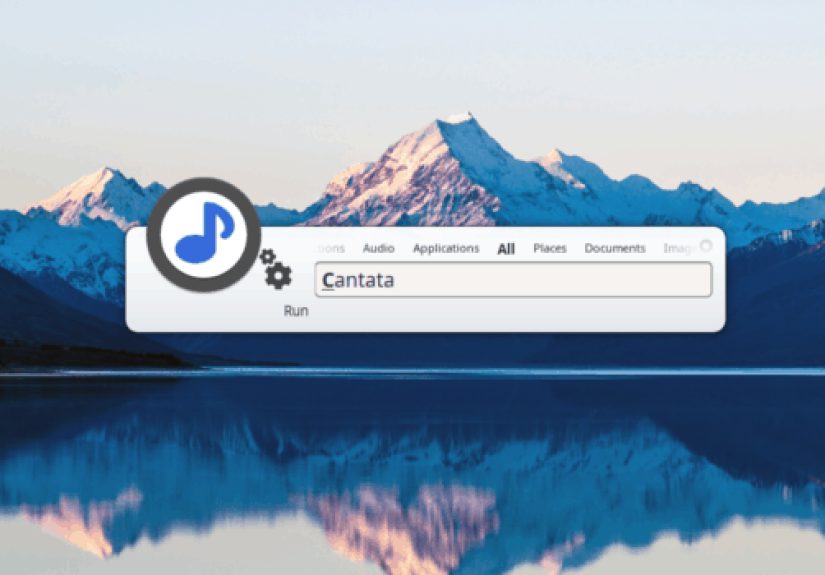
Once it starts, you should see a compact search window. The default activation shortcut is commonly Ctrl + Space, though this can vary by distribution, desktop environment, or user configuration. Press the shortcut, type the name of an application, and press Enter when the correct result is selected.
For example, type:
Synapse may suggest Firefox. Press Enter, and Firefox opens. Type:
Synapse may suggest Terminal. Again, press Enter. Congratulations: you have officially reduced your relationship with application menus to “we should see other people.”
Setting a Custom Keyboard Shortcut
The best launcher shortcut is the one your fingers remember without thinking. If Ctrl + Space conflicts with another tool, language input method, editor shortcut, or personal preference, change it.
Change the Shortcut from Synapse Preferences
On some setups, Synapse provides preferences through its tray icon or settings menu. Open Synapse preferences, find the shortcut option, and choose a key combination that feels natural. Popular choices include:
- Ctrl + Space for a classic launcher feel
- Alt + Space if it does not conflict with your window manager
- Super + Space for a Spotlight-like workflow
- Ctrl + Alt + Space if you want fewer accidental launches
Create a Shortcut from Desktop Settings
If Synapse does not expose shortcut settings clearly, create a custom shortcut through your desktop environment:
- Open your system keyboard settings.
- Find the custom shortcuts section.
- Add a new shortcut named “Synapse.”
- Use
synapseas the command. - Assign your preferred key combination.
This works well on many GNOME, Cinnamon, MATE, Xfce, and KDE Plasma setups, though the exact menu names differ. If the shortcut does not respond, log out and log back in, then test again.
How to Use Synapse to Open Programs Quickly
The most common Synapse workflow is simple:
- Press the Synapse shortcut.
- Type part of the application name.
- Use arrow keys if needed.
- Press Enter.
You do not need to type the full name. If you want to open LibreOffice Writer, typing “write” may be enough. If you want VLC, typing “vl” usually gets you there. If you want System Monitor, “sys” or “monitor” may work. The more you use it, the more natural it becomes.
Example: Open a Browser
or simply:
Example: Open a File Manager
or:
Example: Open a Terminal
or:
The goal is not to win a typing contest. The goal is to type just enough for Synapse to understand what you want.
Using Synapse to Find Files and Folders
Synapse can also help you access files and directories, especially recently used or relevant items. This feature depends on your desktop environment, plugins, indexing behavior, and whether activity logging services are available.
For example, if you recently edited a document named “project-plan.odt,” opening Synapse and typing “project” may show that file. Select it, press Enter, and it opens with the default application. This is excellent when you remember the idea of the file but not the exact folder where you buried it three Tuesdays ago.
However, Synapse is not always a full replacement for tools like find, locate, Catfish, FSearch, or your desktop file indexer. If a file has never been opened, indexed, or logged, Synapse may not show it. Treat file search as a convenience feature, not a forensic investigation unit.
Running Commands with Synapse
Depending on enabled plugins, Synapse can run commands directly. This is useful for quick actions, but use care. Running commands from a launcher is convenient, yet it does not give you the same visual context as a terminal. If a command can change files, install software, or affect system settings, make sure you know exactly what it does.
Simple examples may include launching a graphical tool:
or opening a folder:
For complex commands, scripts, or anything requiring troubleshooting output, a terminal is usually better. Synapse is best for quick, familiar commands rather than experimental command-line adventures.
Useful Synapse Preferences to Check
After installing Synapse, spend a minute in Preferences. That one minute can save many small annoyances later.
Start Synapse on Login
Enable startup on login if you want Synapse ready every time your desktop loads. Without this, the shortcut may not work until you manually start Synapse. A launcher that is not running is about as useful as a flashlight with no batteries.
Choose the Right Theme
Some versions of Synapse include theme options. Pick one that is readable on your desktop background. Fancy is nice, but readable wins. If you use a dark desktop theme, a matching Synapse theme can make the launcher feel like part of the system instead of a lost window from 2011.
Enable or Disable Plugins
Plugins control what Synapse can search or do. You may see plugins for applications, files, commands, dictionary features, session actions, media players, or directory search. Enable the ones you use and disable the ones you do not. This keeps search results clean and reduces clutter.
Best Practices for Faster Synapse Searches
Synapse is already fast, but your habits can make it feel even faster.
Use Short Search Patterns
You rarely need full names. Type “term” for Terminal, “calc” for Calculator, “write” for Writer, and “shot” for Screenshot. Short patterns build muscle memory and reduce typing fatigue.
Trust the First Result, But Look Before Enter
Synapse often guesses correctly, but if you have similarly named apps, glance at the selected result before pressing Enter. This avoids launching the wrong program and then pretending it was intentional.
Keep Your Applications Named Clearly
Linux desktops can have multiple tools with similar names: Software, Software Updater, Software Sources, Software & Updates, and so on. If you frequently launch custom scripts or desktop entries, give them clear names so Synapse can find them easily.
Use Favorites for Repeated Workflows
If your desktop environment supports favorite applications or custom launchers, combine them with Synapse. Keep your dock or panel minimal, then rely on Synapse for everything else. This creates a clean desktop without sacrificing speed.
Common Synapse Problems and Fixes
Synapse Does Not Open with the Shortcut
First, make sure Synapse is running. Open it from the application menu or run synapse in a terminal. If that works, the issue is probably the shortcut. Check your keyboard settings and make sure another app is not using the same key combination.
The Package Is Not Available
Some distributions may not package Synapse for every release. Try enabling the correct repository, checking your software center, or searching your distribution’s package database. If Synapse is unavailable, alternatives such as Ulauncher, Albert, Kupfer, Rofi, or the built-in desktop search may fit your needs.
File Results Are Missing
Synapse may rely on recently used files, activity logs, or plugins. If a file has never been opened or indexed, it may not appear. Try opening the file once through the file manager, then search again later. Also check whether the relevant plugins are enabled.
Synapse Crashes or Behaves Oddly
Because Synapse has a long history and may depend on older desktop components, behavior can vary across modern Linux distributions. If it crashes, try launching it from a terminal to see error messages. Updating packages, changing themes, disabling plugins, or using a maintained alternative may solve the problem.
Synapse vs. Other Linux Launchers
Synapse is not the only launcher in Linux land. That is good news, because Linux users enjoy options almost as much as they enjoy explaining their options.
Synapse vs. Ulauncher
Ulauncher is modern, actively popular, and extension-friendly. It is a great choice if you want a polished launcher with a strong plugin ecosystem. Synapse, by contrast, has a classic lightweight feel and works well for users who mainly need fast app launching and simple desktop search.
Synapse vs. Albert
Albert is powerful and flexible, with support for many workflows. It may appeal to users who want a feature-rich launcher. Synapse feels simpler and more direct, which can be a benefit if you prefer fewer settings and faster basic launching.
Synapse vs. Rofi
Rofi is popular among tiling window manager users and keyboard-heavy setups. It is extremely customizable but may require more configuration. Synapse is easier for many desktop users because it behaves like a conventional graphical launcher out of the box.
Who Should Use Synapse?
Synapse is ideal for Linux users who want a lightweight, keyboard-first launcher without building a complicated setup. It is especially useful if you:
- Open many applications throughout the day
- Prefer keyboard shortcuts over mouse navigation
- Use older or lightweight desktop environments
- Want quick access to recent files and folders
- Like simple tools that do one job well
It may not be the best choice if you want a highly maintained modern extension platform, deep web integrations, or advanced scripting features. In that case, newer launchers may be better. But for quick local launching, Synapse still has charm.
Practical Workflow Examples
Writer Workflow
A writer can use Synapse to open a browser, notes app, text editor, and recent draft without touching the mouse. Press the shortcut, type “writer,” press Enter. Press it again, type “draft,” open the document. Press it again, type “fire,” open the browser. This sounds small, but repeated dozens of times per day, it saves attention.
Developer Workflow
A developer can launch Terminal, code editors, file managers, documentation folders, and local tools with short search patterns. Instead of hunting through menus, the developer builds a rhythm: shortcut, type, Enter. The result is fewer interruptions between thinking and doing.
Student Workflow
A student can open LibreOffice, a PDF reader, browser, calculator, and recent class notes quickly. Synapse is especially helpful on smaller laptops where menu navigation feels cramped. It makes an older Linux laptop feel sharper and more organized.
Security and Privacy Considerations
Because Synapse may use activity-based search features, privacy-conscious users should understand what desktop activity logging means on their system. Zeitgeist-style services can record information about opened files, visited resources, or recent activity, depending on configuration. This is useful for relevance, but not everyone wants that behavior.
If privacy is a priority, review your desktop privacy settings, recently used file settings, and Synapse plugins. Disable features you do not need. You can still use Synapse mainly as an application launcher while limiting broader activity-based results.
of Real-World Experience: Living with Synapse on Linux
The best way to understand Synapse is to use it for a full week. At first, it feels like a small convenience. By the third day, it starts to feel strange when another computer does not have it. That is the funny thing about good launchers: they disappear into your habits. You stop thinking, “I am using Synapse,” and start thinking, “Why would I open a menu like it is 2009?”
In daily use, Synapse works best when you give it a consistent shortcut and leave that shortcut alone. Changing launcher shortcuts every few days is like moving the light switch in your room: technically possible, emotionally unnecessary. A combination such as Ctrl + Space or Super + Space becomes part of your hand memory. The moment you need an app, your fingers call Synapse before your brain finishes the sentence.
One practical experience is that Synapse makes older laptops feel more responsive. Many lightweight Linux desktops already run well on modest hardware, but application menus can still feel visually busy. Synapse removes that friction. You do not need animated menus, category browsing, or dock searching. You press the shortcut, type two or three letters, and move on. On a small screen, that simplicity is refreshing.
Another useful habit is treating Synapse as a “first attempt” tool. Need an app? Try Synapse. Need a recent document? Try Synapse. Need a folder? Try Synapse. If it does not find what you want, then use the file manager or terminal. This approach keeps expectations realistic. Synapse is excellent at quick access, but it is not a complete file indexing database or a replacement for every search tool.
Synapse also encourages cleaner desktops. When launching apps becomes effortless, you may not need twenty icons pinned to a panel. A few essential favorites can remain visible, while everything else stays searchable. This makes the desktop calmer. It is a small change, but it reduces visual noise. Linux customization can sometimes turn into a hobby of adding more widgets, panels, docks, and indicators. Synapse goes the other way: one box, one shortcut, many actions.
There are also a few lessons learned the hard way. First, avoid shortcut conflicts. Ctrl + Space may already be used by input methods, code editors, or desktop tools. If Synapse does not appear, do not immediately blame Synapse. Check the shortcut map. Second, enable startup on login. Forgetting this setting leads to the classic “Why is my launcher broken?” moment, followed by the discovery that it simply was not running. Third, keep plugins tidy. Too many result types can make the launcher feel noisy.
The most satisfying part of using Synapse is how quickly it rewards repetition. The first time you launch Terminal with “term,” it is convenient. The hundredth time, it feels automatic. That is where Synapse shines: not as a flashy app, but as a quiet helper that removes tiny delays from your day. Tiny delays matter. They interrupt focus, and focus is expensive.
If your Linux distribution supports Synapse well, it is absolutely worth trying. If it feels outdated or unavailable on your system, the same keyboard-first idea can be carried to other launchers. The real lesson is bigger than one program: a fast launcher changes how you use Linux. It turns the desktop from a place you browse into a place you command.
Conclusion
Synapse is a simple but powerful way to launch programs with ease on Linux. It helps you open apps, find useful files, run familiar commands, and reduce mouse-heavy desktop navigation. While availability and behavior can vary across distributions, the core idea remains valuable: press a shortcut, type what you need, and get back to work.
For users who love efficient workflows, Synapse can make Linux feel faster and more personal. It is not the newest launcher in the world, and it may not be perfect for every modern setup, but it remains a great example of what Linux tools do best: give users practical control with minimal fuss. Install it if your distribution supports it, configure the shortcut, enable startup on login, and give yourself a few days to build the habit. Your mouse may feel neglected, but it will survive.







 Close
Close