Table of Contents >> Show >> Hide
- What DATEVALUE Does (In Plain English)
- DATEVALUE Syntax
- How Excel Stores Dates (Why You See a “Random Number”)
- When You Should Use DATEVALUE
- Step-by-Step: Convert a Whole Column of Text Dates
- DATEVALUE vs. VALUE (They’re Similar, But Not Twins)
- Working with Date-Time Text (DATEVALUE Ignores Time)
- Handling Common Date Formats (And a Few Trouble-Makers)
- Pro Trick: Clean Messy Text Before DATEVALUE
- What If the Year Is Missing?
- Diagnosing and Fixing #VALUE! Errors
- Locale Headaches: How to Make Conversions More Reliable
- DATEVALUE in Real Calculations
- Non-Formula Options (Because Not Everything Needs a Formula)
- A Mini Cheat Sheet for DATEVALUE
- Conclusion
- Real-World Experiences: What People Actually Run Into (And How DATEVALUE Saves the Day)
- SEO Tags
Excel is a little dramatic about dates. If a date is a “real” Excel date, Excel will happily sort it, filter it, chart it, and subtract it from another date to tell you exactly how many days you’ve been alive (give or take a coffee). But if that same date is stored as text, Excel suddenly acts like it’s never met you.
That’s where the Excel DATEVALUE function comes in. It’s the bouncer at the club of “Dates Excel Takes Seriously.” DATEVALUE converts a date that looks like text into an actual Excel date value (a serial number under the hood), so you can do real calculations instead of staring at a column that refuses to behave.
What DATEVALUE Does (In Plain English)
DATEVALUE converts a date stored as text into a number that Excel recognizes as a date. Once converted, you can format it as a date and use it in formulas like DATEDIF, NETWORKDAYS, EDATE, pivot tables, charts, and more.
The Big Idea
- Input: a text string that represents a date (like
"7/4/2026"or"July 4, 2026") - Output: a serial number (like
462xx-something) that Excel treats as a real date
DATEVALUE Syntax
Excel keeps it simple:
date_text: The date in text form (or a cell reference containing a text date)
Quick Examples
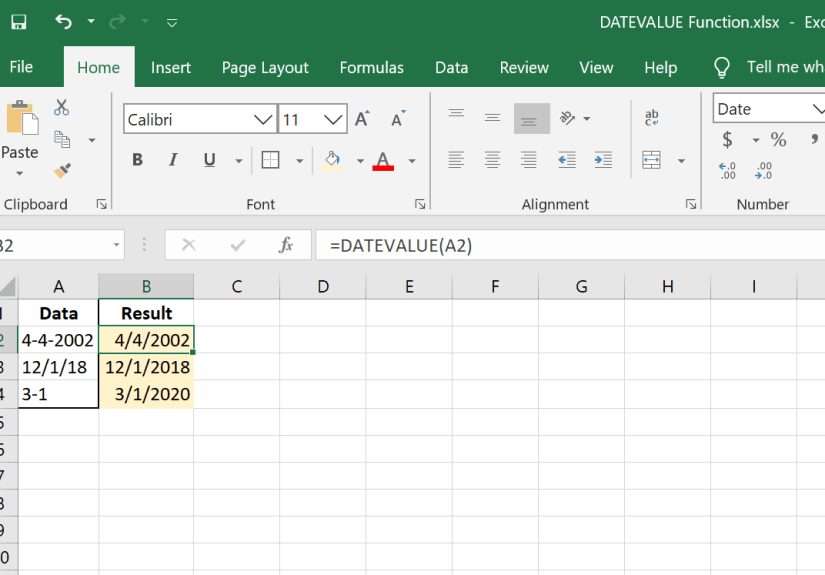
Let’s say cell A2 contains the text: 07/04/2026
Or you can type the date directly (in quotes):
After you enter the formula, Excel returns a number (the date serial). To make it look like a date again, format the result as a date.
How Excel Stores Dates (Why You See a “Random Number”)
Excel doesn’t store dates as “July 4, 2026.” It stores them as a sequential number in a date system. In the standard Windows date system, the count starts at January 1, 1900. So every date is really “how many days since the beginning of Excel’s calendar.”
That’s why DATEVALUE often returns something like 39448 or 46215. Those numbers are not randomExcel just isn’t showing you the nice outfit (date formatting) yet.
Make the Result Look Like a Date
- Select the cell with the DATEVALUE result.
- Press Ctrl + 1 (Windows) to open Format Cells.
- Choose Date (or Custom), then pick a format you like.
When You Should Use DATEVALUE
DATEVALUE shines when dates arrive in your spreadsheet wearing the wrong costume (text). Common situations include:
- Dates imported from CSVs, web exports, or copied from another system
- Dates that look right but won’t sort correctly (text sorts alphabetically, which is chaos)
- Dates that don’t work in calculations (like subtracting two dates)
- Mixed data where some rows are real dates and others are text lookalikes
Step-by-Step: Convert a Whole Column of Text Dates
Imagine column A contains text dates you want to convert. Here’s a clean, low-drama process.
Step 1: Create the Formula
In B2, enter:
Step 2: Fill Down
Double-click the fill handle (the little square at the bottom-right of the cell) to copy the formula down.
Step 3: Convert Formulas to Values (Optional, but Often Smart)
- Select the results in column B.
- Copy (Ctrl + C).
- Right-click > Paste Special > Values.
Step 4: Apply a Date Format
Format column B as a date so it displays like a date instead of a serial number.
DATEVALUE vs. VALUE (They’re Similar, But Not Twins)
People often ask: “Should I use DATEVALUE or VALUE?” Great questionExcel functions are like tools in a toolbox. You can use a spoon as a screwdriver, but everyone will judge you.
Use DATEVALUE when:
- You only need the date portion
- Your text contains a recognizable date
- You don’t care about the time (or there is no time)
Use VALUE when:
- Your text contains a date and time you want to keep
- You want Excel to convert a broader range of numeric-looking text (including dates/times)
Translation: DATEVALUE is date-focused and ignores time; VALUE can be better for date-time strings.
Working with Date-Time Text (DATEVALUE Ignores Time)
If your text looks like "7/4/2026 2:30 PM", DATEVALUE will convert the date portion and ignore the time portion. That’s not a bugDATEVALUE is just very committed to being a “date-only” function.
Option A: Keep Both Date and Time
Use DATEVALUE + TIMEVALUE:
Option B: Try VALUE for Date-Time Text
Then format the result as a date/time (for example: m/d/yyyy h:mm AM/PM).
Handling Common Date Formats (And a Few Trouble-Makers)
DATEVALUE works best when the text date matches what Excel expects based on your regional settings. In the U.S., that typically means month/day/year-style inputs like 7/4/2026.
Formats That Usually Work Well
7/4/202607-04-2026(depending on settings)July 4, 20264-Jul-2026
Formats That Can Cause Issues
04/07/2026(Is that April 7 or July 4? Excel hates ambiguity.)- Text with extra characters:
"Date: 07/04/2026" - Non-U.S. month names or abbreviations if your Excel language/locale differs
- Dates outside Excel’s accepted range for DATEVALUE
Pro Trick: Clean Messy Text Before DATEVALUE
If your cell contains extra words, commas in weird places, or leading/trailing spaces, DATEVALUE may throw a #VALUE! error. Your best friend here is TRIM and (sometimes) SUBSTITUTE.
Example: Extra Spaces
If A2 is " July 4, 2026 ":
Example: Remove a Prefix Like “Date:”
If A2 is "Date: 07/04/2026":
What If the Year Is Missing?
DATEVALUE can interpret text dates that omit the year (like "July 4"). When the year is missing, Excel uses the current year from your computer’s system clock. That can be convenient… or a sneaky trap if you’re cleaning historical data.
If you’re building something meant to last (like a report template), it’s safer to include the year explicitly, or attach the year yourself in a formula.
Attach a Year Yourself (Example)
If A2 is "Jul 4" and you want year 2026:
Diagnosing and Fixing #VALUE! Errors
A #VALUE! error is Excel’s way of saying: “I tried. I failed. I’m not talking about it.” Here are the usual suspects and what to do.
1) The Text Isn’t a Recognizable Date
If Excel can’t interpret the string as a date in your locale, DATEVALUE fails. Fix by rearranging the text, using month names, or building the date with DATE + parts (see below).
2) The Date Is Outside Excel’s Supported Range
DATEVALUE expects dates in Excel’s supported date range. If you’re importing historical records from the 1800s, you may hit limits depending on your Excel date system.
3) Hidden Characters
Data from websites sometimes includes non-breaking spaces or strange characters. Try:
4) Ambiguous Day/Month Order
If your workbook settings expect mm/dd/yyyy but your text is dd/mm/yyyy, DATEVALUE can misread or fail. In that case, you may need to parse the parts and rebuild using DATE.
Locale Headaches: How to Make Conversions More Reliable
DATEVALUE depends on how Excel interprets dates in your environment. If your data comes from multiple countries (or multiple coworkers who “swear their format is the normal one”), you’ll want a plan.
Best Practices for Consistency
- Prefer unambiguous formats like
2026-07-04(ISO-style) when exporting data - Use month names for clarity in text (e.g.,
4-Jul-2026orJuly 4, 2026) - Split and rebuild when you can’t trust the order
Example: Rebuild a Date from Text Using DATE
Suppose A2 contains 04/07/2026, but you know it’s dd/mm/yyyy (4 July 2026). You can split it and rebuild:
That approach is more “mechanic” than “magician”it doesn’t rely on Excel guessing the format.
DATEVALUE in Real Calculations
Once the text becomes a real date, Excel’s whole date/time toolkit opens up. Here are practical examples you can steal for your next spreadsheet.
Calculate Days Since a Text Date
If A2 is text: 1/1/2025
Check Whether a Conversion Worked
Convert If Needed (Mixed Real Dates + Text Dates)
Sometimes a column is a mix: some cells are already real dates (numbers), others are text. This pattern helps:
Graceful Error Handling (So Your Sheet Doesn’t Scream)
Non-Formula Options (Because Not Everything Needs a Formula)
DATEVALUE is great, but sometimes you want a quick conversion without leaving formula footprints everywhere.
Option 1: Text to Columns
- Select the column of text dates.
- Go to Data > Text to Columns.
- Choose Delimited > Next > Next.
- Under Column data format, choose Date and pick the correct order (MDY, DMY, etc.).
- Finish.
Option 2: Power Query
If you’re importing data regularly, Power Query can convert text to dates reliably and repeatably. It’s especially handy when you need the same cleanup every week (or every time the source system decides to “get creative”).
A Mini Cheat Sheet for DATEVALUE
- Convert text date:
=DATEVALUE(A2) - Trim first:
=DATEVALUE(TRIM(A2)) - Keep date + time:
=DATEVALUE(A2)+TIMEVALUE(A2) - Handle errors:
=IFERROR(DATEVALUE(A2),"Check") - Mixed types:
=IF(ISNUMBER(A2),A2,DATEVALUE(A2))
Conclusion
The Excel DATEVALUE function is one of those quietly powerful tools that turns “I can’t sort this column” into “I just built a clean dashboard in 15 minutes.” If you work with imported data, shared spreadsheets, or anything that didn’t originate inside your workbook, DATEVALUE is a must-have in your toolkit.
The key is remembering what DATEVALUE really does: it converts a text representation of a date into Excel’s underlying date number. Once you have that, formatting is easy, calculations are reliable, and your spreadsheet stops acting like dates are a philosophical debate.
Real-World Experiences: What People Actually Run Into (And How DATEVALUE Saves the Day)
If you’ve ever thought, “But it looks like a date,” you’re already living the DATEVALUE lifestyle. In real spreadsheetsespecially in offices where files bounce between teamsdate problems usually show up in the same handful of ways.
One super common scenario: a teammate exports a report from a system that stores dates as text. The file lands in your inbox, you drop it into Excel, and everything looks fine until you try to sort by date. Suddenly your “January” entries are scattered like confetti because Excel is sorting alphabetically (text rules), not chronologically (date rules). DATEVALUE is the quick fix: convert the column, paste values, format as a date, and the data finally behaves like it’s aware of the calendar.
Another frequent headache is “mixed columns,” where half the cells are real Excel dates and the other half are text dates. This happens a lot when someone manually typed over some rows, or when you merged datasets from different sources. The result is maddening: filters don’t catch everything, pivot tables group some dates but not others, and your formulas return inconsistent results. The simple pattern =IF(ISNUMBER(A2),A2,DATEVALUE(A2)) often turns that mess into a single consistent date type, which makes downstream work (like reporting or forecasting) way less fragile.
Then there’s the time-related surprise. People import timestamps like 7/4/2026 2:30 PM and assume DATEVALUE will keep the whole thing. It won’tit’s date-only. In practice, that means you might convert a timestamp column and accidentally drop all the time detail, which can wreck anything time-sensitive (like response-time analysis or event logs). The real-world solution is to decide upfront: do you need just the date (grouping by day), or do you need the full date-time (sequencing events)? If you need both, adding TIMEVALUE or using VALUE keeps your analysis honest.
Locale problems are the sneakier kind. A U.S.-formatted export (mm/dd/yyyy) sent to someone whose Excel expects dd/mm/yyyy can turn “04/07/2026” into a mystery. In real workflows, the safest move is to avoid ambiguous numeric formats whenever possibleuse month names or ISO-style dates when exportingor rebuild the date from known parts using DATE. It’s not glamorous, but it’s reliable, and reliability is basically Excel’s love language.
The biggest “experience lesson” is this: DATEVALUE isn’t just a function you memorize; it’s a habit. Whenever a date column acts weirdwon’t sort, won’t calculate, won’t group in a pivotassume it might be text, confirm it (ISNUMBER helps), and convert it early. Fixing date types at the start of your workflow saves you from debugging five layers later, when the spreadsheet is bigger, the deadline is closer, and you’ve started bargaining with the universe.