Table of Contents >> Show >> Hide
- Quick 60-Second Rescue (Try This First)
- Why the Left AirPod Won’t Connect (The Usual Suspects)
- Fixes for iPhone and iPad (Start Here)
- 1) Confirm the Left AirPod Is Actually Charging
- 2) Clean the AirPod and the Case Contacts (The Unsexy Fix That Works a Lot)
- 3) Toggle Bluetooth (And Do a Quick Device Restart)
- 4) Check Audio Balance (This One Is Sneaky)
- 5) Make Sure AirPods Are Selected as the Output
- 6) Forget and Re-Pair Your AirPods
- 7) Reset AirPods (Factory Reset Without the Drama)
- 8) Update iOS/iPadOS (And Let AirPods Firmware Catch Up)
- 9) If You Replaced One AirPod, You May Need a Proper Re-Sync
- Fixes for Mac (Because Macs Can Be Picky Too)
- Advanced Checks (When the Easy Stuff Doesn’t Work)
- When You Should Contact Apple Support
- Conclusion: The “Left AirPod Not Connecting” Fix Plan in One Breath
- Real-World Experiences: What People Usually Run Into (And What Actually Works)
Your AirPods are supposed to be the “it just works” accessoryuntil the left one decides it’s on a silent retreat.
One minute you’re vibing, the next you’ve got a $199 (or $249… or more) mono experience.
The good news: a left AirPod not connecting is usually a fixable combo of battery, Bluetooth, settings, or gunk.
The even better news: you can troubleshoot it in a few minutes without performing interpretive dance around your iPhone.
Below are practical, step-by-step fixes for iPhone, iPad, and Mac, plus the “why this happens” so you don’t keep
repeating the same ritual every other Tuesday.
Quick 60-Second Rescue (Try This First)
- Put both AirPods in the case, close the lid, and wait 30 seconds.
- Open the lid near your iPhone/iPad and check if both show up with battery levels.
- Play audio and gently re-seat the left AirPod in your ear (yes, really).
- Toggle Bluetooth off/on on your device.
- Charge everything for 10–15 minutes (AirPods + case). A “dead” left pod is often just… dead.
If the left AirPod still refuses to connect, don’t panic. The rest of this guide is basically a map from “Why are you like this?” to “Oh, there you are.”
Why the Left AirPod Won’t Connect (The Usual Suspects)
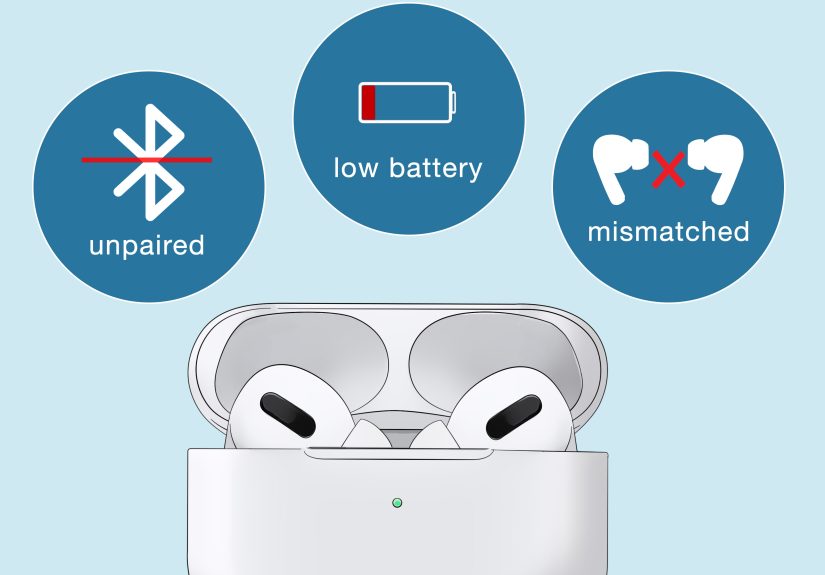
When only one AirPod won’t connect, it’s rarely “mystical Apple magic.” It’s usually one of these:
- Uneven battery drain: One pod dies faster, especially if you use one ear more often for calls.
- Charging contact issues: Lint, earwax, or grime blocks the contacts inside the caseso the left pod never actually charges.
- Bluetooth pairing hiccup: The AirPods are “connected” but not properly negotiating audio for both buds.
- Audio settings imbalance: Your device is literally sending sound to the right side only.
- Auto-switching confusion: AirPods jump between devices like an indecisive cat choosing a lap.
- Firmware/software bugs: Less common, but realespecially after an OS update.
- Hardware issues: If the left AirPod won’t charge or won’t appear anywhere, it may need service.
Fixes for iPhone and iPad (Start Here)
1) Confirm the Left AirPod Is Actually Charging
Open the case near your iPhone or iPad. You should see both AirPods and their battery levels pop up.
If the left AirPod shows 0% or doesn’t show at all, you’re likely dealing with a charging/contact issuenot a “connection” issue.
Quick test: Put the left AirPod in the case by itself. Does the case light react normally? Do you see the left pod’s battery update?
If not, move to the cleaning steps next.
2) Clean the AirPod and the Case Contacts (The Unsexy Fix That Works a Lot)
Wireless earbuds live a hard life: pockets, bags, gym sweat, desk crumbs. The charging pins inside the case are tiny, and it doesn’t take much lint
to stop one AirPod from making contact.
- Use a soft, dry, lint-free cloth to wipe the AirPod stem and the bottom charging area.
- Use a clean, dry, soft-bristled brush to remove debris from the case interior (especially the left slot).
- If needed, slightly dampen a cloth with isopropyl alcohollightly, not “marinated.” Let everything dry before charging again.
- Don’t jam sharp objects into the case ports or contacts. The goal is “clean,” not “DIY surgery.”
3) Toggle Bluetooth (And Do a Quick Device Restart)
Yes, it’s the oldest trick in tech support. It’s also popular because it works.
Turn Bluetooth off, wait a few seconds, turn it back on. If that doesn’t help, restart your iPhone or iPad.
This clears temporary Bluetooth glitches that can block one earbud from reconnecting properly.
4) Check Audio Balance (This One Is Sneaky)
If your left AirPod is “connected” but silent, your device might be sending audio mostly (or entirely) to the right channel.
On iPhone/iPad, go to:
Settings > Accessibility > Audio/Visual and make sure the Balance slider is centered.
If it’s nudged right, your left ear will feel personally ignored.
5) Make Sure AirPods Are Selected as the Output
Sometimes your phone connects to the AirPods but keeps output on the iPhone speaker (or a car system, or a nearby speaker you forgot existed).
Open Control Center, tap the AirPlay/audio output button, and select your AirPods.
Then test audio again.
6) Forget and Re-Pair Your AirPods
If the pairing relationship is messy, the cleanest reset is to forget the device and reconnect it from scratch.
- Go to Settings > Bluetooth.
- Tap the (i) next to your AirPods.
- Select Forget This Device and confirm.
- Put both AirPods in the case, open the lid near your iPhone/iPad, and follow the pairing prompt.
Pro tip: Keep other devices you’re signed into (like your iPad or Mac) a little farther away during setup,
so your AirPods don’t try to “helpfully” connect somewhere else mid-pair.
7) Reset AirPods (Factory Reset Without the Drama)
If forgetting didn’t fix it, do a full AirPods reset. This often resolves the “one bud refuses to connect” situation.
- Put AirPods in the case and close the lid for 30 seconds.
- Open the lid.
- Press and hold the setup button on the back of the case until the light flashes amber, then white.
- Reconnect by holding the open case near your iPhone/iPad and following the on-screen steps.
After the reset, test audio again. If the left AirPod now appears and plays sound, congratulations: you just performed the tech equivalent of “turn it off and on again,” but with flair.
8) Update iOS/iPadOS (And Let AirPods Firmware Catch Up)
AirPods firmware updates are delivered automatically while your AirPods are charging and near a connected device on Wi-Fi.
You usually can’t force a “Download Now” button the way you can with iOS, but you can make conditions ideal:
charge the AirPods in the case, keep them near your iPhone/iPad, and wait.
Also make sure your iPhone/iPad is on the latest iOS/iPadOS version available for your device.
Software updates routinely include Bluetooth and audio fixes that can affect AirPods behavior.
9) If You Replaced One AirPod, You May Need a Proper Re-Sync
If the left AirPod is a replacement (lost, serviced, or “borrowed permanently” by a sibling), it sometimes needs a fresh pairing process
so both buds match and work together. A full forget + reset + re-pair cycle is usually the fix.
Fixes for Mac (Because Macs Can Be Picky Too)
1) Select AirPods as Your Sound Output
A classic Mac move: it connects to your AirPods but continues playing sound through the internal speakers like nothing happened.
Go to Apple menu > System Settings > Sound > Output and select your AirPods.
Then play audio again.
2) Reconnect or Remove and Re-Add in Bluetooth Settings
- Go to Apple menu > System Settings > Bluetooth.
- Find your AirPods in the device list.
- If they’re connected, disconnect and reconnect.
- If they’re misbehaving, click the info button and choose to Forget/Remove them.
- Put both AirPods in the case, open the lid, and pair again.
3) Stop Auto-Switching Confusion (When Your AirPods Can’t Commit)
If your AirPods keep switching to your iPhone or iPad while you’re trying to use your Mac, change the Mac connection behavior.
In Bluetooth settings, open your AirPods options and set “Connect to This Mac” to
When Last Connected to This Mac.
This reduces random device-hopping and can stabilize one-bud connection issues.
4) Toggle Bluetooth and Restart the Mac
Turn Bluetooth off and back on in macOS, then restart the Mac. This helps when the Bluetooth stack gets stuck in a weird state
where a device shows “Connected” but behaves like it’s not.
5) Reset the Bluetooth Module (If Available on Your macOS Version)
On some macOS versions (especially older ones), there’s a hidden Bluetooth Debug menu that can reset the Bluetooth module.
If you see it, it can clear stubborn pairing problems. After resetting, restart your Mac and re-pair your AirPods.
If you don’t see any debug options (common on newer macOS builds), don’t worryremoving/re-adding the AirPods and restarting the Mac
accomplishes most of what you need in a safer, more official way.
6) Update macOS
If your left AirPod won’t connect to your Mac but works on your iPhone, your Mac may be behind on updates.
AirPods features (and sometimes basic stability) depend on macOS versions, and updating can resolve connection bugs.
Advanced Checks (When the Easy Stuff Doesn’t Work)
Reduce Wireless Interference
Bluetooth can get cranky in crowded wireless environments (office Wi-Fi, tons of devices, microwaves doing microwave things).
Try connecting in a different room or turning off nearby Bluetooth accessories temporarily.
If the left AirPod connects reliably elsewhere, interference is likely part of the problem.
Try Another Device to Isolate the Issue
Pair the AirPods to a different Apple device (another iPhone, an iPad, or a Mac).
If the left AirPod fails everywhere, the issue is likely with the AirPod or the case.
If it fails only on one device, focus troubleshooting on that device’s Bluetooth/audio settings.
Check for “Find My / Ownership” Problems (Common With Used AirPods)
If you bought used AirPods, they may still be tied to someone else’s Apple Account/Find My setup.
That can create weird pairing behavior and prevent a clean setup.
Ideally, the previous owner removes them from Find My before you try to use them.
Look for Signs of Hardware Trouble
Consider service/repair if you see any of these:
- The left AirPod never shows a battery level (even after cleaning and charging).
- The case doesn’t recognize the left AirPod consistently (no light change, no charging icon).
- The left AirPod connects but cuts out constantly across multiple devices.
- You’ve done a full forget + factory reset + re-pair and nothing changes.
Batteries do wear down over time, and individual AirPods can failespecially after years of daily charging cycles.
If you’re within warranty or AppleCare, it’s worth checking coverage.
When You Should Contact Apple Support
If your left AirPod won’t connect after:
cleaning contacts, confirming charging, forgetting/re-pairing, factory reset, and updating your devices,
you’ve basically exhausted the reliable DIY options.
At that point, Apple Support (or an Apple Authorized Service Provider) can run diagnostics and confirm whether it’s a battery,
charging-case contact issue, or a hardware failure.
Conclusion: The “Left AirPod Not Connecting” Fix Plan in One Breath
Start simple: charge both AirPods, clean the case contacts, toggle Bluetooth, and confirm your audio isn’t balanced to the right.
If that fails, forget and re-pair, then factory reset the AirPods.
On a Mac, double-check Sound Output and Bluetooth settings, reduce auto-switching chaos, restart, and update macOS.
And if the left AirPod won’t charge or won’t appear anywhere, it’s probably time to call in professional backup.
Real-World Experiences: What People Usually Run Into (And What Actually Works)
If you’re reading this, chances are you’ve already tried at least one fixand maybe whispered “please” at your charging case.
You’re not alone. In everyday use, the “left AirPod not connecting” problem tends to show up in a handful of very repeatable scenarios.
Here are the most common real-world patterns and the fixes that consistently get people unstuck.
Scenario #1: The left AirPod “won’t connect,” but the real issue is that it never charged.
This is probably the #1 culprit. People pop both AirPods into the case, assume they’re charging, and later discover the left one is still at 0%.
The fix is rarely dramatic: clean the left slot inside the case, wipe the metal contact area on the AirPod, and try again.
The moment the case can “see” the AirPod properly, the battery level appearsand suddenly the left side “connects” again.
It’s a reminder that Bluetooth can’t connect what the battery can’t power.
Scenario #2: The AirPods show “Connected,” but sound is still coming from the phone or the right ear only.
This one feels like gaslighting because your device insists everything is fine.
What usually fixes it is selecting AirPods as the audio output (especially if you recently used a car system or speaker),
plus checking the audio balance slider. A surprising number of people discover their balance was nudged rightsometimes by accident,
sometimes by accessibility settings they forgot existed. Re-centering that slider can instantly bring the left side back.
Scenario #3: Auto-switching turns your AirPods into a confused multi-device traveler.
Many users bounce between iPhone, iPad, and Mac. AirPods are designed to switch automatically, but “smart switching” isn’t always smart.
A common experience: you connect on the Mac, start a video, and the left AirPod acts like it missed the memothen your phone pings,
and the AirPods partially switch. Fixing “Connect to This Mac” behavior (setting it to connect when last used) reduces the chaos,
and pairing becomes far more stable.
Scenario #4: A reset works… but only after a proper forget + re-pair.
People often reset AirPods without fully forgetting them on the device first.
In practice, the strongest combo is: forget the AirPods in Bluetooth settings, reset the AirPods with the case button,
then pair again like they’re brand new. This wipes out stale pairing information that can leave one bud “half registered.”
Scenario #5: After an OS update, something feels off (and waiting helps).
It’s not unusual for users to notice weird AirPods behavior right after updating iOS or macOS.
Sometimes the fix is simply updating again (patch releases matter), restarting, and letting AirPods firmware update quietly in the background
while charging near a Wi-Fi-connected Apple device. The “wait while charging” step sounds passive, but it’s often the missing ingredient.
Scenario #6: The left AirPod fails everywhereiPhone, iPad, Mac.
When the left AirPod won’t connect to anything and won’t reliably show a battery level, the experience usually ends in one conclusion:
hardware trouble. That can mean a worn battery, damaged contacts, or internal failure. If you’ve done the clean/reset/re-pair routine and it’s still dead,
it’s time to check coverage and talk to Apple Support. At least you’ll go in knowing you already handled the fixes that solve the majority of cases.