Table of Contents >> Show >> Hide
- Why your iPhone location can be wrong in the first place
- 6 simple fixes for wrong iPhone location
- Fix 1: Check Location Services and turn on Precise Location
- Fix 2: Turn on Wi-Fi or cellular, disable Airplane Mode, and move somewhere open
- Fix 3: Set Date & Time to automatic
- Fix 4: Restart your iPhone and reopen the app
- Fix 5: Update iOS and update the app
- Fix 6: Reset Location & Privacy, or Reset Network Settings
- What if only one app is wrong?
- When should you worry?
- Real-world experiences: what this problem actually feels like
- Final thoughts
- SEO Tags
Your iPhone is supposed to know where you are. That is kind of the whole deal. So when Apple Maps insists you are floating in the middle of a lake, Find My says you are two neighborhoods away, or Google Maps decides your driveway is actually a cornfield, it can feel a little personal.
The good news is that a wrong location on iPhone usually does not mean your phone is broken. More often, it is a settings hiccup, a weak signal, a software bug, or an app that needs a small reality check. In other words, your iPhone is not trying to gaslight you. It is just confused.
In this guide, you will learn why your iPhone location may be wrong, how iPhone location accuracy works, and six simple fixes you can try right now. We will also cover what to do when the problem is not your phone at all, but the map data inside the app.
Why your iPhone location can be wrong in the first place
Before jumping into the fixes, it helps to know what your iPhone is actually doing when it tries to find you. Your location is not based on one magical sky beam. Instead, iPhone uses a mix of GPS satellites, nearby Wi-Fi networks, Bluetooth, and cellular towers to estimate your position. When all of those signals play nicely together, your blue dot behaves. When they do not, chaos enters the chat.
1. Your app does not have the right location permission
This is the big one. If Location Services is off, or the app is only allowed to use an approximate location, the result can be a map pin that looks like it took a wrong turn three streets ago. Some apps also need Precise Location turned on to give accurate directions instead of a vague “you are somewhere in this zip code” experience.
2. Your signal is weak or blocked
If you are indoors, underground, inside a parking garage, surrounded by tall buildings, or wandering through a tunnel like the star of a suspense movie, your iPhone may struggle to lock onto a solid GPS signal. Poor Wi-Fi and weak cellular service can make the problem worse.
3. Your date and time settings are off
This sounds weird until it happens. Incorrect time and time zone settings can interfere with apps and services that rely on server communication. If your phone thinks it is living in the wrong time zone, your location services may act like they got no sleep.
4. The app itself is having a moment
Sometimes the issue is not iPhone-wide. One app may be outdated, stuck, or working with stale cached data. Apple Maps, Google Maps, weather apps, ride-share apps, and even social media check-in features can all act strangely when they need a refresh.
5. iOS is outdated or buggy
Software updates do more than add shiny features and rearrange buttons you just got used to. They also patch bugs. If your iPhone location became inaccurate after an update, or because you have skipped a few updates, the software itself may be part of the problem.
6. The map data is wrong, not your location
This happens more than people realize. Your actual GPS position may be fine, but the saved address, home label, business listing, or road data inside the map app may be incorrect. In that case, your iPhone is innocent. The map is the drama queen.
6 simple fixes for wrong iPhone location
Fix 1: Check Location Services and turn on Precise Location
If your iPhone location is wrong, start here. This is the cleanest, fastest, and least annoying fix.
- Open Settings.
- Tap Privacy & Security.
- Tap Location Services.
- Make sure Location Services is turned on.
- Scroll down to the app giving you trouble, such as Maps, Google Maps, Weather, or Find My.
- Set access to While Using the App or Always, depending on the app.
- Turn on Precise Location.
If the app only has approximate access, it may know you are in Boston but not whether you are outside a coffee shop or parked one block over. That is not helpful when you are trying to get turn-by-turn directions or share your exact location with someone who is already texting, “Where are you?” in all caps.
If the problem is only happening in one app, this step alone may solve it. If it affects multiple apps, keep going.
Fix 2: Turn on Wi-Fi or cellular, disable Airplane Mode, and move somewhere open
Location accuracy is not just about GPS. Your iPhone also leans on Wi-Fi hotspots and cell towers to figure out where you are faster and more accurately.
Try this mini checklist:
- Turn Wi-Fi on, even if you are not connected to a network.
- Make sure Cellular Data is on.
- Turn Airplane Mode off.
- Step outside or move to an open area if you are indoors, underground, or surrounded by tall structures.
If your location dot is huge, drifty, or keeps snapping to a random street, weak signals are often the culprit. It is especially common in garages, airports, downtown high-rise areas, subways, hiking trails, and any place where your phone has to guess instead of confidently knowing.
Think of it this way: if your iPhone cannot see enough of the world around it, it starts making educated guesses. And some of those guesses are wildly confident and completely wrong, which is honestly very relatable.
Fix 3: Set Date & Time to automatic
Yes, really. This fix feels random until it works, and then it feels like wizardry.
- Open Settings.
- Tap General.
- Tap Date & Time.
- Turn on Set Automatically.
If your iPhone is using the wrong time zone or has the wrong date, location-based apps may not sync correctly with online services. Apple specifically points to correct date, time, and time zone settings when Maps cannot find your current location. So if your phone thinks it is Tuesday in Phoenix while you are standing in Chicago on a Friday, fix that first.
This is also a smart move after travel, switching carriers, or restoring a device from backup.
Fix 4: Restart your iPhone and reopen the app
It is the oldest trick in tech support, and it still works because temporary glitches are very real. A restart clears out stuck background processes that may be interfering with location services, network communication, or the app itself.
For most newer iPhones:
- Press and hold either volume button and the side button.
- Drag the power-off slider.
- Wait about 30 seconds.
- Turn the iPhone back on.
After that, reopen the app that was showing the wrong location. If it was Apple Maps or Google Maps, fully closing and reopening the app can also help clear stale location data.
This fix is especially useful when your location was working fine five minutes ago and then suddenly went weird for no clear reason. In those cases, your phone may not need surgery. It may just need a nap.
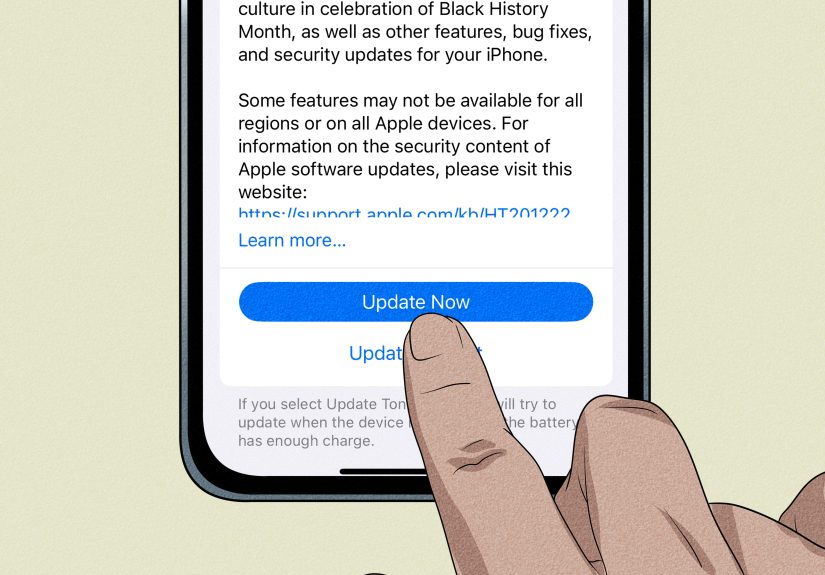
Fix 5: Update iOS and update the app
If your iPhone location is wrong after a software change, or it has been a while since you updated anything, this is worth doing.
To update iOS:
- Open Settings.
- Tap General.
- Tap Software Update.
- Install any available update.
To update your apps:
- Open the App Store.
- Tap your profile photo.
- Check App Updates.
- Update the app that is misbehaving, or tap Update All.
Apps that rely heavily on location, like Maps, Find My, rideshare apps, food delivery apps, weather apps, and fitness trackers, do not love being outdated. Neither does iOS. Updates often include bug fixes for location behavior, connectivity, or permissions.
If the problem started right after an update, do not panic. Sometimes a quick follow-up update or app patch cleans it up.
Fix 6: Reset Location & Privacy, or Reset Network Settings
If you have tried the easy fixes and your iPhone still thinks you live in an alternate dimension, it may be time for a deeper reset.
Option A: Reset Location & Privacy
- Open Settings.
- Tap General.
- Tap Transfer or Reset iPhone.
- Tap Reset.
- Tap Reset Location & Privacy.
This sends all location and privacy permissions back to their defaults. Afterward, apps will ask for permission again, which can help clear out weird permission bugs.
Option B: Reset Network Settings
- Open Settings.
- Tap General.
- Tap Transfer or Reset iPhone.
- Tap Reset.
- Tap Reset Network Settings.
Use this if your location issues seem tied to Wi-Fi, mobile data, or signal problems. Just remember: this will erase saved Wi-Fi passwords and network preferences, so only use it if the gentler fixes did not work.
What if only one app is wrong?
If your iPhone location is wrong only in Apple Maps, Google Maps, or another single app, the issue may be inside that app rather than in iPhone settings.
For Apple Maps
If an address, road, business, or direction step is wrong, you can report the problem directly inside Apple Maps. You can also check whether your Home address is outdated in your contact card, because Apple Maps uses that information for your saved home label.
For Google Maps
If your blue dot is inaccurate or pointing in the wrong direction, open Google Maps, tap the blue dot, and use the Calibrate option. In some situations, Google Maps can also use your camera and nearby buildings or signs to improve accuracy.
That means if your iPhone is basically right everywhere except in one app, you may not need to reset the entire phone. You might just need to fix that one app’s settings, refresh its data, or correct a saved address.
When should you worry?
Most location issues are temporary. But if your iPhone location is wrong all the time, across multiple apps, in open outdoor areas, after a restart, after updates, and after resetting settings, then you may be dealing with a more stubborn software issue or possibly hardware trouble related to GPS or connectivity.
At that point, backing up your iPhone and contacting Apple Support is the smart next move. If your Maps app cannot reliably find your location even outdoors with good service, you have officially moved from “annoying glitch” territory into “okay, now I need an adult” territory.
Real-world experiences: what this problem actually feels like
One reason this issue is so frustrating is that it rarely shows up at a convenient time. Your iPhone location is usually wrong when you are already in a hurry, already slightly stressed, or already trying not to look like the person who cannot find the front door to a building that is directly in front of them.
A very common experience happens during navigation. You open Maps to get to a doctor’s appointment, the app loads, and your blue dot starts a dramatic little dance across the screen. It slides from one side of the road to the other, points in the wrong direction, and suddenly acts as if you are driving backward through a shopping center. In real life, you are parked. Calmly. Legally. Hopefully.
Another classic moment is the rideshare pickup problem. You request a ride, watch the driver approach, and then realize the app thinks you are on the back side of the building, behind a fence, near a loading dock that no normal human has ever used voluntarily. Now you are doing the awkward “I am waving at you from the correct entrance” routine while the driver circles like a confused hawk.
Find My can also turn this into a family comedy. Maybe your spouse checks your location and asks why you are still at the grocery store when you are clearly home. Or your kid’s location appears stuck at school after pickup, triggering a burst of texts that make it sound like someone vanished into a mystery novel. In many cases, the person is fine. The location data just has not updated correctly.
Travel makes the issue even more obvious. After a flight, a time zone shift, or switching between Wi-Fi and cellular all day, your iPhone can get weirdly stubborn. It might know the city but not the street. It might show the hotel correctly in one app and place you a few blocks away in another. That kind of inconsistency is what makes people think the phone is failing, when the real issue is usually a mix of permissions, network conditions, and stale app data.
Then there is the “home address is wrong” situation, which feels minor until it is not. Maybe Apple Maps still points to an old apartment. Maybe Google Maps saved the wrong pin when you first labeled Home. Suddenly every route starts from the wrong place, package updates look strange, and simple commands like “take me home” become unexpectedly philosophical.
What makes all of these experiences so relatable is that the fix is often simple once you know where to look. Turn on Precise Location. Reconnect Wi-Fi. Set the time automatically. Restart the iPhone. Update the app. Reset location settings. None of those steps are glamorous, but they work far more often than most people expect.
So if your iPhone location is wrong right now, do not assume the worst. In many cases, your phone is not broken, your app is not cursed, and you are not losing your sense of direction. You are probably just one or two settings away from getting your blue dot back where it belongs.
Final thoughts
If your iPhone location is wrong, the fix is usually less dramatic than it feels in the moment. Start with the basics: check Location Services, enable Precise Location, make sure Wi-Fi or cellular is on, and confirm that Airplane Mode is off. Then verify your date and time, restart the device, and update both iOS and the app. If the problem sticks around, reset Location & Privacy or Network Settings.
Most importantly, remember that a bad location result does not always mean your iPhone is failing. Sometimes the signal is weak, sometimes the app needs calibration, and sometimes the map data itself is wrong. That means the fix might be one toggle away instead of one new phone away, which is great news for both your stress level and your wallet.