
Table of Contents >> Show >> Hide
- Can You Set a Video as Wallpaper in Windows 10?
- Before You Start: Pick the Right Video
- Best Free Method: Use Lively Wallpaper
- How to Set Video As Wallpaper in Windows 10: 11 Steps
- Step 1: Prepare Your Video File
- Step 2: Download a Trusted Live Wallpaper App
- Step 3: Open Lively Wallpaper
- Step 4: Add Your Own Video
- Step 5: Name the Wallpaper
- Step 6: Apply the Video Wallpaper
- Step 7: Adjust Monitor Placement
- Step 8: Set Playback Behavior
- Step 9: Mute Wallpaper Audio
- Step 10: Enable Start With Windows
- Step 11: Test Performance
- Alternative Method 1: Set Video Wallpaper With VLC Media Player
- Alternative Method 2: Use Wallpaper Engine
- Alternative Method 3: Use DeskScapes
- Alternative Method 4: Use PUSH Video Wallpaper
- Performance Tips for Video Wallpaper in Windows 10
- Best Types of Videos for Windows 10 Live Wallpaper
- Troubleshooting: Video Wallpaper Not Working
- Is It Safe to Use Video Wallpaper Apps?
- Which Method Should You Choose?
- Real Experience: What It Feels Like to Use Video Wallpaper Every Day
- Conclusion
Static wallpapers are fine. They sit there politely, like a framed photo on a dentist’s wall. But a video wallpaper? That turns your Windows 10 desktop into a tiny movie screen, a cozy aquarium, a rainy city window, a moving galaxy, or whatever else makes opening your laptop feel less like reporting for spreadsheet duty.
The catch is simple: Windows 10 does not give you a built-in “set this MP4 as my wallpaper” button in the normal Personalization menu. Out of the box, Windows 10 lets you choose a picture, slideshow, or solid color as your desktop background. To use a video as wallpaper in Windows 10, you need a trusted third-party app or a clever media-player workaround.
This guide walks you through the easiest ways to set video as wallpaper in Windows 10, including a clear 11-step method, quick alternatives, performance tips, and real-world advice so your desktop looks alive without making your PC sound like a tiny jet engine preparing for takeoff.
Can You Set a Video as Wallpaper in Windows 10?
Yes, you can set a video as wallpaper in Windows 10, but not through the default Windows background settings. The best solution is to use a live wallpaper app such as Lively Wallpaper, Wallpaper Engine, DeskScapes, or PUSH Video Wallpaper. You can also use VLC Media Player for a quick temporary video wallpaper, although it is not as smooth or permanent as a dedicated wallpaper app.
For most users, Lively Wallpaper is the easiest free option. It supports local videos, GIFs, web-based wallpapers, and multiple monitors. Wallpaper Engine is a popular paid choice with a massive community library. DeskScapes is great for users who want polished customization tools, while PUSH Video Wallpaper is straightforward for people who mainly want to loop local video files.
Before You Start: Pick the Right Video
Not every video deserves to live behind your desktop icons. A great video wallpaper should be short, smooth, and not too distracting. Think slow ocean waves, a fireplace loop, animated clouds, abstract particles, or a peaceful city skyline. A shaky concert clip with flashing lights may look cool for six seconds, then become visual caffeine with a side of regret.
Recommended Video Settings
For Windows 10 video wallpaper, use an MP4 file when possible. MP4 is widely supported and usually performs well. A 1080p video is usually enough for most monitors. If you use a 4K video, make sure your PC has enough graphics power. Keep the clip short, ideally 10 to 60 seconds, and use a seamless loop if you want the wallpaper to look professional.
Also consider muting the video. A wallpaper that whispers ocean sounds every time you open your desktop sounds charming until you join a video call and your coworkers wonder why your laptop has moved to a spa.
Best Free Method: Use Lively Wallpaper
Lively Wallpaper is one of the most beginner-friendly ways to set a video as wallpaper in Windows 10. It is free, open-source, modern, and designed for animated desktop backgrounds. It works well with local video files and also supports other animated formats.
Here is the clean 11-step process.
How to Set Video As Wallpaper in Windows 10: 11 Steps
Step 1: Prepare Your Video File
Choose the video you want to use as your Windows 10 live wallpaper. For best results, use an MP4 file with a calm loop, 1080p resolution, and no audio. Save it somewhere easy to find, such as your Videos folder or a dedicated folder named “Wallpapers.”
Step 2: Download a Trusted Live Wallpaper App
Install Lively Wallpaper from a trusted source such as the Microsoft Store or the developer’s official page. Avoid random “free wallpaper” download sites, because the internet is full of buttons that say “Download” while quietly plotting chaos.
Step 3: Open Lively Wallpaper
After installation, launch Lively Wallpaper from the Start menu. You should see a library of built-in animated wallpapers. These are useful for testing whether your PC handles live wallpapers smoothly.
Step 4: Add Your Own Video
Click the option to add a new wallpaper. In many versions of Lively, you can drag and drop your video file directly into the app window. You can also browse for the file manually. Select your MP4, WebM, MOV, or other supported video file.
Step 5: Name the Wallpaper
Give your wallpaper a simple name, such as “Rainy Window,” “Space Loop,” or “Do Not Judge My Desktop.” Naming it helps you find it later, especially if you plan to build a collection.
Step 6: Apply the Video Wallpaper
Click to apply the video as your desktop wallpaper. Within a moment, your Windows 10 background should start moving. If nothing happens, check that the app is running and that your file format is supported.
Step 7: Adjust Monitor Placement
If you use more than one monitor, choose whether the video should appear on one screen, all screens, or different screens individually. Multi-monitor setups can look amazing with video wallpapers, but they can also use more system resources.
Step 8: Set Playback Behavior
Open the app’s settings and look for performance options. Enable pause or stop behavior when apps are fullscreen, when games are running, or when your laptop is on battery. This keeps your video wallpaper from stealing resources while you are gaming, editing, streaming, or pretending to be productive.
Step 9: Mute Wallpaper Audio
If your video has sound, mute it inside the wallpaper app or use a silent version of the video. Wallpaper audio is rarely useful and often annoying. Your desktop should look alive, not suddenly start narrating your morning.
Step 10: Enable Start With Windows
Turn on the setting that lets the wallpaper app start automatically with Windows. This makes your video wallpaper load after restart without you opening the app manually every time.
Step 11: Test Performance
Open Task Manager and check CPU, GPU, and memory usage. If your PC feels slower, switch to a lower-resolution video, choose a simpler animation, reduce playback quality, or set the wallpaper to pause when other apps are active.
Alternative Method 1: Set Video Wallpaper With VLC Media Player
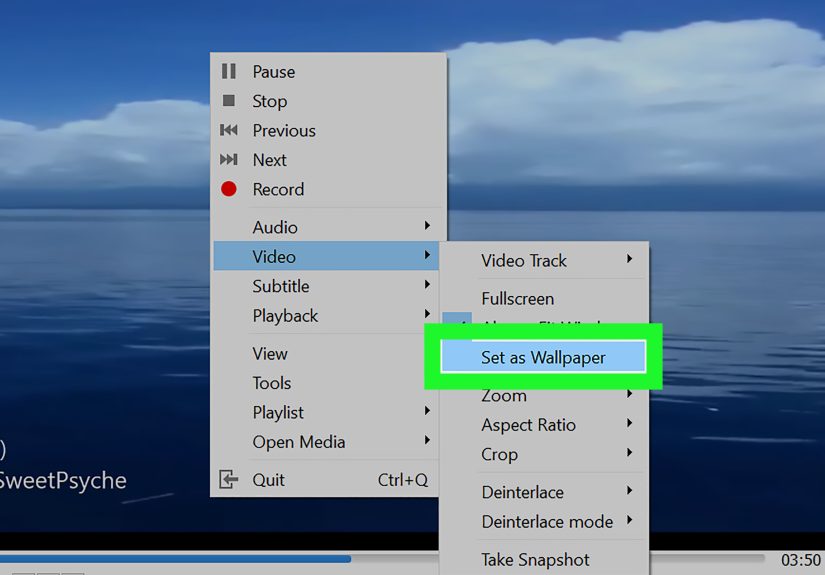
VLC Media Player can temporarily set a playing video as your desktop wallpaper. This is handy if you want a quick test and do not want to install a dedicated wallpaper app. Open your video in VLC, go to the video options, and choose the wallpaper mode if available in your version.
The downside is that VLC is not really a full live wallpaper manager. It is better for temporary use than daily desktop customization. You may need to reopen the video after restarting your PC, and multi-monitor behavior can be less predictable. Still, for a quick “Can my laptop handle this?” experiment, VLC is a useful little trick.
Alternative Method 2: Use Wallpaper Engine
Wallpaper Engine is one of the most popular paid tools for animated wallpaper on Windows 10. It supports videos, 2D and 3D animations, websites, interactive wallpapers, and community creations. The Steam Workshop library is huge, so you can find everything from peaceful nature loops to futuristic dashboards that make your desktop look like it belongs to a spaceship accountant.
Wallpaper Engine is especially useful if you want strong performance controls. You can set wallpapers to pause or stop when games, fullscreen apps, or maximized windows are active. This is important because even a beautiful live wallpaper should know when to sit quietly in the corner.
Alternative Method 3: Use DeskScapes
DeskScapes is another polished option for animated wallpapers in Windows 10 and Windows 11. It focuses on customization, organization, effects, and a more traditional desktop-personalization experience. It is a good fit if you want more than just “play this video behind my icons.”
With DeskScapes, users can apply animated backgrounds, add visual effects, organize wallpaper collections, and customize the style of the desktop. It is a paid product, but it may be worth considering if you like a more guided, premium interface.
Alternative Method 4: Use PUSH Video Wallpaper
PUSH Video Wallpaper is built for one simple job: playing videos as your Windows wallpaper. It can work with local video files and some online sources, depending on the version and setup. If you do not want a giant wallpaper ecosystem and only need video playback on your desktop, this kind of tool can be refreshingly direct.
The main thing to check is startup behavior, playlist support, audio controls, and whether the app handles your monitor layout properly. Always download from the official provider and avoid repackaged installers from unknown websites.
Performance Tips for Video Wallpaper in Windows 10
A video wallpaper uses more resources than a static image. That does not mean it will destroy your PC. It simply means your computer has one more visual task running in the background. On a modern desktop with a dedicated GPU, a simple 1080p loop may be barely noticeable. On an older laptop, a 4K animated wallpaper can feel like asking a bicycle to tow a boat.
Use 1080p Instead of 4K
Unless you have a 4K monitor and strong hardware, 1080p is usually the sweet spot. It looks sharp enough and uses fewer resources.
Choose Calm Motion
Slow-moving wallpapers are easier on your eyes and your computer. Fast flashing graphics may cause distraction and higher GPU usage.
Pause During Games
Always enable pause or stop settings for fullscreen apps and games. Your graphics card should focus on your game, not on making a digital waterfall look emotionally available in the background.
Watch Battery Life
If you are on a laptop, live wallpapers can reduce battery life. Use app settings to pause animations on battery power, or switch back to a dark static wallpaper when you are away from the charger.
Keep Your Desktop Clean
A video wallpaper looks better when your desktop is not buried under 97 icons named “New Folder,” “New Folder 2,” and “Final Final Real Final.” Consider hiding desktop icons or organizing shortcuts into the Start menu or taskbar.
Best Types of Videos for Windows 10 Live Wallpaper
The best video wallpapers are visually pleasing without demanding attention every three seconds. Here are a few examples that work especially well:
- Rain on a window
- Slow ocean waves
- Animated space scenes
- Minimal abstract loops
- Fireplace videos
- Forest wind or moving clouds
- Subtle neon city backgrounds
Avoid videos with quick cuts, faces talking, subtitles, loud colors, or major movement across the entire screen. Your wallpaper is the background actor, not the lead role demanding an Oscar.
Troubleshooting: Video Wallpaper Not Working
The Wallpaper Is Black
Try a different video format, preferably MP4. Restart the wallpaper app, update your graphics driver, and check whether hardware acceleration is enabled or disabled depending on your system.
The Video Plays But Has No Sound
That may be intentional. Many wallpaper apps mute audio by default. In most cases, keeping it muted is better for sanity, meetings, and family members who do not want to hear your desktop thunderstorm at 7 a.m.
The Wallpaper Disappears After Restart
Enable “start with Windows” inside the wallpaper app. Also make sure the video file has not been moved or renamed.
The PC Feels Slow
Use a lower-resolution video, reduce playback quality, choose a shorter loop, or set the wallpaper to pause when windows are maximized. If you are on an older laptop, a static wallpaper may simply be the more peaceful choice.
Is It Safe to Use Video Wallpaper Apps?
Yes, video wallpaper apps can be safe when downloaded from reputable sources. The risk usually comes from shady download pages, bundled installers, fake “driver update” buttons, or random wallpaper packs from unknown websites. Stick with official websites, the Microsoft Store, Steam, or trusted software publishers.
Also remember that Windows 10 reached the end of regular support in October 2025. Your PC may still work, but security matters more than ever. Keep your browser, drivers, antivirus protection, and wallpaper apps updated. A pretty desktop is nice; a secure desktop is nicer.
Which Method Should You Choose?
If you want the easiest free method, choose Lively Wallpaper. If you want the largest library and do not mind paying, choose Wallpaper Engine. If you want polished customization and effects, try DeskScapes. If you want a basic video-wallpaper tool, consider PUSH Video Wallpaper. If you only want a temporary experiment, use VLC.
For most Windows 10 users, the best starting point is Lively Wallpaper because it is simple, free, and flexible. Once you know what kind of animated desktop background you enjoy, you can decide whether a paid app is worth it.
Real Experience: What It Feels Like to Use Video Wallpaper Every Day
Using a video wallpaper in Windows 10 feels exciting at first. The first time you minimize your browser and see waves rolling behind your icons, your brain says, “Finally, this computer has a personality.” It is a small change, but it makes the desktop feel more personal. A boring workspace becomes a tiny digital room with lighting, mood, and atmosphere.
In real daily use, the best video wallpapers are the quiet ones. A soft rain loop can make late-night writing feel cozy. A slow space animation can make a dual-monitor setup look clean and futuristic. A fireplace loop can make a winter desktop feel warm, even if your actual coffee has gone cold because you forgot it existed.
The novelty can wear off if the wallpaper is too busy. At first, a high-energy cyberpunk street scene looks amazing. After a few hours, you may realize your eyes are doing push-ups. That is why subtle motion works better than dramatic motion. Your wallpaper should improve the mood of your workspace, not challenge your focus to a boxing match.
Performance also becomes part of the experience. On a desktop PC, a 1080p loop usually feels smooth. On a laptop, especially one running on battery, you may notice extra fan noise or faster battery drain. The fix is simple: use pause settings. Let the wallpaper run when you are admiring the desktop, then pause it when apps, games, or schoolwork take over. A good live wallpaper setup should feel invisible when you are working and delightful when you return to the desktop.
Another practical lesson: organize your files first. A gorgeous moving wallpaper hidden behind a chaotic wall of icons is like putting a luxury rug under a pile of laundry. Hide desktop icons, group shortcuts, or use the taskbar more intentionally. Video wallpaper looks best when it has room to breathe.
There is also a personality factor. Your wallpaper says something about your style. A calm forest loop says, “I enjoy peace.” A galaxy says, “I think in big ideas.” A looping cat video says, “I understand the internet at a spiritual level.” None of these are wrong. The point is to build a desktop that makes you want to sit down and use your computer.
The biggest recommendation from experience is to create two setups: one fun setup and one focus setup. Use a moving wallpaper when relaxing, browsing, designing, or customizing your PC. Switch to a dark static background when gaming, studying, presenting, or conserving battery. That gives you the best of both worlds: a desktop with style and a computer that still behaves when it matters.
In short, setting video as wallpaper in Windows 10 is absolutely worth trying. It is easy, reversible, and surprisingly satisfying. Just choose the right app, use a sensible video, manage performance settings, and do not let your wallpaper become more dramatic than your actual life. Your desktop deserves a little motion. Your CPU deserves a little mercy. Balance, as always, is the secret sauce.
Conclusion
Setting a video as wallpaper in Windows 10 is not built into the standard Personalization menu, but it is still easy with the right tool. Lively Wallpaper is the best free starting point, VLC works for quick experiments, and paid tools like Wallpaper Engine or DeskScapes offer deeper customization. Choose a smooth MP4 loop, mute the audio, enable pause settings, and keep an eye on performance. With a little setup, your Windows 10 desktop can feel fresh, modern, and alive without turning your laptop into a toaster with ambition.
Note: For best results, download wallpaper apps only from official sources, keep Windows and graphics drivers updated, and avoid unknown wallpaper packs that require suspicious installers.




 Close
Close