
Table of Contents >> Show >> Hide
- Quick reality check: “Kindle Fire” vs. “Fire tablet”
- What “browsing history” actually includes (and what it doesn’t)
- Method 1: Clear browsing history in Silk (the default Fire tablet browser)
- Method 2: Clear browsing history in Chrome (if you installed it)
- Method 3: If Silk is crashing or you can’t find the right menu
- Don’t confuse these two: web browsing history vs. Amazon shopping browsing history
- Extra privacy moves (so you’re not clearing history every Tuesday)
- Troubleshooting: “I cleared it… why does it still show up?”
- FAQ: The most common “Wait, will this mess up my life?” questions
- Final checklist: pick your “clean level”
- Real-world experiences : what it feels like when you actually do this
- Conclusion
We’ve all been there: you hand your Amazon Kindle Fire (a.k.a. your Fire tablet) to a friend or kid for “just a second,”
and suddenly you’re mentally replaying the last 20 things you Googledlike a highlight reel you never asked to screen.
The good news: clearing your browsing history on a Kindle Fire is quick. The even better news: you can choose how deep
you want to cleananything from “just the obvious stuff” to “make it look like I’ve never seen the internet before.”
This guide walks you through exact steps to clear browsing history on an Amazon Kindle Fire, whether you use
Amazon’s Silk browser (most common) or you installed Chrome. We’ll also cover cookies, cache, saved passwords, and the
“why does it still remember me?” momentsbecause technology loves a plot twist.
Quick reality check: “Kindle Fire” vs. “Fire tablet”
Amazon hasn’t called it “Kindle Fire” in a while, but many people still do. Today you’ll mostly see Fire tablet
(like Fire HD 8, Fire HD 10). The menus can vary slightly by Fire OS version and device generation, but the paths below
are the ones you’ll see on the vast majority of Fire tablets in the U.S.
What “browsing history” actually includes (and what it doesn’t)
Before you start tapping buttons like you’re defusing a bomb, it helps to know what you’re deleting. In most browsers,
“browsing data” can include:
- Browsing history: the list of websites you visited.
- Cookies & site data: sign-ins, preferences, and “remember me” bits from websites.
- Cached images/files: saved parts of pages that help them load faster next time.
- Saved passwords: credentials stored by the browser (optional to delete).
- Autofill form data: saved names/addresses/email fields (optional).
- Open tabs/session data: sometimes included depending on browser/version.
Clearing history can improve privacy on a shared device. Clearing cache and cookies can also fix weird site behavior
(like a page that refuses to load correctly). But it can log you out of sites, so don’t be shocked when your tablet
suddenly “forgets” who you arelike a goldfish with Wi-Fi.
Method 1: Clear browsing history in Silk (the default Fire tablet browser)
If you’ve never installed another browser, you’re probably using Amazon Silk. Here are two common ways to clear history.
Which one you see depends on your Fire OS/Silk version.
Option A: Clear browsing data from Silk’s Privacy settings
- Open the Silk browser.
- Tap the menu (usually three dots in the top-right, or a menu icon).
- Tap Settings.
- Go to Privacy (or Privacy & Security).
- Tap Clear browsing data (sometimes shown as Clear history and data).
-
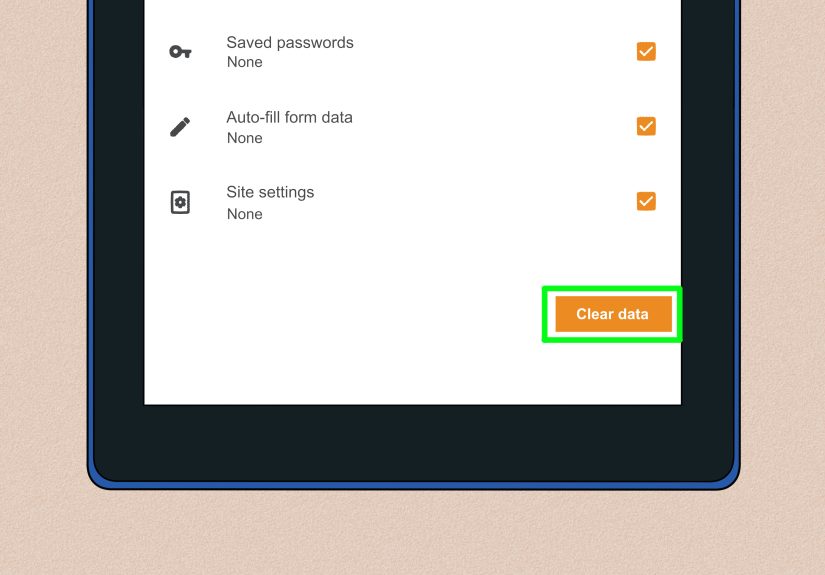
Choose what you want to delete:
- Browsing history (the main event)
- Cookies/site data
- Cached images and files
- Saved passwords (optional)
- Autofill form data (optional)
- Tap Clear data (or Clear) to finish.
Pro tip: If you want a “privacy cleanup” without turning your tablet into a blank slate, start with
Browsing history + Cached images/files. Add Cookies/site data only if you
don’t mind getting signed out of websites.
Option B: Clear history directly from the History screen
- Open Silk.
- Open the menu, then tap History.
- Look for a trash can icon or a Clear option.
- If available, select a time range (like last hour, last day, or all time), then confirm.
If you don’t see time-range options, don’t panic. Some versions keep it simple: it’s basically “clear it” vs. “keep it.”
When in doubt, use Option A and choose exactly what to remove.
Method 2: Clear browsing history in Chrome (if you installed it)
Some Fire tablet owners install Chrome (often via the Play Store workaround). If you use Chrome, the steps look like
standard Androidbecause Chrome likes consistency the way cats like cardboard boxes.
- Open Chrome.
- Tap the three-dot menu (top-right).
- Tap Delete browsing data (or go to History → Clear browsing data).
- Choose a time range (Last 15 minutes, Last hour, Last 24 hours, All time, etc.).
-
Select what to remove:
- Browsing history
- Cookies and site data
- Cached images and files
- Tap Delete data.
Specific example: If you only want to hide “I looked up 17 different air fryers at 2 a.m.” but keep your
logins, pick a short time range and delete Browsing history only. If websites are acting glitchy
(refusing to load, stuck in loops), add Cookies + Cache.
Method 3: If Silk is crashing or you can’t find the right menu
Sometimes Silk won’t open long enough to clear anything, or the menu labels don’t match the tutorials you found online.
When that happens, clear Silk’s stored data from Fire OS settings. This is the “turn it off and on again” of privacy cleanup
only slightly more polite.
Clear Silk cache (lighter cleanup)
- Open the Settings app on your Fire tablet.
- Tap Apps & Notifications (or Apps & Games on some versions).
- Tap Manage All Applications (or See all apps).
- Find and tap Silk Browser.
- Tap Storage (if shown).
- Tap Clear cache.
Clear Silk data (heavier cleanup)
If you want a deeper wipe (history, cookies, settingsbasically “Silk, forget everything”), use:
- Follow the same path: Settings → Apps → Silk Browser.
- Tap Clear data (sometimes shown as Clear storage).
- Confirm when prompted.
Heads-up: Clearing app data is the “big reset” button. It can sign you out of sites and may reset Silk preferences.
Use it when Silk is misbehaving, you’re troubleshooting, or you want a serious privacy reset.
Don’t confuse these two: web browsing history vs. Amazon shopping browsing history
Clearing your browser history removes what you did in Silk/Chrome. It does not automatically remove your
Amazon shopping browsing history (the “items you viewed” list tied to your Amazon account).
If you’re trying to hide that you looked at a waffle maker shaped like a dinosaur… you’ll need to clear that in the Amazon shopping history settings separately.
Extra privacy moves (so you’re not clearing history every Tuesday)
Use Private Browsing in Silk for “no footprints” sessions
If you want a session not to appear in Silk history, use Private Browsing. Open Silk’s menu and choose
Enter Private Browsing (wording can vary). In private mode, Silk typically won’t save your browsing history
for that sessionhandy on shared devices.
Use Incognito in Chrome for the same idea
In Chrome, open the three-dot menu and select New incognito tab. Your device still connects to the internet normally,
but your local browsing history won’t record those pages the same way.
Set up separate profiles for different people
Fire tablets support multiple user profiles. If your tablet is shared, separate profiles are the cleanest way to keep
histories (and recommendations) from blending into one chaotic soup of cartoons, recipes, and mysterious “how tall is a llama” searches.
Troubleshooting: “I cleared it… why does it still show up?”
1) Suggestions can linger even after history is gone
Some browsers show “Most visited” tiles or suggestions that may take a bit to update. Try closing and reopening the browser,
or clearing cookies and cache in addition to history.
2) Your search engine may have its own history
Clearing Silk/Chrome history removes local device records. But if you were signed into a Google account, for example,
your searches could also be saved to your account activity. If you want that cleaned up, you’ll need to manage it at the account level.
3) You cleared the wrong browser (it happens)
If you cleared Silk but you actually used Chrome (or vice versa), the “history” will still be there in the other app.
Check which browser you opened when you visited those sites.
4) Tabs may still be open
Clearing history doesn’t always close open tabs. If the goal is “make it not visible,” close tabs after clearing data,
especially if you left pages open.
FAQ: The most common “Wait, will this mess up my life?” questions
Will clearing browsing history delete my bookmarks?
Usually, no. History and bookmarks are separate. But if you choose aggressive options like clearing all app data, browser settings
can resetso if your bookmarks matter a lot, consider exporting/syncing where possible or avoid the “clear app data” nuclear option.
Will it log me out of websites?
Clearing cookies/site data often logs you out. Clearing browsing history alone typically does not.
Does clearing cache make my Fire tablet faster?
It can help if your browser is sluggish or sites are loading incorrectly, but it’s not a permanent performance hack.
Cache is meant to speed things upuntil it gets bloated or corrupted.
How often should I clear browsing data?
If you share the tablet, do it whenever you want to keep things private. If you don’t share it, only clear when you’re troubleshooting,
low on storage, or doing a privacy refresh.
Final checklist: pick your “clean level”
- Light: Clear browsing history only.
- Medium: Clear history + cache (privacy + fixes weird loading).
- Deep: Clear history + cookies + cache (logs you out, resets some site behavior).
- Full reset: Clear Silk app data in Fire OS settings (use when troubleshooting or starting fresh).
Real-world experiences : what it feels like when you actually do this
Clearing browsing history on a Fire tablet sounds simpleand it isbut the real “experience” is everything that happens right
after you hit the button. Here are the most common situations people run into, plus how to handle them without spiraling.
Experience #1: “Why did every site log me out?!”
This is the classic surprise. You cleared history, felt powerful, then reopened a site and got treated like a stranger
who just walked into a party without an invite. That’s almost always because you cleared cookies/site data.
Cookies are what keep you signed in and remember preferences like dark mode, location, and “yes, I really do want my cart saved.”
If the main goal is privacy from someone else using the tablet, clearing cookies is effectivebut the trade-off is re-entering passwords.
Next time, consider doing a “history-only” clean unless you specifically need to wipe sign-ins.
Experience #2: The tablet looks “clean,” but Silk still suggests stuff.
You clear everything, then Silk shows a tile for a site you visited yesterday like it’s proud of itself. First, check whether
you cleared data from the right place (Silk settings vs. Fire OS app storage). Second, close all tabs and restart the browser.
Some “Most visited” shortcuts update after a refresh, and sometimes they’re influenced by cached elements that clear more reliably
when you include cached images/files.
Experience #3: You’re cleaning up after a shared-device moment.
Picture this: you let a family member use your Fire tablet to “check one thing,” and suddenly your browser history is 80%
recipes, 15% celebrity trivia, and 5% “how to train for a marathon in 3 days” (bold strategy). If this happens often,
clearing history is like mopping the floor while someone’s still spilling juice. The better long-term move is creating separate
user profiles. That way, each person’s browsing stays in their lane, and you don’t have to play detective to figure out why
your recommendations turned into a completely different personality.
Experience #4: Clearing cache fixes a broken site… and then the site loads slower once.
This one’s normal. Cache is basically your browser’s “quick-access drawer.” When you clear it, the next visit to a website
can feel a little slower because images and page components need to download again. The upside is that stubborn issuespages not
displaying correctly, login loops, buttons not workingoften disappear after a cache clear. It’s the digital equivalent of
shaking the Etch A Sketch.
Experience #5: You want privacy without constant cleanup.
If your goal is simply not leaving a trail on the device, private browsing is your best friend. Use Private Browsing
in Silk or Incognito in Chrome for sessions you don’t want recorded locally. It’s perfect for surprise shopping,
researching personal topics, or planning a trip you don’t want spoiled by a homepage full of hotel ads.
Experience #6: Silk won’t open, so you feel stuck.
When Silk crashes or freezes, people assume they can’t clear anythingwrong. Clearing Silk cache/data from Fire OS settings
is the escape hatch. It’s also how you regain control when a browser gets weirdly “sticky,” like it’s holding onto old behavior
even after you cleaned within the app. It’s not glamorous, but it’s effective.
Bottom line: clearing your browsing history on an Amazon Kindle Fire is less about the button press and more about choosing the
right level of cleanup for your situation. Once you know what history vs. cookies vs. cache actually does, you’ll stop getting
surprisedand start feeling like the person in charge of the device again. Which is nice, because the internet is already chaotic
enough without your tablet freelancing your personal business.
Conclusion
To clear your browsing history on an Amazon Kindle Fire, start with the browser you actually use: Silk (menu → settings → privacy → clear browsing data)
or Chrome (menu → delete browsing data). If Silk is acting up, clear cache or data through Fire OS app settings.
The key is picking your “clean level”: history-only for quick privacy, history + cache for troubleshooting, or history + cookies + cache for a deeper wipe.
And if you’re tired of clearing things repeatedly on a shared tablet, private browsing and separate user profiles can save you a lot of timeand a little dignity.



 Close
Close