
Table of Contents >> Show >> Hide
- Quick Checklist (Before You Plug Anything In)
- What You’ll Need
- Step 1: Add Your Music to iTunes (Or Your iTunes Library)
- Step 2: Connect Your iPod (And Make Sure It’s Actually Recognized)
- Windows Guide: How to Add Music from iTunes to iPod
- Mac Guide: How to Add Music to iPod (Finder + Music App)
- Choosing the Best Sync Strategy (So You Don’t Hate Your Life Later)
- Common Problems (And Fixes That Don’t Require a Ritual Sacrifice)
- FAQ: Quick Answers That Save You 45 Minutes of Clicking Around
- Conclusion
- Real-World Experiences: What People Run Into (And How They Get Through It)
- 1) The “My iPod charges but doesn’t show up” cable plot twist
- 2) The “Trust This Computer?” moment (and the accidental “Don’t Trust” tap)
- 3) The “Why won’t these songs copy?” mystery that turns out to be file reality
- 4) The “New library, same iPod” warning that feels like a threat
- 5) The “I tried to sync everything and now my iPod is full” rite of passage
- 6) The “It finally worked… but my album art is missing” heartbreak
Your iPod may be vintage, but your taste in music is timeless. Whether you’re rocking an iPod touch that still feels oddly modern,
or an iPod classic that could survive a small apocalypse in a backpack, the goal is the same: get your music from iTunes (or your iTunes-era library)
onto that glorious click-wheel (or touchscreen) and hit play.
The trick is that Apple’s “music ecosystem” has evolved like a Pokémon. iTunes still exists on Windows, but on modern Macs it’s mostly split into
the Music app + Finder syncing. And depending on which iPod you have, your steps change a little. Don’t worryI’ll keep it quick, clear, and
only mildly sarcastic.
Quick Checklist (Before You Plug Anything In)
- Know your iPod model: iPod touch vs. iPod classic/nano/shuffle matters for syncing options.
- Update your software: latest iTunes on Windows, or macOS updates if you’re using a Mac.
- Use a real data cable: some “mystery cables” only charge and won’t sync.
- Make sure your music is actually downloaded: streaming-only tracks won’t transfer like local files.
- Decide your syncing style: automatic sync (easy) or manual management (more control).
What You’ll Need
1) A computer that can talk to your iPod
- Windows PC: Typically iTunes does the syncing (especially for iPod classic/nano/shuffle). Newer Apple apps on Windows may handle some devices, but iTunes remains the go-to for many older iPods.
- Mac: On newer macOS versions, syncing is handled through Finder (and you may access sync settings via the Music app, which opens Finder).
2) Music in your library (the “non-negotiable” part)
Your iPod can only play music it can actually access as files (think MP3 or AAC).
If your songs live only in the cloud, or are subscription-protected, you’ll want to download eligible versions first.
For older iPods especially, subscription “saved” tracks may not sync the way you expect.
3) Enough storage (because iPods are not magical bags of holding)
If your iPod is nearly full, you’ll need to sync fewer playlists, reduce file sizes, or remove old content first.
Pro tip: your iPod does not need the 14-minute live version of a song you skip at 0:12 every time. Be honest with yourself.
Step 1: Add Your Music to iTunes (Or Your iTunes Library)
Before you can add music to an iPod, the music has to be in your computer’s library. Here are the most common ways:
Option A: Import music files you already have
- Open iTunes (Windows) or the Music app (Mac).
- Use File > Add File to Library or Add Folder to Library.
- Select your MP3/AAC files (or the folder holding them) and import.
If you keep your music organized in folders, importing the folder is faster than hunting individual files like you’re playing “Where’s Waldo: MP3 Edition.”
Option B: Import CDs (yes, it’s still a thingand it’s kind of awesome)
- Insert the CD into your computer (or an external drive).
- In iTunes, choose import settings (MP3 or AAC are the usual choices).
- Import the album into your library.
This is one of the cleanest ways to build an iPod-friendly libraryespecially if you’re reviving an iPod classic/nano/shuffle.
Option C: Purchase music (DRM-free is your friend)
Purchased tracks are generally easiest to manage as local files. If your goal is a “works everywhere” iPod library,
prioritize downloads you can store locally and sync like normal files.
Step 2: Connect Your iPod (And Make Sure It’s Actually Recognized)
- Plug your iPod into your computer using a USB cable.
- If prompted on the device, tap Trust (common on iPod touch).
- Wait for your computer to detect it:
- Windows (iTunes): look for the small device icon near the top-left area of the iTunes window.
- Mac (Finder): open a Finder window and look under Locations in the sidebar.
If nothing appears, don’t panic. Try a different USB port, a different cable, and a restart before you spiral into conspiracy theories about Apple
“sunsetting” your iPod personally.
Windows Guide: How to Add Music from iTunes to iPod
If you’re on Windows, iTunes is still the classic pathespecially for iPod classic, iPod nano, and iPod shuffle.
For iPod touch, you may also see Apple’s newer Windows device-management approach, but iTunes syncing remains widely used and straightforward.
Step-by-step: Sync music automatically
- Open iTunes.
- Click the device icon when your iPod appears.
- In the sidebar, click Music.
- Check Sync Music.
- Choose one:
- Entire music library (fastest setup, least control)
- Selected playlists, artists, albums, and genres (best option for most humans)
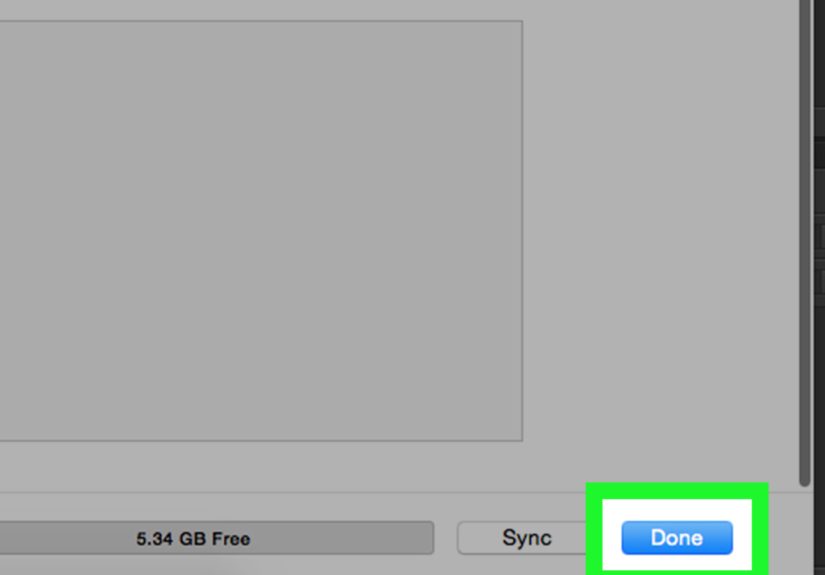
- Click Apply or Sync.
Step-by-step: Manually manage music (drag-and-drop style)
Manual management is perfect if you want to treat your iPod like a curated mixtape machinewithout iTunes deciding it knows you better than you know yourself.
- Open iTunes and select your iPod.
- In the device Summary (or Settings) area, enable Manually manage music and videos (wording can vary by version).
- Click Apply.
- Now drag songs or playlists from your library onto the iPod in iTunes.
Manual syncing is also useful if you want to sync the same iPod with more than one iTunes library (a perk certain iPod models support when managed manually).
Step-by-step: Sync over Wi-Fi (mostly for iPod touch)
- Connect your iPod touch via cable the first time.
- In iTunes, go to the device’s Summary page.
- Enable Sync with this device over Wi-Fi.
- Click Apply.
After that, your iPod touch can sync when it’s on the same Wi-Fi network as your computer (depending on settings and device behavior).
It feels like magicuntil your Wi-Fi decides to cosplay as a potato.
Mac Guide: How to Add Music to iPod (Finder + Music App)
On modern Macs, iTunes isn’t the main stage anymore. The Music app handles your library, and Finder handles syncing for iPhone/iPad/iPod touch.
Many people also manage legacy iPods through Finder-style device syncing on newer macOS versions.
Step-by-step: Sync music using Finder
- Connect your iPod to your Mac via USB.
- Open a Finder window.
- Under Locations, select your iPod.
- Click the Music tab (or choose the content type you want).
- Check Sync music onto [device].
- Choose:
- Entire music library, or
- Selected artists/albums/playlists
- Click Apply or Sync.
Shortcut: Open Finder sync settings from the Music app
- Open the Music app on your Mac.
- Find your device in the sidebar (if shown).
- Click Sync Settings to jump into Finder’s sync screen.
Choosing the Best Sync Strategy (So You Don’t Hate Your Life Later)
Automatic Sync
Best for: people who want their iPod to mirror a selected slice of their library with minimal effort.
Downside: if you change libraries or settings, you can accidentally overwrite what’s on the iPod.
Selected Playlists (The “Goldilocks” Option)
Best for: almost everyone. Build a few playlists like Gym, Commute, Sad Bops, and Music That Makes Me Feel Like a Movie Montage,
then sync only those.
Manual Management
Best for: collectors, DJs, and anyone who wants total control. Great when you’re trying to keep an iPod classic “clean” and curated.
Common Problems (And Fixes That Don’t Require a Ritual Sacrifice)
Problem: iPod doesn’t show up in iTunes or Finder
- Try a different USB port (avoid loose front-panel ports on desktops).
- Try a different cable (some cables only charge).
- Restart your iPod and computer.
- Update iTunes (Windows) or macOS.
Problem: Some songs won’t copy
The usual reasons:
- Unsupported format: convert the file to MP3 or AAC in iTunes before syncing.
- Cloud-only music: download the track first so it exists as a local file.
- Subscription restrictions: older iPods may not accept certain subscription-saved tracks the way purchased/owned files do.
Problem: “This iPod is synced with another library” warning
That warning is iTunes/Finder politely saying, “If you proceed, I may replace what’s on this device.”
If your iPod has music you can’t replace, pause and back up first.
Problem: iPod storage is full
- Sync fewer playlists/albums.
- Prefer MP3 256 kbps (or similar) instead of lossless files for portable listening.
- Remove old podcasts/audiobooks you’ve already finished (be brave).
FAQ: Quick Answers That Save You 45 Minutes of Clicking Around
Can I add music to an iPod without iTunes?
For many older models (classic/nano/shuffle), iTunes is still the standard method on Windows.
On Mac, Finder syncing is common on newer macOS versions. iPod touch has the most flexibility because it behaves more like an iPhone.
Can I drag music directly onto the iPod like a USB drive?
Some iPod setups allow disk use or manual management, but the cleanest “Apple-approved” approach is still syncing via iTunes/Finder.
If you want reliable metadata (album art, artist names, playlists), stick with the official syncing flow.
What’s the simplest “quick and easy” method?
Create one playlist called iPod Mix, put your favorite tracks in it, and sync that playlist only.
It’s neat, reversible, and won’t bulldoze your whole library onto a device with 8 GB of existential dread.
Conclusion
Adding music from iTunes to an iPod is still totally doableyou just need the right “lane” for your device:
Windows usually means iTunes syncing, modern Mac usually means Finder syncing (with your library living in the Music app),
and iPod touch is the flexible cousin who can do a little of everything.
Keep your music library local and iPod-friendly (MP3/AAC), sync playlists instead of your entire collection, and treat your cable like a suspect until proven innocent.
Do that, and your iPod will reward you with the pure joy of offline musicno buffering, no ads, no “Hey, you’ve reached your data limit.”
Just you and your jams.
Real-World Experiences: What People Run Into (And How They Get Through It)
If you’ve ever thought, “This should take five minutes,” and then looked up to see you’ve aged two years and your coffee has turned into a fossilwelcome.
Here are common real-world experiences iPod owners report when transferring music from iTunes to an iPod, plus the practical moves that usually fix the chaos.
Think of this section as the emotional support blanket for your syncing session.
1) The “My iPod charges but doesn’t show up” cable plot twist
A classic scenario: you plug in your iPod, it lights up, it charges, and you feel victoriousuntil iTunes/Finder acts like nothing is connected.
This often happens with low-quality or worn cables (or cables designed only for charging).
People typically solve it by switching to a known-good data cable and plugging into a different USB port.
Bonus points if you avoid USB hubs for the first connection. Hubs can be fine, but they can also be tiny chaos machines in disguise.
2) The “Trust This Computer?” moment (and the accidental “Don’t Trust” tap)
iPod touch users especially run into a prompt asking them to trust the computer. It’s easy to dismiss it too fast,
or tap the wrong option while you’re half-asleep and fueled by vibes instead of logic.
The fix is usually simple: disconnect, reconnect, unlock the device, and watch for the trust prompt again.
People also report that using a direct USB port (not a keyboard port or monitor port) makes the connection more reliable.
3) The “Why won’t these songs copy?” mystery that turns out to be file reality
Another common experience: most songs transfer, but a handful refuselike they’re on strike.
In many cases, those tracks aren’t actually stored locally, or they’re in a format the iPod can’t play.
What tends to work is verifying the file type, converting to MP3 or AAC in iTunes, and confirming the track is downloaded to the computer.
People also discover that some “matched” or cloud-referenced items don’t behave like normal files, so downloading or re-adding a local version helps.
4) The “New library, same iPod” warning that feels like a threat
If you connect an iPod to a different computer or a different iTunes library, you may see a warning implying your device will be erased/replaced by the new sync.
This can be genuinely scary if the iPod contains rare mixes, old recordings, or that one playlist you made in 2009 that still goes unreasonably hard.
What people often do in this situation is switch to manual management (when available), sync only selected playlists,
or pause to back up their library before proceeding.
5) The “I tried to sync everything and now my iPod is full” rite of passage
Many users attempt the “entire library” option once. Once. Then they watch the sync bar crawl while storage gets obliterated.
The most common solution is making a few targeted playlists and syncing only those. People also report better results when they choose slightly smaller file sizes
(for example, MP3 or AAC at a reasonable bitrate) instead of pushing massive audio files onto limited storage.
This is the moment many iPod owners become playlist curators… whether they wanted to or not.
6) The “It finally worked… but my album art is missing” heartbreak
Even when music transfers, metadata can be messymissing album art, wrong artists, or track numbers that behave like they’ve never heard of math.
People often fix this by making sure their library is properly tagged before syncing, or by letting iTunes/Music app fetch artwork when available.
If you want the cleanest iPod browsing experience, you’ll get the best results by organizing your library firstthen syncing.
The big takeaway from these real-world stories is reassuring: most “iPod syncing problems” are not disasters.
They’re usually one of a few predictable issuescable, port, trust prompt, file format, library mismatch, or storage limits.
Once you know what to check, the process becomes genuinely quick and easy… or at least quick-ish and not emotionally devastating.




