Table of Contents >> Show >> Hide
- Before You Start: A 30-Second Checklist
- The 5 Easy Steps to Connect Wireless Headphones on Android
- Bonus: If Your Headphones Support Fast Pair, You Can Do This Even Faster
- Troubleshooting: When Android and Bluetooth Get Dramatic
- Specific Examples: Pairing Popular Headphones With Android
- Pro Tips for a Better Wireless Headphone Experience on Android
- Wrap-Up: Your Android + Wireless Headphones, Peacefully Connected
- Real-World Experiences: What It’s Actually Like Connecting Wireless Headphones on Android
Pairing wireless headphones to an Android phone should be a “two taps and done” situation. And sometimes it is!
Other times… your earbuds vanish from the Bluetooth list like they owe your phone money.
The good news: Android’s Bluetooth setup is straightforward once you know where to look, what “pairing mode” actually means,
and which tiny settings cause the biggest headaches. Below are five simple steps that work for most Android phones
(Pixel, Samsung Galaxy, Motorola, OnePlus, and friends), plus real troubleshooting and pro tips that keep the connection stable.
Before You Start: A 30-Second Checklist
- Charge both devices (low battery can cause pairing to fail or disconnect mid-setup).
- Turn off Bluetooth on other nearby devices that might “steal” the connection (like a tablet or laptop you used yesterday).
- Get closekeep headphones within a few feet of your phone during pairing.
- Know the pairing trigger (button press, case button, power switch, touch-and-hold, etc.).
The 5 Easy Steps to Connect Wireless Headphones on Android
Step 1) Put Your Headphones (or Earbuds) in Pairing Mode
This is the #1 step people accidentally skip. Your headphones won’t show up on your phone until they’re discoverable,
which usually means pairing mode. Pairing mode is like your headphones waving a neon sign that says:
“Hello! I’m available! Please adopt me!”
Common ways to enter pairing mode:
- Over-ear headphones: press and hold the power/Bluetooth button or slide-and-hold the power switch toward the Bluetooth icon.
- True wireless earbuds: put both earbuds in the case, open the lid, then press and hold the case button until a light flashes.
- Some models: pressing and holding volume up/down or a multifunction button triggers pairing.
Tip: If your headphones have already paired with something else (like your laptop),
you may need to disconnect or “forget” them on that device first so they’ll re-enter pairing mode cleanly.
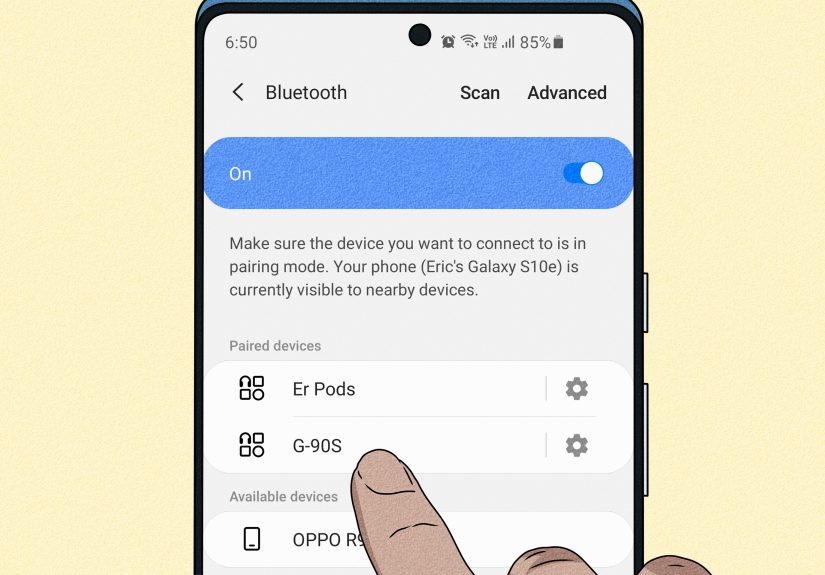
Step 2) Open Android Bluetooth Settings (the Fast Way)
On most Android phones, the fastest path is:
- Swipe down from the top of your screen.
- Press and hold the Bluetooth icon.
- Tap Pair new device (or look under Available devices if you don’t see that button).
Prefer the classic route? Go to Settings → Connected devices (or Connections) → Bluetooth.
Android menus vary slightly by brand, but the pairing screen is always nearby.
Step 3) Select Your Headphones From the List
With Bluetooth turned on and your headphones in pairing mode, your phone will scan for nearby devices.
You should see your headphone name (or a model number) appear under available devices.
- Tap the headphone name to start pairing.
- If you see multiple similar names, pick the one that matches your model (sometimes “LE” or “Audio” appears for newer modes).
- If nothing appears after 15–30 seconds, tap Refresh (or turn Bluetooth off/on) and confirm your headphones are still in pairing mode.
Step 4) Confirm the Pairing Request (and Any PIN)
Android may show a pairing prompt with a PIN or confirmation code. Usually:
- You’ll just tap Pair or Confirm.
- If it asks for a PIN and you don’t have one, common defaults are 0000 or 1234 (older devices especially).
You might also see optional permissions (like contact sharing for car systems). For headphones, you’re mostly approving the connection.
Step 5) Make Sure Audio Is Actually Playing Through Your Headphones
Pairing is only half the victory. The other half is getting audio routed correctlybecause sometimes Bluetooth connects,
but your phone stubbornly plays audio through its speaker like it’s auditioning for a tiny radio drama.
Do this quick test:
- Play a song or video.
- Press volume up and look for the output indicator (some phones show a headphone icon).
- If needed, open Bluetooth device settings and confirm Media audio is enabled for the headphones.
Once you hear sound in your headphones, you’re doneyour Android phone will usually reconnect automatically in the future.
Bonus: If Your Headphones Support Fast Pair, You Can Do This Even Faster
Many newer headphones and earbuds support Google Fast Pair. Instead of digging through menus, you:
- Put the headphones in pairing mode.
- Hold them close to your unlocked Android phone.
- Tap the pop-up notification to connect.
Fast Pair can also make it easier to reconnect across devices on the same Google account and may show handy extras like battery levels.
If you don’t see the notification, you can still pair manually using the five steps above.
Troubleshooting: When Android and Bluetooth Get Dramatic
Problem: Your Headphones Don’t Show Up
- Re-enter pairing mode: Most devices time out after a minute or two. Toggle pairing mode again.
- Move closer: Keep the devices within arm’s reach during pairing.
- Restart Bluetooth: Turn Bluetooth off, wait 5 seconds, turn it back on.
- Restart the phone: Yes, the oldest trick in the book. It works because it clears stuck background processes.
- Charge the earbuds: Low power can prevent pairing or make one earbud “disappear.”
Problem: It Pairs, But No Sound Plays
- Check Media audio: Open Bluetooth settings for the device and make sure Media audio is enabled.
- Raise volume in two places: Some headphones have independent volume control.
- Close competing apps: Another app (or another paired device) might be hogging audio output.
- Switch output manually: In the volume panel or media player, choose your headphones as the output device.
Problem: It Keeps Disconnecting
- Reduce interference: Wi-Fi routers, crowded areas, and even some smartwatches can contribute to dropouts.
- Update the headphone app/firmware: Many brands push stability fixes through their companion apps.
- Forget and re-pair: Remove the device from Bluetooth saved devices, then pair again fresh.
Problem: Your Phone Connects to the “Wrong” Device
If your phone keeps connecting to yesterday’s speaker instead of today’s earbuds, it’s not being maliciousit’s being “helpful.”
Android often reconnects to the last-used Bluetooth audio device.
- Turn off Bluetooth on the other device (or unplug the speaker if it auto-powers).
- Or remove the old device from your phone’s saved Bluetooth list if you no longer use it.
Problem: Only One Earbud Works
This is common with true wireless earbuds after a “half-pair” or when the earbuds aren’t synced with each other.
Try this sequence:
- Put both earbuds back in the case and charge for a few minutes.
- Forget the earbuds in Android Bluetooth settings.
- Reset the earbuds (varies by brandoften holding the case button longer).
- Pair again from scratch.
Specific Examples: Pairing Popular Headphones With Android
Example 1: Connecting AirPods to Android
AirPods can connect to Android like standard Bluetooth earbuds. The key is using the case’s setup button:
open the lid, press and hold the setup button until the light indicates pairing, then select them from Android’s Bluetooth device list.
You’ll get audio, but some Apple-specific features may be limited on Android.
Example 2: Pairing a Pair of Over-Ear Noise-Canceling Headphones
Many over-ear models use a simple “press-and-hold” on the power/Bluetooth control until the status light blinks (often blue),
then you pick the headphones from the Android device list and confirm pairing. If your model supports Fast Pair,
you may see a one-tap pop-up instead.
Pro Tips for a Better Wireless Headphone Experience on Android
Use Multipoint (If Your Headphones Support It)
Multipoint lets your headphones connect to two devices at once (say, your phone and laptop).
It’s amazing… until it isn’t. If multipoint switching feels inconsistent, check the headphone app for a multipoint toggle,
or temporarily disable it when you want the simplest connection.
Know the “Forget Device” Move
“Forget” (or “Unpair”) is the clean slate option. Use it when:
- Your phone connects but doesn’t route audio correctly.
- Your headphones changed names after a firmware update.
- Pairing prompts keep looping.
After forgetting, pair again like it’s the first date: polite, fresh, and with fewer emotional Bluetooth scars.
When Audio Quality Matters: Check for HD Audio Options
Some Android phones expose toggles for higher-quality Bluetooth audio modes (often under the device’s Bluetooth settings).
Whether you can use them depends on your phone, your headphones, and the codec support on both sides.
If you don’t see these options, don’t panicmost modern headphones still sound great with default settings.
Newer Feature to Watch: LE Audio and Audio Sharing
Bluetooth LE Audio and related sharing features (like streaming to more than one set of compatible headphones)
are rolling out across newer Android devices and supported headphones. Availability depends on your phone model,
Android version, and headphone supportso think of it as “new tech dessert,” not a guaranteed menu item.
Wrap-Up: Your Android + Wireless Headphones, Peacefully Connected
If you remember nothing else, remember this: pairing mode first, then Settings → Bluetooth → Pair new device.
Most connection problems are solved by re-entering pairing mode, forgetting the old connection, and pairing cleanly again.
Once you’ve paired successfully, Android will usually reconnect automaticallymeaning your future self can enjoy instant audio,
hands-free calls, and fewer “why is my phone yelling my music into the room?” moments.
Real-World Experiences: What It’s Actually Like Connecting Wireless Headphones on Android
Connecting headphones isn’t just a five-step checklistit’s a tiny everyday ritual that happens in real places,
with real distractions, and occasionally with real panic (like when your podcast starts playing out loud in public).
Here are a few experience-based scenarios that mirror what most people run into, plus the practical lesson each one teaches.
Experience 1: The “Why Aren’t My Earbuds Showing Up?” Morning Rush
You’re racing out the door, coffee in hand, and your earbuds are inso you open Bluetooth settings, ready to pair.
Nothing appears. You refresh. Still nothing. Suddenly you’re late and headphone-less, which is a cruel combo.
What’s usually happening? The earbuds aren’t in pairing mode anymore. Many earbuds only stay discoverable for a short window,
and if you pause too long (because you were also wrestling a backpack zipper), they quietly stop broadcasting.
The fix is almost always: put them back in the case, open the lid, press-and-hold the case button again, then return to the pairing screen.
Once you know this, that “disappearing device” feeling becomes less mysterious and more like: “Ah. The earbuds timed out. Of course they did.”
Experience 2: The Gym Connection That Chooses Violence
At the gym, everything is Bluetooth: headphones, watches, treadmills, TVs, speakers. Your phone tries to reconnect to the last device
it lovedmaybe the locker room speaker you tested once, maybe your car stereo from yesterday, maybe your smartwatch’s “media audio.”
You tap your earbuds…and the sound still goes somewhere else.
The lesson here is that Bluetooth is polite but opportunistic. It will reconnect to whatever it thinks is “best,” which often means “last used.”
In crowded places, the simplest move is to temporarily turn off Bluetooth on devices you don’t need (or forget them if you never use them).
It feels dramatic, but it’s the digital equivalent of saying, “I’m committed to these earbuds today.”
Experience 3: The “Connected… But Silent” Commute
Your phone says the headphones are connected. You hit play. Silence. You crank the volume. Still silence.
Now you’re doing the subtle commuter dance: tapping settings while pretending you’re totally calm and not spiraling.
This usually comes down to audio routing. Sometimes “connected” just means the handshake happened, not that media audio is enabled
or that the phone has switched outputs. Checking the device’s Bluetooth settings and confirming Media audio is on fixes it often.
The other sneaky culprit: two volume controls (phone volume and headphone volume). Turn both up a little and test again.
Once you’ve experienced this once, you’ll start doing a quick “play-test” immediately after pairinglike a sound check before a concert.
Experience 4: New Phone Day, Old Headphones, Big Confusion
Switching to a new Android phone is excitinguntil your headphones keep clinging to the old phone like a loyal pet.
You try pairing to the new phone, but the headphones won’t show up, or they connect and then bounce back to the old device.
This is where “forget device” becomes your best friend. Remove the headphones from the old phone’s Bluetooth list,
or turn off Bluetooth on the old phone entirely during pairing. Then pair fresh on the new phone.
It’s not personalyour headphones just remember the first device that bonded with them and need a clear signal that it’s time to move on.
Experience 5: The One-Earbud Mystery (a Classic)
True wireless earbuds occasionally decide that one earbud is the main character and the other is just… a supporting role.
You’ll see two entries in Bluetooth settings, or only one earbud appears, or audio comes out of a single side.
The real-life fix is usually unglamorous: charge, reset, forget, re-pair. It feels like overkill, but it works because it forces
both earbuds to resync with each other and then reintroduce themselves properly to your phone.
After you’ve done this once, you’ll recognize the pattern quickly and handle it in under two minutes.
In other words: the five steps are the foundation, but the experiences teach you the shortcuts. Once you’ve paired a few times,
you’ll start thinking like a Bluetooth whispererchecking pairing mode first, scanning second, and only then getting fancy.
Your reward is simple: reliable audio, fewer public-speaker accidents, and a phone that finally understands you just want music in your ears,
not a spontaneous performance for everyone nearby.