Table of Contents >> Show >> Hide
- Quick Fix Checklist (Do These in 60 Seconds)
- Why YouTube Buffers (So You Fix the Right Thing)
- Step 1: Confirm You Actually Have Enough Speed (and Stability)
- Step 2: Adjust YouTube Playback Settings (Aka, Stop Asking 4K to Ride a Tricycle)
- Step 3: Fix Your Network (Because Wi-Fi Is Basically Invisible Drama)
- Step 4: Browser Fixes (Because Sometimes It’s Not the InternetIt’s Your Tab Gremlins)
- Step 5: App & Device Fixes (Especially for TVs and Streaming Sticks)
- Step 6: Network Tweaks (For When You’ve Tried Everything “Normal”)
- Step 7: When It’s Not You (Yes, Sometimes It’s the Internet’s Fault)
- Pro-Level Troubleshooting (If You Want to Be Absolutely Sure)
- Conclusion: Make Buffering the Exception, Not the Plot
- Real-World “Buffering Experiences” (What People Commonly Run Intoand What Usually Works)
If YouTube buffering were an Olympic sport, the spinning wheel would have more gold medals than your entire watch history.
The good news: most buffering is fixable. The better news: you don’t need a computer science degree, a new router, and a
midnight ritual involving an Ethernet cable (though… we’ll talk about Ethernet).
This guide walks you through the fastest fixes first, then the deeper stuff if your videos still pause like they’re
“thinking about it.” You’ll get practical steps, simple explanations, and specific examples so you can stream smoothly
without turning your living room into a networking lab.
Quick Fix Checklist (Do These in 60 Seconds)
Before we diagnose the entire internet, try these “cheap wins.”
- Lower the video quality for a minute (Auto isn’t always your friend).
- Pause the video for 20–30 seconds to build a buffer, then hit play.
- Close bandwidth-hungry apps/tabs (cloud backups, big downloads, games updating in the background).
- Restart YouTube (close the tab/app completely and reopen).
- Power cycle your device (turn it off, wait 10–30 seconds, turn it back on).
- Reboot your router/modem (unplug, wait ~30 seconds, plug back in).
If the buffering stops, congratulationsyou just fixed it with the digital equivalent of “turn it off and on again.”
If not, let’s get more strategic.
Why YouTube Buffers (So You Fix the Right Thing)
Buffering happens when your device can’t download video data as fast as it’s trying to play it. That can be caused by:
- Not enough sustained speed (your connection isn’t consistently fast enough).
- Unstable connection (speed spikes and drops, Wi-Fi interference, congestion).
- Too many devices sharing your network at once.
- Device limits (older phone/TV, overloaded browser, low storage, overheating).
- Browser/app issues (cache problems, extensions, hardware acceleration glitches).
Think of streaming like drinking from a straw. You don’t just need a big gulp onceyou need a steady flow the whole time.
That’s why “my internet is 200 Mbps” can still buffer if the Wi-Fi is flaky, the router is in a bad spot, or your device
is fighting for signal.
Step 1: Confirm You Actually Have Enough Speed (and Stability)
Match your video quality to your connection
YouTube publishes recommended sustained speeds by resolution. As a practical baseline:
- 720p: doable on a few Mbps
- 1080p: typically fine around ~5 Mbps sustained
- 4K: usually needs ~20 Mbps sustained (and a solid connection)
The key phrase is sustained. If your speed test shows 50 Mbps but your Wi-Fi drops every 10 seconds,
YouTube will still buffer like it’s on a treadmill with untied shoelaces.
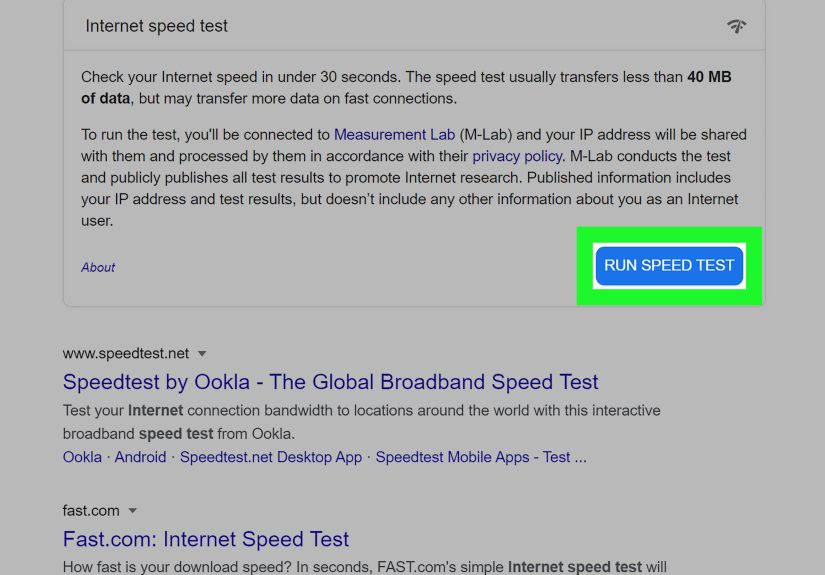
Run a speed test the smart way
Use a reliable speed test (like Speedtest by Ookla) and pay attention to:
- Download speed (most important for watching)
- Latency/ping (how quickly your connection responds)
- Jitter (how much that latency varieshigh jitter can mean choppy performance)
Example: If your download speed is “fine” but jitter is all over the place, streaming can still buffer.
That usually points to Wi-Fi interference, congestion, or a router/location problemnot a YouTube setting.
Step 2: Adjust YouTube Playback Settings (Aka, Stop Asking 4K to Ride a Tricycle)
Manually set a lower quality
On desktop or mobile, open the player settings and choose a lower resolution (try 720p or 1080p). If it suddenly plays
smoothly, you’ve confirmed the issue is bandwidth/stabilitynot a mysterious YouTube curse.
Here’s the trade-off: lower quality uses less data and buffers less, but looks less sharp. If you’re watching a tutorial
on “how to boil water,” 720p will survive. If you’re watching nature footage where you want to count every feather,
you’ll need a stronger connection for 4K.
Disable data-saving modes (on mobile)
If your phone is in Low Data Mode (iOS) or Data Saver (Android), it can throttle streaming or make YouTube pick odd
quality choices. Try turning those off temporarily while testing.
Step 3: Fix Your Network (Because Wi-Fi Is Basically Invisible Drama)
Power cycle your modem and router
Unplug your router (and modem if separate), wait about 30 seconds, then plug them back in. This clears temporary glitches,
renegotiates connections, and often fixes “it was fine yesterday” problems.
Use Ethernet if you can
If you’re watching on a computer, game console, or streaming box, a wired Ethernet connection can eliminate a lot of
Wi-Fi chaos. If buffering disappears instantly on Ethernet, your real issue is Wi-Fi qualitynot your internet plan.
Move to 5 GHz (or get closer)
Many routers broadcast two bands:
- 2.4 GHz: longer range, more interference (more “crowded”)
- 5 GHz: faster, less interference, shorter range
If you’re close to the router, 5 GHz is usually better for streaming. If you’re far away with walls in between,
2.4 GHz may be more stablebut also more likely to be interrupted by other devices.
Optimize router placement (yes, location matters)
If your router is tucked behind a TV, stuffed in a cabinet, or sitting on the floor like it’s in time-out, your signal
can suffer. Place it:
- Central in your home (not the far corner)
- Elevated (a shelf beats the floor)
- Away from interference (microwaves, thick walls, large metal objects, other electronics)
If your home is large or has dead zones, consider a mesh system or Wi-Fi extender. The goal is to improve consistency,
not just “maximum speed on a perfect day.”
Kick bandwidth hogs off the stage
Streaming competes with everything else using your connection. Common culprits:
- Operating system updates downloading in the background
- Cloud sync (Google Drive/Dropbox/OneDrive) uploading or downloading files
- Other streaming devices (especially 4K on multiple TVs)
- Online gaming + voice chat + downloads at the same time
Example: You’re watching YouTube in 1080p, and your roommate starts downloading a 90 GB game update.
Your video buffersnot because your internet is “bad,” but because it’s busy.
Step 4: Browser Fixes (Because Sometimes It’s Not the InternetIt’s Your Tab Gremlins)
Clear cache and site data
Corrupted or bloated cached data can cause playback weirdnessespecially if YouTube loads slowly, stutters, or buffers
more than it should.
- Chrome: Clear browsing data (cache/cookies) and restart the browser.
- Edge: Clear browsing data from privacy settings.
- Firefox: Clear cache/site data in Privacy & Security.
- Safari (iPhone/iPad): Clear history and website data in settings.
Tip: If clearing cookies signs you out everywhere, start with clearing cached images/files first, then expand only if needed.
Disable extensions (temporarily)
Ad blockers, privacy tools, video downloaders, and “helpful” extensions can interfere with playback. Test YouTube in:
- Incognito/Private mode (often disables extensions by default)
- Or disable extensions one-by-one until the buffering stops
Toggle hardware acceleration
Hardware acceleration can improve video performanceor cause problems on certain devices/drivers. If YouTube buffers,
stutters, or shows choppy playback, try turning hardware acceleration off in your browser settings and restart.
If it was already off, try turning it on (yes, the solution can be “flip the switch the other way”).
Update your browser
An outdated browser can struggle with modern video playback, codecs, and security updates. In Chrome, go to “About Google Chrome”
and apply any updates, then relaunch.
Step 5: App & Device Fixes (Especially for TVs and Streaming Sticks)
Smart TVs and streaming devices
TVs are great at being TVs and… sometimes only okay at being computers. If YouTube buffers on your TV but not on your phone
on the same Wi-Fi, your TV app or hardware may be the bottleneck.
- Restart the device (full power cycle, not just “sleep mode”).
- Update the YouTube app and your TV/streaming device firmware.
- Uninstall and reinstall the YouTube (or YouTube TV) app if problems persist.
- Reduce quality (4K on older TV apps can be optimistic).
Phones and tablets
- Switch between Wi-Fi and cellular to isolate whether Wi-Fi is the problem.
- Turn off Battery Saver temporarily (it can throttle performance).
- Close background apps, especially anything downloading/uploading.
- Make sure your OS and the YouTube app are updated.
Step 6: Network Tweaks (For When You’ve Tried Everything “Normal”)
Try a faster DNS resolver
DNS is how your device translates “youtube.com” into the server address it needs. Switching to a fast public DNS
(like Cloudflare’s 1.1.1.1) won’t magically create bandwidth, but it can speed up lookups and sometimes improve
responsivenessespecially if your ISP’s DNS is slow or unreliable.
Think of DNS like a phonebook. A better phonebook won’t make your pizza cook faster, but it might help you reach the
pizza place quicker.
Update router firmware
Router updates can improve stability, fix bugs, and boost performance. Check your router’s admin panel or app for firmware updates,
then reboot after updating.
Consider QoS (Quality of Service)
Many routers offer QoS settings to prioritize streaming traffic. If your household multitasks online (work calls + gaming + streaming),
QoS can reduce buffering by giving video traffic a higher priority.
Step 7: When It’s Not You (Yes, Sometimes It’s the Internet’s Fault)
Buffering can spike during peak hours (evenings/weekends) when neighborhood networks are crowded. It can also happen during:
- Temporary ISP issues
- Local outages
- Regional routing problems
- Platform-side hiccups
A quick way to check: try streaming on another device and another service (like a different video platform). If
everything buffers everywhere, the issue is likely your connection or ISP. If only YouTube buffers, it’s more likely
a YouTube/app/browser setting.
Pro-Level Troubleshooting (If You Want to Be Absolutely Sure)
Test at different times and locations
Run speed tests in the room where buffering happens and compare it to a location near the router. If performance drops
dramatically in the buffering room, you’ve found a Wi-Fi coverage issuemesh or repositioning can help.
Look for “stability” problems, not just speed
If you see sudden dips, high jitter, or random drops, focus on interference and router placement, switch bands, or move
to Ethernet. Smooth streaming loves consistency more than bragging-rights peak Mbps.
Conclusion: Make Buffering the Exception, Not the Plot
To stop YouTube buffering, work top-down:
- Match quality to your connection (test 720p/1080p before blaming the universe).
- Improve network stability (reboot router, optimize placement, reduce interference, use 5 GHz or Ethernet).
- Fix browser/app issues (clear cache, disable extensions, toggle hardware acceleration, update everything).
- Level up with DNS/QoS/mesh if your home network is the real culprit.
Once you make these changes, the spinning wheel should become an occasional cameonot the main character.
Real-World “Buffering Experiences” (What People Commonly Run Intoand What Usually Works)
Buffering rarely shows up in a neat lab environment. It shows up in real liferight when you finally sit down, right when
the tutorial reaches the important step, or right when someone says, “Wait for it…” and your video decides to take a nap.
Here are a few common scenarios people run into, plus the fixes that most often make the biggest difference.
1) The “My Internet Is Fast, So Why Is This Happening?” moment.
A lot of people do a speed test next to the router, see a big number, and assume buffering is impossible. Then they move
to the bedroom (two walls, one mirror, and a closet door later) and YouTube buffers like it’s on dial-up. In this case,
the internet plan isn’t the issuethe Wi-Fi path is. The fix is usually boring but powerful: move the router higher,
put it somewhere central, switch to 5 GHz when nearby, or add a mesh node for that problem room. If you want the quickest
truth serum, try Ethernet once. If Ethernet fixes everything, Wi-Fi is the culprit.
2) The “It buffers only at night” mystery.
This one is classic: videos play fine during the day, then buffer in the evening when everyone is home. Two things are
usually happening: your household is using more bandwidth (multiple streams, games, updates), and your neighborhood network
may be busier. The best practical move is to reduce competition: pause big downloads, move updates to overnight, and set QoS
on the router if available. Some people also find that dropping from 4K to 1080p during peak hours is the difference between
smooth playback and a constant spin cycle.
3) The “My phone is fine, but my TV buffers” frustration.
Smart TVs can be surprisingly underpowered, and their Wi-Fi radios aren’t always great. People often discover the TV is
the weak link when a phone streams perfectly on the same network. The fix is often device-focused: restart the TV, update
firmware, reinstall the YouTube app, or plug in a streaming stick/box with better hardware. When possible, wiring the TV
(or the streaming box) via Ethernet is a “make it stop forever” move. If that’s not possible, a mesh node near the TV can
stabilize the connection.
4) The “One extension ruined everything” surprise.
On computers, buffering sometimes has nothing to do with speed and everything to do with browser behavior. A privacy extension,
ad blocker, or “video enhancer” can interfere with playback, cause stutters, or create weird loading loops. The easiest
experience-based test is private browsing mode. If YouTube suddenly behaves, start disabling extensions until you find the
troublemaker. It’s annoyingly simplebut it works often enough to be worth checking early.
5) The “I cleared cache and it felt like magic” effect.
Cache-clearing isn’t a cure-all, but many people report that YouTube goes from slow-loading and glitchy to normal after a
cache/cookie cleanupespecially if they haven’t done it in a long time. It’s like cleaning crumbs out of a keyboard: it
won’t make you type better, but it can stop a few keys from sticking. If your buffering comes with odd behaviors (slow
thumbnails, stuck loading UI, frequent refresh needs), clearing site data is a surprisingly solid move.
The common thread in these experiences is that buffering is usually about consistency. Once your network is
stable, your device is updated, and your browser/app is behaving, YouTube stops bufferingand your “play” button finally
means “play,” not “pause for dramatic effect.”