Table of Contents >> Show >> Hide
- Quick Reality Check: What “Saving” Means in Messenger
- Method 1: Save a Single Photo From a Chat (Fastest + Most Reliable)
- Method 2: Turn On Auto-Save (So Messenger Stops Acting Like Saving Is a Special Occasion)
- Method 3: Save Older Photos Without Scrolling Forever
- Method 4: Where Do Messenger Photos Save on Android?
- Method 5: Save Pictures Sent as Facebook Posts or Links
- Troubleshooting: When Messenger Won’t Save Photos (or You Can’t Find Them)
- Privacy Notes (Because Screenshots Have Consequences)
- Best Practices: Save Smarter, Not Harder
- FAQ
- Conclusion
- Real-World Experiences & “Stuff People Actually Run Into” (Extra)
You just got sent the perfect photo in Messenger: a family pic worth framing, a meme worth hoarding, or a screenshot you’ll definitely need later when someone says, “I never said that.” The problem? On Android, Messenger can save photos in a few different places depending on your settings, your chat type (encrypted or not), and your phone’s version of Android.
This guide walks you through every practical way to save pictures from Facebook Messenger on Androidmanually, automatically, and in bulkplus how to actually find the saved files afterward (because “it saved” is not the same as “I can locate it before my hair turns gray”).
Quick Reality Check: What “Saving” Means in Messenger
Messenger handles images in three common ways:
- Saved to device/gallery: The photo becomes a real file in your phone storage and shows up in Gallery/Google Photos (usually under a “Messenger” folder).
- Cached in the app: Messenger keeps a temporary copy for fast loading, but it may not appear in your galleryand it can vanish when cache clears.
- Ephemeral media: “View once” photos or disappearing messages may limit saving, and screenshots can trigger notifications in certain modes.
Method 1: Save a Single Photo From a Chat (Fastest + Most Reliable)
If you only need to save one or two images, manual saving is the cleanest methodno extra settings required.
Steps (works on most Android phones)
- Open Messenger and go to the conversation.
- Tap the photo to open it full-screen.
- Look for one of these options (it depends on your Messenger version):
- Download icon (often a down arrow)
- ⋮ (three-dot menu) → Save or Save to phone
- Share → save to Files/Photos (less common, but sometimes available)
- Wait for the confirmation (some phones show a toast message like “Saved”).
Pro tip: If you don’t see a download button, try long-pressing the image inside the chat thread (not full-screen). Some versions show a context menu with Save.
Method 2: Turn On Auto-Save (So Messenger Stops Acting Like Saving Is a Special Occasion)
If you regularly receive images you want to keepfamily chats, work screenshots, receiptsauto-save can be a lifesaver. Messenger’s options have evolved, especially with end-to-end encrypted chats, so here are the two places to check.
Option A: Auto-save inside a specific chat (common for end-to-end encrypted chats)
- Open the chat in Messenger.
- Tap the chat name (or the person’s name) at the top.
- Find Auto-save (sometimes under “More actions”).
- Toggle on:
- Save photos you receive
- Save photos you send (optional)
This is useful because you might want auto-save enabled for your “Mom sends pictures of the dog daily” chat, but disabled for your “group chat sends 400 memes before breakfast” chat.
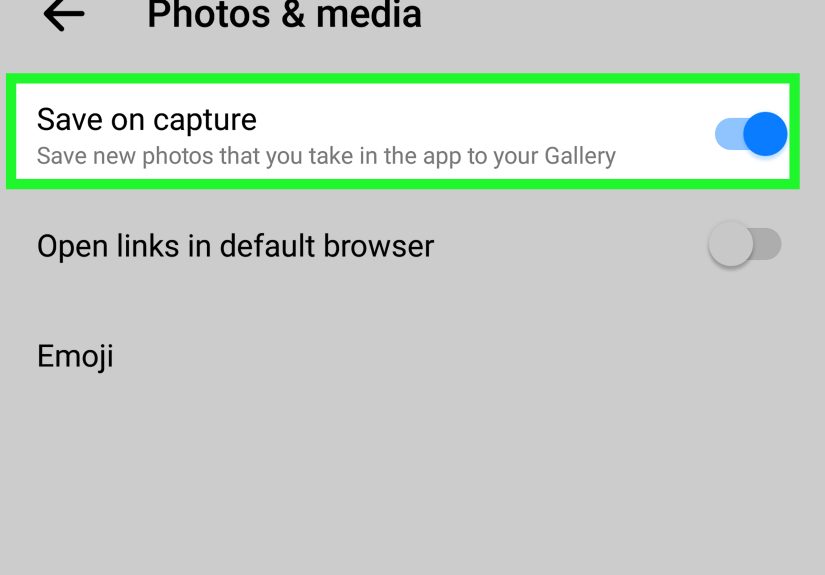
Option B: Global “Photos & Media” setting (if your version shows it)
- In Messenger, tap your profile picture (top-left on many Android builds).
- Go to Photos & Media (wording may vary slightly).
- Enable a toggle like:
- Save Photos
- Save incoming photos
- Save to Gallery / Camera Roll
Heads up: If you can’t find a global toggle, don’t panic. Some Messenger versions emphasize per-chat auto-save (especially around encrypted experiences), so check Option A above.
Method 3: Save Older Photos Without Scrolling Forever
Need a picture from three months ago? You could scroll… or you could choose joy.
Use “View media, files & links”
- Open the chat.
- Tap the chat name at the top.
- Select View media, files & links (or similar).
- Tap a photo to open it, then use Download/Save as in Method 1.
This view is also a quick way to confirm whether a missing photo was ever actually delivered (or if your friend sent it from a potato-powered connection).
Method 4: Where Do Messenger Photos Save on Android?
If you saved an image and it “vanished,” odds are it’s just hiding in a folder your gallery isn’t showing. Here are the most common locations.
Common save location
- Internal Storage → Pictures → Messenger
How to find it (no detective hat required)
- Open Files or Files by Google.
- Tap Browse → Internal storage.
- Go to Pictures → Messenger.
- If you want it to appear more prominently in gallery apps, you can:
- Move/copy it to DCIM → Camera or your preferred album folder.
- Or open it and use Share → save/import into your gallery app.
What about caches?
Messenger may store temporary images in app-specific directories (cache). These might show up unexpectedly in some gallery apps, and they can disappear when Messenger clears cache or you log out. For long-term keeping, always use Save or enable Auto-save.
Method 5: Save Pictures Sent as Facebook Posts or Links
Sometimes people don’t send an image filethey send a post, a Facebook photo link, or a shared item. In those cases, Messenger might open a viewer with an Options menu.
Typical steps
- Tap the shared photo/post so it opens.
- Tap ⋮ (or Options).
- Select Save to phone (or Save photo).
If you don’t see a save option, try opening the content in the Facebook app (or a browser) and saving from there. Shared content behaves differently than an image attachment.
Troubleshooting: When Messenger Won’t Save Photos (or You Can’t Find Them)
1) Check Messenger permissions (this fixes a shocking number of problems)
If Messenger can’t access photos/media storage, saving will failor the save button might not appear.
- Go to Android Settings → Apps → Messenger.
- Tap Permissions.
- Allow Photos and videos (or Files and media).
- Return to Messenger and try saving again.
2) The photo saved… but it’s not in Gallery/Google Photos
Try these in order:
- Search the “Messenger” album inside Google Photos (“Library” → “Photos on device”).
- Use a file manager to navigate to Pictures → Messenger.
- Restart your phone (it can force a media rescan).
- Move the file from Pictures/Messenger into DCIM/Camera and check again.
If you’re seeing the opposite issueMessenger images keep showing up when you don’t want themauto-save is likely on. Turn it off in your Messenger settings (either globally under Photos & Media, or per-chat under Auto-save).
3) “Save” option missing on a photo
Common reasons:
- The content is view-once or part of a disappearing message.
- The item is a shared link/post, not a raw image attachment.
- Messenger is missing permission to write to storage/media.
- Your Messenger version UI is differenttry opening the photo full screen and checking the three-dot menu.
4) Photos disappeared after switching phones or reinstalling Messenger
If a chat is end-to-end encrypted, media availability can depend on how your encrypted history is stored. Messenger includes features like secure storage to help restore encrypted chat history across devices. If you rely on Messenger as your “photo archive” (bold strategy), enable secure storage when prompted, and keep your PIN/key safe.
Privacy Notes (Because Screenshots Have Consequences)
Messenger includes privacy features like end-to-end encryption and disappearing messages. In some disappearing/vanish-style modes, Messenger may show a notification if someone screenshots a disappearing message. Translation: saving media isn’t always just a technical actit can be a social one.
- Regular photos: Usually safe to save with download/save.
- View-once/disappearing photos: May restrict saving; screenshots may trigger warnings in certain settings.
- Respect consent: If someone sends something meant to disappear, treating it like a collectible can be… a choice.
Best Practices: Save Smarter, Not Harder
- Use per-chat Auto-save for the conversations that matter most.
- Keep your phone organized: Periodically move important Messenger photos from Pictures/Messenger into a named folder (Trips, Receipts, Work, etc.).
- Back up important images: If it’s truly important, don’t leave it as “somewhere in Messenger.” Save it to your device and back it up (Google Photos, Dropbox, etc.).
- Send in higher quality when needed: If you’re sending something you’ll later save and reuse (documents, product photos), use the highest quality option available.
FAQ
Do saved Messenger photos go to my Camera folder?
Usually not. They typically go to Pictures → Messenger. You can move them to DCIM → Camera if you want them mixed with camera shots.
Can I save multiple photos at once from a chat?
Messenger doesn’t always offer a perfect “bulk download” button inside chats. Your best bet is: (1) enable Auto-save going forward, and/or (2) use “View media” and save the few you actually need. If you need a full archive, consider downloading your Meta account information (messages/media) through official account tools.
Why do some photos look blurry after saving?
A saved photo can only be as sharp as the file you received. If the sender uploaded a compressed image, you’re saving a smaller version. For critical images, ask the sender to resend in the highest quality availableor share the original file another way.
Conclusion
Saving pictures from Facebook Messenger on Android is easy once you know which “save” you’re dealing with: manual download for one-offs, auto-save for your most important chats, and the file manager when your gallery plays hide-and-seek. Set it up once and you’ll stop losing great photos to the void of “I swear I saved it.”
Real-World Experiences & “Stuff People Actually Run Into” (Extra)
If you want the honest truth, most Messenger photo-saving drama doesn’t come from the “Save” buttonit comes from what happens after. Here are the most common, very human scenarios that pop up when people try to save pictures on Android, plus what works in real life.
Experience #1: The Phantom Save. Someone taps “Save,” gets a tiny confirmation, and then opens Google Photos… and nothing is there. This is usually because the photo saved into a device folder (often Pictures/Messenger) that Photos isn’t showing front-and-center. People assume “Camera Roll” is the universal photo home, but Android treats folders like neighborhoods: just because you live in the city doesn’t mean you automatically hang out on every street. The fix is almost always the same: open Google Photos, go to Library, look under Photos on device, and find the Messenger folderor use Files by Google and navigate directly. Once people see the folder, the panic drops by about 83%.
Experience #2: The Meme Firehose Problem. Auto-save sounds brilliant until it’s not. In group chats, auto-save can turn your gallery into a museum of questionable comedy. People enable auto-save to keep important photos, forget it’s on, and wake up to 120 new images of a raccoon holding a tiny broom. The practical solution is to use auto-save selectively: enable it only in the chats that matter (family, work, close friends), and leave it off everywhere else. Your future self will thank youand your storage space will stop crying.
Experience #3: “It Worked Yesterday” (a.k.a. Permission Whiplash). Android’s permission model has gotten stricter over time. After an update, a reinstall, or switching phones, Messenger might lose access to photos/mediaso the save button disappears, saving fails silently, or the file lands somewhere inaccessible to your gallery app. The fix is boring but effective: check Messenger permissions in Android Settings and allow Photos/Media access. This single step resolves a lot of “Messenger is broken” complaints that are really “Android is protecting your files and Messenger didn’t re-ask nicely.”
Experience #4: The “Where did my old photos go?” scare. People often treat Messenger like a long-term photo vault, especially for relationship memories and family pictures. Then they switch devices or reinstall the app and suddenly the media view looks empty. With end-to-end encryption becoming more common, restoring message history can depend on whether secure storage and backup options were set up. The practical takeaway: if photos truly matter, don’t leave the only copy inside a chat thread. Save them to your device, and back them up to Google Photos, Dropbox, or another trusted service. Messenger is a messengernot a museum.
Experience #5: The Awkward Screenshot Moment. Sometimes the photo you want to save is sent in a disappearing mode. People take a screenshot (because there’s no save option), and then they worry about whether the other person was notified. The lesson here is simple: if it’s disappearing media, assume the sender chose that for a reason. If you need to keep it, ask for a normal resend. It’s less weird than you think, and it avoids misunderstandings.
Bottom line: once you combine (1) the right saving method, (2) a quick understanding of where Android stores Messenger images, and (3) selective auto-save, you’ll stop losing photosand stop accidentally archiving every meme your friends discover at 2 a.m.