Table of Contents >> Show >> Hide
- What “program defaults” mean in MATE
- Why MATE handles defaults differently from Windows and macOS
- Method 1: Set default programs in MATE through Preferred Applications
- Method 2: Change the default app for a specific file type
- Method 3: Use the command line for stubborn defaults
- Where MATE stores default app information
- What to do when the app you want does not appear
- Common examples of changing defaults in MATE
- Best practices for managing program defaults in MATE
- Real-world experience: what it is actually like to set the program defaults in MATE
- Conclusion
If your MATE desktop keeps opening the “wrong” app, welcome to one of Linux’s oldest little dramas. You double-click a PDF and get the viewer you did not want. You click an email link and the system launches a browser from a previous life. You right-click a music file and suddenly it is 2012 again. The good news is that MATE gives you more than one way to fix it. The even better news is that once you understand how program defaults work in MATE, the whole desktop starts feeling a lot more obedient.
This guide explains how to set the program defaults in MATE using the graphical tools built into the desktop, how to change default apps for specific file types, and how to handle the more stubborn cases with MIME settings under the hood. In other words, this is the article for anyone who wants MATE to stop freelancing and start following instructions.
What “program defaults” mean in MATE
In MATE, program defaults usually fall into two buckets. First, there are preferred applications for broad tasks such as web browsing, email, terminal use, file management, office work, media playback, and document viewing. Second, there are file associations, which decide which app opens a specific file type like PDF, TXT, PNG, MP3, DOCX, or HTML.
That distinction matters. Setting your preferred browser in MATE is not always the same thing as changing which app opens every single HTML file on your system. Usually they line up nicely. Sometimes they do not. Linux likes freedom; users like predictability. This article is here to broker peace between the two.
Why MATE handles defaults differently from Windows and macOS
MATE is part of the classic Linux desktop family, and it keeps the familiar, traditional desktop layout that longtime users love. Under the surface, though, it follows the XDG and FreeDesktop standards for application launching and MIME associations. That means defaults are not stored in one magical all-knowing place. Instead, they can be influenced by desktop settings, application .desktop files, MIME rules, and user-specific overrides.
That sounds technical, but the practical takeaway is simple: MATE gives you an easy graphical path for common defaults, plus more advanced options when the easy path is not enough. Think of it as a friendly front desk with a very nerdy filing cabinet in the back.
Method 1: Set default programs in MATE through Preferred Applications
This is the easiest and most “normal human” way to change program defaults in MATE.
How to open Preferred Applications
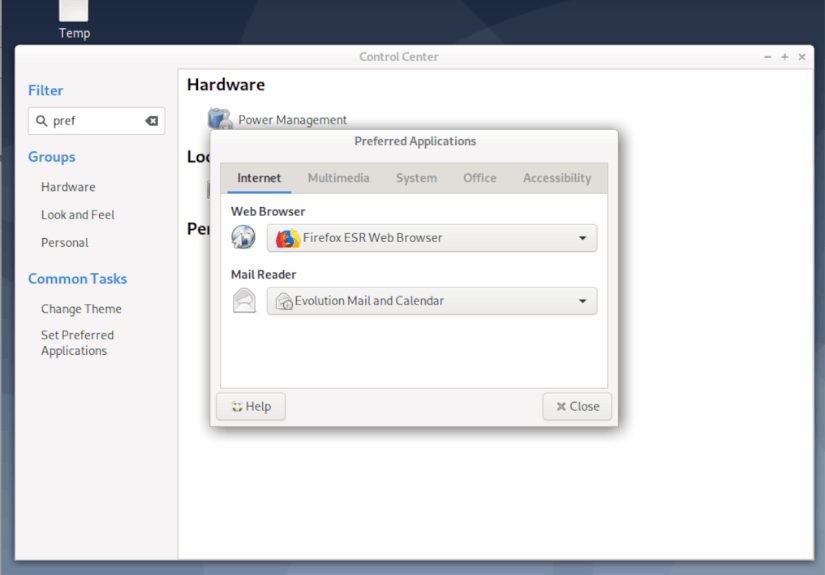
In most MATE-based systems, open the menu and look for Preferred Applications inside the settings or preferences area. On many systems, it is also available from the MATE Control Center. If you prefer keyboard shortcuts, you can often launch settings tools from the run dialog as well. Either way, you are looking for the panel that controls your desktop’s favorite apps for common jobs.
Once open, you will usually see categories for tasks such as:
- Web browser
- Mail reader
- Terminal emulator
- File manager
- Text editor
- Image viewer
- Document viewer
- Multimedia or video player
- Office-related apps on some MATE setups
How to change a preferred app
Pick the category you want to change, open the drop-down menu, and choose the program you want to use by default. For example:
- Choose Firefox, Chromium, or another installed browser for web links
- Choose Thunderbird or another mail client for email actions
- Choose MATE Terminal or an alternative terminal emulator
- Choose Atril or another document viewer for PDFs and related files
In many cases, that is all you need. MATE updates the preferred app, and the next time you open the related content, the desktop should use your new choice. It is satisfyingly simple, which is rare enough in modern computing that it deserves a moment of appreciation.
When Preferred Applications works best
This method is best for general desktop behavior. If your goal is “make this browser open links” or “make this terminal launch from MATE menus and shortcuts,” start here first. It is the right tool for broad categories, not just one individual file extension.
Method 2: Change the default app for a specific file type
Sometimes you do not want to change the whole category. You just want one kind of file to open in a different application. Maybe you want all text files to open in Pluma, all images to open in Eye of MATE, and all media files to open in VLC. That is where file associations come in.
How to change a file association in Caja
MATE’s file manager, Caja, makes this pretty painless.
- Find a file of the type you want to change.
- Right-click the file and choose Properties.
- Open the Open With tab.
- Select the application you want.
- Set it as the default.
For example, if an MP3 keeps opening in the wrong media player, right-click an MP3 file, open its properties, and assign the player you actually want. From then on, double-clicking similar files should use that new default.
This method is usually the cleanest way to fix one annoying file type without changing everything else. It is also the best option when the Preferred Applications panel feels too broad for your needs.
Why this method matters
Linux desktops do not just look at file extensions. They often use MIME types, which are a more structured way of identifying what a file actually is. So when you set a default for a file type, you are really telling the system which application should handle that MIME type. That is why changing a single PDF or TXT file’s behavior can affect all matching files system-wide for your user account.
Method 3: Use the command line for stubborn defaults
If the graphical tools are not enough, the command line gives you more control. This is especially useful if you are troubleshooting, scripting a setup, or trying to fix a system that keeps ignoring your perfectly reasonable choices.
Check which app currently handles a MIME type
You can query the current default with xdg-mime:
These commands tell you which .desktop entry is currently associated with that content type. If the answer surprises you, congratulations: you have found the source of the chaos.
Set a new default from the terminal
You can also assign a new default application directly:
The exact .desktop file name depends on what is installed on your system, so treat those examples as patterns rather than sacred text carved into a stone tablet. If your browser is Chromium or Brave instead of Firefox, use that app’s desktop entry instead.
Why command-line control is useful
This method is ideal when:
- Your graphical setting does not stick
- You want to automate the setup on multiple machines
- You are customizing a fresh MATE installation
- You want proof of what the system is actually doing
It is also the fastest way to stop guessing. Linux can be charmingly mysterious right up until you ask it a direct question.
Where MATE stores default app information
Under the hood, Linux desktop environments use mimeapps.list files to manage associations and defaults. On modern systems, the recommended user-level location is commonly ~/.config/mimeapps.list. Older or compatibility paths may also appear, such as ~/.local/share/applications/mimeapps.list. System-wide settings can exist in /etc/xdg/ or inside shared application directories.
That means your personal choice can override a distribution default, and an administrator can override both for all users. In plain English: if your laptop and your work machine behave differently, the computers may not be gaslighting you. They may just have different MIME layers.
A simple example of a MIME defaults file
This tells the system which app to try first for those content types. If the app is not installed or does not support the MIME type properly, the desktop may fall back to the next valid option.
What to do when the app you want does not appear
This is a classic MATE moment. You installed a perfectly good application, but it does not show up in Preferred Applications or in the Open With list. Annoying, yes. Unfixable, no.
Possible reasons
- The app’s
.desktopfile is missing or broken - The app is not registered for the MIME type you want
- The application was installed manually in a way the desktop does not fully recognize
- The MIME cache or desktop database has not refreshed yet
How to troubleshoot it
First, confirm the application is installed and launches normally. Then check whether it has a desktop entry in a standard location such as /usr/share/applications/ or your local applications directory. If it exists but still does not appear, the app may not advertise support for the MIME type you want. In that case, MATE is not being rude; it is being literal.
For advanced users, this is where command-line tools and the MIME configuration file become useful. You may need to bind the desired MIME type to the correct desktop entry manually.
Common examples of changing defaults in MATE
Set Firefox or Chromium as the default browser
Open Preferred Applications and change the web browser. If web links still open in the wrong app, update the HTTP, HTTPS, and HTML MIME handlers using xdg-mime or your mimeapps.list file.
Set Atril as the default PDF viewer
Either choose Atril in Preferred Applications if your setup includes a document viewer category, or right-click a PDF file in Caja and change the Open With default.
Set Pluma as the default text editor
Use the Preferred Applications panel if the text editor category is available. If not, change the default from the properties of a plain text file or use xdg-mime default pluma.desktop text/plain.
Set your favorite media player
For audio and video files, use file properties for the formats you care about most. If you use VLC for everything, you may need to assign it to several MIME types instead of expecting one dropdown to rule the whole kingdom.
Best practices for managing program defaults in MATE
- Start with Preferred Applications for broad categories
- Use Open With on a sample file for one-off file type changes
- Use xdg-mime when settings refuse to stick
- Check
mimeapps.listif you want a transparent, editable record of your choices - Be careful when mixing package-manager installs with manually installed apps
The smartest approach is not to go nuclear on the config files immediately. Try the graphical tools first. They are faster, safer, and less likely to lead to a three-hour detour involving desktop caches and muttered words that should not be printed in a family-friendly tutorial.
Real-world experience: what it is actually like to set the program defaults in MATE
In real-world use, setting program defaults in MATE is usually less dramatic than people fear and slightly more dramatic than it should be. The first experience most users have is simple: they open Preferred Applications, pick a browser, pick a mail client, maybe switch the document viewer, and move on with life. In that kind of scenario, MATE behaves beautifully. It feels old-school in the best way: clear menus, obvious labels, and a desktop that does not try to hide the knobs from you.
The second common experience happens after installing a new app. Maybe you add VLC because you want one player for everything, or you install Thunderbird because webmail has officially started testing your patience. At first, the new app may appear exactly where you expect. Other times, it does not show in the drop-down at all, which is Linux’s version of shrugging politely. That is the moment many users realize that desktop defaults are not only about what is installed, but about whether the program has been properly registered to handle the right file types and actions.
There is also the very relatable experience of changing one default and assuming the entire system got the memo. You set your browser in Preferred Applications and then double-click an HTML file only to watch a different app open. Cue the suspicious stare at the screen. In practice, this usually means one setting changed a general desktop preference, while another file association is still tied to an older rule. Once you understand that MATE separates broad preferred apps from per-file-type associations, the behavior starts making sense. Not exciting sense, admittedly, but useful sense.
For power users, the experience gets better once command-line tools enter the picture. Running a quick xdg-mime query default command feels like turning on the lights in a messy room. You stop wondering which application the desktop thinks is in charge, because the answer is right there. Editing mimeapps.list can also be surprisingly satisfying. It is not flashy, but it gives you something many modern systems do not: a plain, readable file that explains what is supposed to happen.
Another very normal experience in MATE is setting things once and then forgetting about them for months, which is actually the best compliment you can give a desktop environment. When defaults are configured well, the desktop disappears into the background. Links open where they should, documents launch in the right viewer, text files land in your preferred editor, and your workflow stops tripping over itself.
That is really the charm of MATE. It does not try to wow you with spectacle. It wins by being practical. Yes, you may need an extra step when an application is installed in an unusual way or when MIME associations get a little tangled. But once you know the three levels of controlPreferred Applications, file-level Open With settings, and MIME rulesyou can usually solve the problem without much trouble. And after that, MATE feels wonderfully cooperative, like an old toolbox that still works exactly the way your hands expect.
Conclusion
If you want to set the program defaults in MATE, the easiest path is to begin with Preferred Applications. That handles the big categories such as browser, mail, terminal, file manager, and document viewer. If you need more precision, change the default from a file’s Open With properties in Caja. And if the desktop still acts stubborn, use xdg-mime or check your mimeapps.list file for the final word.
The nice thing about MATE is that it gives you real control. The slightly less nice thing is that sometimes it expects you to know where that control lives. Now you do. So go ahead and make your desktop open the right programs on the first try. Your future self will appreciate the reduced eye twitch.