Table of Contents >> Show >> Hide
- Before You Start: Prepare Both Phones
- Step 1: Back Up Your Old Android Phone
- Step 2: Choose the Best Transfer Method
- Step 3: Start the New Android Setup
- Step 4: Use Brand-Specific Transfer Tools When Helpful
- Step 5: Verify Your Contacts, Messages, and Photos
- Step 6: Move Authenticator Apps and Security Codes
- Step 7: Reinstall and Reopen Important Apps
- Step 8: Set Up Screen Lock, Biometrics, and Find My Device
- Step 9: Update Apps and System Software
- Step 10: Clean Up Duplicate Apps and Old Clutter
- Common Problems When Setting Up a New Android From an Old Phone
- What to Do Before Erasing Your Old Phone
- Real-World Experience: What Actually Makes the Switch Easier
- Conclusion
Setting up a new Android phone from an old phone should feel exciting, not like you have accidentally enrolled in a part-time IT certification course. The good news: Android has become much better at moving your digital life from one device to another. Contacts, photos, messages, apps, call history, device settings, Wi-Fi networks, and even some app data can usually make the jump with very little drama.
The slightly less magical news: not everything transfers perfectly every time. Banking apps may ask you to sign in again. Two-factor authentication apps may need extra attention. WhatsApp chats need the right transfer or backup method. And if your old phone has been quietly hoarding 18,000 screenshots of dinner menus, your new phone may need a little patience.
This guide explains how to set up a new Android from an old phone in a clean, practical, beginner-friendly way. Whether you are moving to a Pixel, Samsung Galaxy, Motorola, OnePlus, or another Android device, the goal is simple: transfer your important data, avoid common mistakes, protect your privacy, and start using your new phone without yelling at a charging cable.
Before You Start: Prepare Both Phones
Before you turn on the new phone and tap through setup like a speedrunner, take five minutes to prepare. This small pause can prevent missing photos, half-restored apps, or the classic “Where did my contacts go?” panic.
Charge Both Devices
Make sure your old phone and new Android phone are charged to at least 50 percent. Even better, plug them both in. A phone-to-phone transfer can take anywhere from a few minutes to over an hour depending on how much data you are moving. If your old phone dies halfway through, Android will not send a sympathy card.
Connect to a Reliable Wi-Fi Network
Use a stable Wi-Fi connection, especially if you plan to restore from a cloud backup. Even if you are using a USB-C cable, Wi-Fi helps with sign-ins, app updates, account verification, and downloading apps from Google Play.
Update Your Old Phone
If possible, install pending system and app updates on your old Android phone. You do not need to chase every tiny update, but having Google Play services, Google Photos, WhatsApp, and your manufacturer transfer app up to date can make the process smoother.
Know Your Google Account Password
Your Google Account is the backbone of Android setup. It syncs contacts, calendar events, Google Photos, Gmail, Play Store apps, saved passwords, passkeys, and backups. Before switching phones, confirm that you know your Google Account password and can access your recovery email or phone number. This is not the moment to discover that your password is “maybe_the_dog’s_name_2017?”
Step 1: Back Up Your Old Android Phone
The easiest way to set up a new Android from an old phone is to create a fresh backup first. On most Android phones, go to Settings > Google > Backup, then choose Back up now. Some menus may vary slightly by brand. On Samsung phones, you may find backup options under Settings > Accounts and backup.
Android backups can include contacts, call history, SMS and MMS messages, device settings, app list, and some app data. However, not every app allows all its data to be backed up. That is why you should treat Android Backup as the main highway, not the only road in town.
Check Google Photos Backup
Open the Google Photos app on your old phone, tap your profile picture, and check whether backup is turned on. Then look at Back up device folders. Screenshots, downloads, WhatsApp images, Instagram images, and other folders may not back up unless you specifically enable them.
This matters because many people assume “my photos are backed up” means every image on the phone is safe. In reality, camera photos may be backed up while screenshots or app folders are not. Check before you wipe the old device. Your future self will be grateful, and slightly less dramatic.
Back Up WhatsApp Separately
WhatsApp deserves special attention. On your old Android phone, open WhatsApp and go to Settings > Chats > Chat backup. You can back up your chats to your Google Account, or use WhatsApp’s phone-to-phone chat transfer feature if both phones are available. The direct transfer method usually involves scanning a QR code during setup.
If your WhatsApp messages matter, do not skip this. Android’s general setup may move the app itself, but your chat history depends on WhatsApp’s own backup or transfer process.
Step 2: Choose the Best Transfer Method
When your new Android phone starts, it will usually ask if you want to copy apps and data from your old device. You generally have three good options: cable transfer, wireless transfer, or cloud restore.
Option 1: Transfer With a USB-C Cable
A wired transfer is often the fastest and most complete method. If both phones use USB-C, connect them with a USB-C to USB-C cable. If your old phone uses a different port, you may need an adapter. Follow the on-screen instructions, unlock the old phone, and choose what you want to copy.
Cable transfer is a strong choice when you have lots of photos, videos, messages, and local files. It can also do a better job with certain settings compared with restoring only from the cloud.
Option 2: Transfer Wirelessly
If you do not have the right cable, choose the wireless transfer option. Keep both phones close together, connected to Wi-Fi, and unlocked when prompted. Wireless transfer is convenient, but it may take longer than a cable, especially if your old phone has enough media files to produce a small documentary series.
Option 3: Restore From Google Backup
If your old phone is damaged, missing, or already traded in, you can restore from the latest Google backup. During setup, sign in with the same Google Account and choose the most recent backup. This can restore many essentials, but it may not include every local file or every app’s internal data.
Step 3: Start the New Android Setup
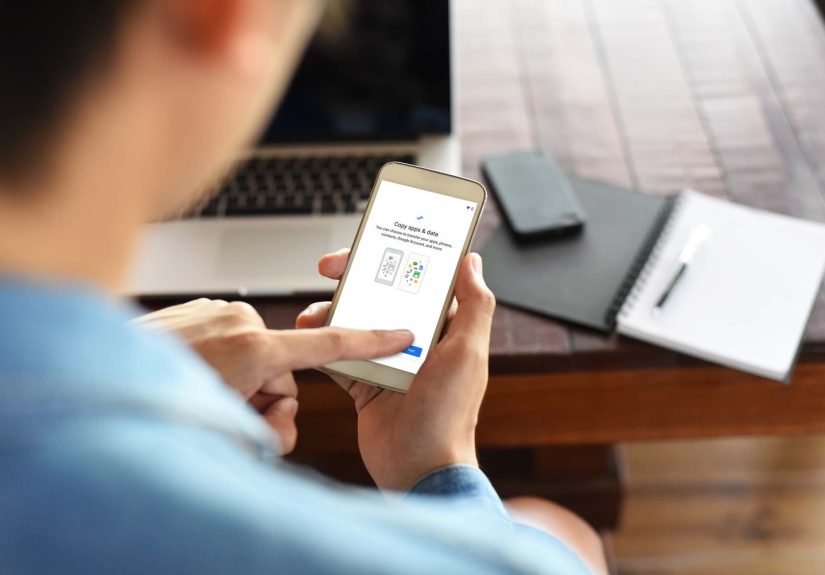
Turn on your new Android phone and tap Start. Connect to Wi-Fi, insert or activate your SIM or eSIM, and sign in to your Google Account. When the setup assistant asks whether you want to copy apps and data, choose Copy.
From here, follow the prompts. You may see options to transfer from an old Android phone, restore from a cloud backup, use a cable, or transfer wirelessly. Select the method that fits your situation.
What You Can Usually Transfer
Most Android transfers can move contacts, call logs, SMS messages, photos, videos, music, apps, calendar data, device settings, and some app data. Your Google Account can also sync Gmail, Chrome bookmarks, saved passwords, passkeys, Google Calendar events, Keep notes, Drive files, and Google Photos content.
However, certain data may require separate sign-ins or manual setup. Banking apps, work apps, payment apps, VPNs, authenticator apps, and some games often require fresh verification. This is normal. Annoying, yes. Suspicious, no.
Step 4: Use Brand-Specific Transfer Tools When Helpful
Google’s built-in Android setup works well for most people, but phone manufacturers also offer their own tools. These can be especially useful when moving into a specific ecosystem.
Samsung Smart Switch
If your new phone is a Samsung Galaxy, Smart Switch is one of the best Android transfer tools available. It can move contacts, messages, photos, videos, calendar events, apps, settings, home screen layouts, and more. You can transfer wirelessly, with a cable, or by using a backup through a computer or external storage.
Smart Switch is especially helpful if you want your new Galaxy to feel familiar immediately. It can bring over more Samsung-specific settings than a basic Google restore.
OnePlus Clone Phone and Other Tools
OnePlus offers Clone Phone, and Motorola has its own migration support tools for certain devices. Carrier tools from Verizon, T-Mobile, and AT&T can also help move contacts, photos, videos, and other content. These tools are not always necessary, but they can be useful if the standard Android setup misses something.
Step 5: Verify Your Contacts, Messages, and Photos
Once the transfer finishes, do not immediately erase the old phone. First, check the basics.
Contacts
Open the Contacts app and search for a few important names. If contacts are missing, confirm that you are signed in to the correct Google Account. Some people accidentally save contacts to a device, SIM card, work account, or old email account instead of their main Google Account.
Messages
Open Google Messages or your preferred messaging app. Check recent conversations, SMS messages, MMS media, and RCS chat settings. If RCS is not active yet, open Messages settings and confirm chat features are enabled.
Photos and Videos
Open Google Photos and give it time to sync. Then check the Library or Collections section for device folders. If you copied local media by cable, also open your phone’s file manager or gallery app. Cloud photos and local phone storage are related, but they are not the same thing.
Step 6: Move Authenticator Apps and Security Codes
This is the step people forget until they are locked out of an account and suddenly negotiating with a login screen like it is a hostage situation.
If you use Google Authenticator, open it on the old phone and use the transfer accounts option to create a QR code. Then install Google Authenticator on the new phone and scan that code. Some authenticator apps also offer cloud sync, but you should still confirm every important account works before wiping the old device.
For password managers, install the app on the new phone and sign in. If you use Google Password Manager, saved passwords and passkeys can sync across devices when you are signed in to the same Google Account. Some passkeys may require your old screen lock, Google Password Manager PIN, biometric approval, or a fresh login depending on the app or website.
Step 7: Reinstall and Reopen Important Apps
Your apps may appear on the new phone automatically, but that does not mean they are fully ready. Open your most important apps one by one: banking, email, messaging, work tools, ride-share apps, airline apps, payment wallets, health apps, school apps, and anything you use daily.
Some apps will ask for a fresh login. Others may need SMS verification. A few may require you to remove the old device from trusted devices before adding the new one. This is normal security behavior, even if it feels like your apps are making you prove your identity to a tiny digital courtroom.
Step 8: Set Up Screen Lock, Biometrics, and Find My Device
During setup, Android usually asks you to create a PIN, pattern, or password. Do not skip this. A secure screen lock protects your phone, enables biometric unlock, helps secure passkeys, and may be required for payment apps.
After that, set up fingerprint or face unlock if your phone supports it. Then confirm that Find My Device, now commonly shown as part of Google’s device-finding features, is enabled. This helps you locate, lock, or erase your phone if it disappears into a couch cushion, taxi, or alternate dimension.
Step 9: Update Apps and System Software
After the transfer, open the Google Play Store, tap your profile icon, and update all apps. Then check Settings > System > System update or the equivalent menu on your phone. New phones often ship with pending updates, and restored apps may need fresh versions to work properly.
Also open your manufacturer’s app store if your phone uses one, such as the Galaxy Store on Samsung devices. Some device-specific apps update there instead of through Google Play.
Step 10: Clean Up Duplicate Apps and Old Clutter
Transferring from an old phone can bring over digital baggage. Maybe you still have a flashlight app from 2016, three weather apps, and a game you played once while waiting at the dentist. This is your chance to start clean.
Uninstall apps you no longer use. Review notification permissions. Turn off noisy alerts. Organize your home screen. Move essential apps to the first page and let the rest earn their place. Your new Android phone should feel like an upgrade, not a storage unit with a touchscreen.
Common Problems When Setting Up a New Android From an Old Phone
The Transfer Is Taking Forever
Large photo libraries, videos, and slow Wi-Fi are the usual suspects. Keep both phones charged, close together, and connected. If the transfer freezes for a very long time, restart both devices and try again, preferably with a cable.
Some Apps Did Not Transfer
Apps may be unavailable if they are no longer in the Play Store, not compatible with the new phone, tied to a different account, or installed from outside Google Play. Reinstall trusted apps manually from official sources.
Photos Are Missing
Check Google Photos backup settings, device folders, and the old phone’s gallery. Also check whether the missing images were stored in app-specific folders such as WhatsApp Images, Downloads, or Screenshots.
Messages Did Not Restore
Confirm that you restored from the correct Google backup and that your messaging app is set as default. For WhatsApp, use WhatsApp’s own restore or transfer process. For SMS and MMS, Android backup usually helps, but results can vary depending on device, app, and backup status.
What to Do Before Erasing Your Old Phone
Do not factory reset your old phone until you have confirmed that your new phone has your important data. Make a small checklist:
- Contacts are present.
- Photos and videos are backed up or copied.
- WhatsApp chats are restored.
- Authenticator codes work.
- Banking and payment apps are active.
- Important files are saved.
- Passwords and passkeys are accessible.
- Messages and call history are acceptable.
When you are ready, remove accounts if needed, turn off device-finding locks according to your manufacturer or carrier instructions, and perform a factory reset. On many Android phones, go to Settings > System > Reset options > Erase all data. Samsung phones may use Settings > General management > Reset > Factory data reset.
Real-World Experience: What Actually Makes the Switch Easier
After helping people move from one Android phone to another, one pattern becomes obvious: the transfer itself is rarely the hardest part. The hardest part is remembering all the tiny places where your digital life hides. The phone setup wizard can move a lot, but it cannot read your mind. It does not know that your kid’s school app sends emergency alerts, that your airline app has a boarding pass for tomorrow, or that your old Downloads folder contains the only PDF copy of a warranty receipt.
The best experience starts before the new phone even leaves the box. On the old phone, open your app drawer and look at what you actually use. Make a short list of must-have apps: banking, messaging, work, school, password manager, cloud storage, transportation, food delivery, health, travel, and smart home apps. Then, after the transfer, open those apps first. Do not wait until you are standing at a checkout counter to discover your payment app wants a verification code sent to a SIM that is no longer active.
Another useful habit is to treat photos as two separate things: cloud photos and local folders. Many users open Google Photos, see years of memories, and assume everything is safe. But screenshots, downloaded images, edited videos, and messaging app folders may behave differently. Before resetting the old phone, search for important files in the Files app. Look in Downloads, Documents, Pictures, Movies, WhatsApp, Telegram, and Screenshots. If something matters, copy it to Google Drive, Google Photos, a computer, or external storage.
For Samsung users, Smart Switch often feels almost suspiciously convenient. It can bring over home screen layouts, settings, and familiar app arrangements, which makes the new phone feel less like a stranger. Still, even with Smart Switch, it is smart to check secure apps manually. Banking apps, work profiles, corporate email, and payment wallets often require fresh authentication. That is not a failure; that is security doing its job.
Authenticator apps are the biggest “do not forget this” category. If your old phone is still in your hand, transferring codes is usually easy. If the old phone is gone, broken, or wiped, account recovery becomes much less fun. Before trading in or factory resetting the old device, test the authenticator codes on the new phone. Sign in to your most important accounts and confirm everything works.
Finally, give your new Android phone a day before judging battery life. During the first several hours, it may download apps, index files, sync photos, update software, and rebuild background data. That can make the phone warm or drain faster than expected. Once setup settles down, battery performance usually becomes more normal. In other words, do not panic if your brand-new phone acts like it just drank three espressos. It is probably still unpacking your digital suitcase.
Conclusion
Learning how to set up a new Android from an old phone is mostly about preparation. Back up your old device, choose the best transfer method, verify your important data, move security apps carefully, and only erase the old phone when the new one is truly ready. Android’s setup tools are much better than they used to be, and with Google backup, cable transfer, wireless transfer, Smart Switch, and app-specific options like WhatsApp transfer, moving phones no longer has to feel like defusing a bomb with a 12 percent battery.
The smartest approach is simple: back up first, transfer second, verify third, reset last. Follow that order and your new Android phone should feel less like a blank slab of glass and more like your old phone got a faster processor, a better camera, and finally learned some manners.