Table of Contents >> Show >> Hide
- Why Spanish accents matter more than people think
- The Spanish characters you will use most often
- The easiest ways to type Spanish accents by device
- The fastest method depends on how often you type in Spanish
- Common problems and how to fix them
- A practical cheat sheet for everyday Spanish typing
- How to build the habit so you stop forgetting
- Final thoughts: the best shortcut is the one you will actually use
- Real-world experiences with typing Spanish accents on any keyboard
If you have ever stared at your screen wondering how on earth to type ñ, ü, ¿, or ¡, welcome to the club. Nearly everyone who writes in Spanish has had that moment of panic: the sentence is flowing, the coffee is hot, your confidence is high, and then boomyou need mañana, not “manana,” and suddenly your keyboard feels like it was designed by a villain.
The good news is that typing Spanish accents is much easier than most people think. You do not need a magical keyboard, a secret decoder ring, or a PhD in punctuation. Whether you use Windows, Mac, Chromebook, a laptop without a numeric keypad, or a mobile keyboard, there is a fast and reliable way to type Spanish accents without turning every sentence into a copy-and-paste scavenger hunt.
In this guide, you will learn how to type Spanish accents on almost any setup, which shortcuts are actually worth memorizing, when to use keyboard layouts versus one-off symbols, and how to avoid the most common mistakes. By the end, your keyboard and Spanish vocabulary should finally be on speaking terms.
Why Spanish accents matter more than people think
Spanish accents are not decorative sprinkles. They help show pronunciation, stress, and meaning. In some cases, a missing accent can change a word entirely. For example, si and sí are not the same, and neither are el and él. The letter ñ is also its own letter, not just a regular n wearing a tiny hat for fashion reasons.
Then there is punctuation. Spanish uses inverted question marks and exclamation marks at the beginning of questions and exclamations: ¿ and ¡. If you skip them, readers will still understand you most of the time, but your writing looks unfinished, like showing up to a wedding in sneakers and saying, “Technically, I’m dressed.”
The Spanish characters you will use most often
For most people, these are the characters worth learning first:
- á, é, í, ó, ú accented vowels
- ü u with diaeresis, as in vergüenza or pingüino
- ñ as in España or niño
- ¿ inverted question mark
- ¡ inverted exclamation mark
If you only memorize how to type those, you can handle the vast majority of everyday Spanish writing, from homework and emails to captions, resumes, essays, and messages that are trying very hard to sound charming.
The easiest ways to type Spanish accents by device
Windows: best for regular Spanish typing
If you type in Spanish often on Windows, the most practical option is usually the US-International keyboard layout. Once it is enabled, certain keys act like “dead keys,” which means you type the accent first and the letter second.
That sounds dramatic, but it is simple in practice:
- Type ‘ then a to get á
- Type ‘ then e to get é
- Type Shift + ` then n to get ñ
- Type “ then u to get ü
- Type Right Alt + 1 to get ¡
- Type Right Alt + / to get ¿
This method is excellent if you write in Spanish frequently because it works across many apps and becomes second nature after a few days. The only downside is that punctuation keys like apostrophes and quotation marks behave differently until you get used to the layout.
If you only need accents occasionally, you may prefer not to switch keyboard layouts. In that case, Windows gives you a few backup options:
- Microsoft Word and Outlook shortcuts: for example, Ctrl + ‘ then the vowel for á, é, í, ó, ú, and Ctrl + Shift + ~ then n for ñ
- Alt codes: hold Alt and type the code on the numeric keypad
- Character Map: useful if you need to insert a symbol once and move on with your life
- Windows symbol panel: open it with Windows key + . and browse symbols and special characters
One big warning: Alt codes usually require a real numeric keypad. The number row at the top of your keyboard usually will not do the job. This is why many laptop users try Alt codes once, fail spectacularly, and assume the internet lied to them.
Mac: easiest for most people
Mac users have one of the friendliest systems for accented characters. In many apps, you can simply press and hold a letter and an accent menu appears. Hold down a, for example, and macOS often offers choices like à, á, â, and friends.
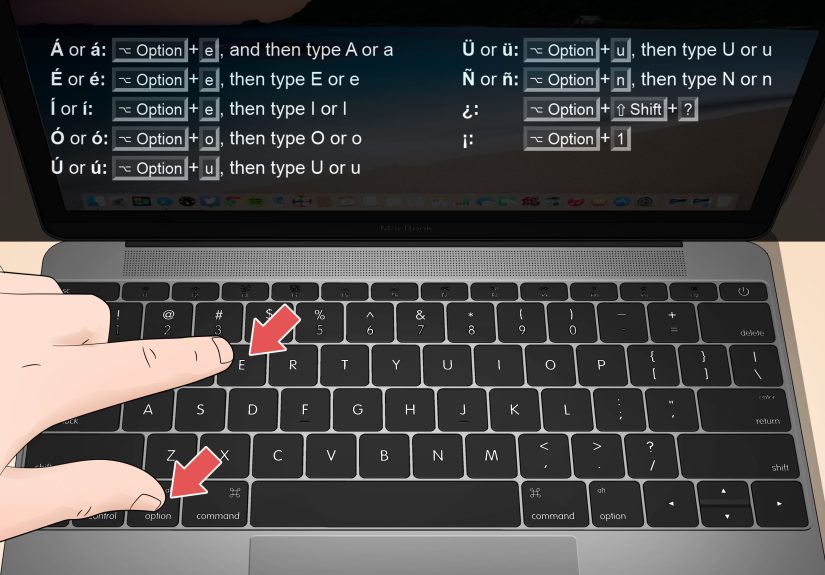
If you want faster keyboard-based typing, Mac also supports classic Option shortcuts:
- Option + e, then a/e/i/o/u = á, é, í, ó, ú
- Option + n, then n = ñ
- Option + u, then u = ü
- Option + 1 = ¡
- Option + Shift + ? = ¿
This system is fast, logical, and refreshingly low-drama. If you use Spanish on a Mac even semi-regularly, these shortcuts are worth learning. The rhythm becomes natural: accent key first, letter second. After a week, your fingers start doing it without filing a formal complaint.
Chromebook: surprisingly painless
On a Chromebook, the simplest method is often the built-in accents menu. Press and hold the letter you want to accent. A small menu appears with available accented versions. Choose the character, and you are done.
This method is ideal for casual typing because it is visual and easy to remember. If you write in Spanish often, you can also add another input method or keyboard language in ChromeOS settings and switch between them when needed.
In other words, a Chromebook does not force you into awkward workarounds. It quietly gives you options, which is honestly more than some printers have managed in the last twenty years.
Phones and tablets: the long-press method
On mobile devices, the most common approach is also the easiest: touch and hold the letter. On Android with Gboard, long-pressing a key reveals accented variants. That makes á, é, í, ó, ú, ñ, ü quick to access without changing your entire keyboard setup.
If you use an iPad with a physical keyboard, Apple also supports alternative layouts such as U.S. International and ABC Extended, plus Option-based accent entry for diacritical marks. That is especially handy if you move between laptop and tablet and want your shortcuts to feel consistent.
For most casual mobile users, though, long-press is the winner. It is easy, intuitive, and perfect when you are typing messages like ¿Dónde estás? instead of writing a twelve-page research paper on Cervantes.
The fastest method depends on how often you type in Spanish
There is no universal “best” method. The right choice depends on how often you use Spanish and how much setup you can tolerate.
Choose keyboard shortcuts if you type Spanish daily
If you write emails, assignments, chat messages, or work documents in Spanish every day, learn a real shortcut system. On Windows, that usually means the US-International layout. On Mac, it usually means Option shortcuts or the press-and-hold menu. These methods save time and reduce the urge to hunt for symbols online like a digital raccoon.
Choose menus and symbol tools if you only need accents occasionally
If you type Spanish once a month, a full keyboard-layout change may feel like using a forklift to move a backpack. In that case, use the Mac accent menu, Chromebook accent menu, Windows Character Map, or the Windows symbol panel. They are slower, but perfectly fine for light use.
Choose copy-and-paste only as a last resort
Yes, you can copy á é í ó ú ñ ü ¿ ¡ from a note and paste them when needed. Yes, it works. No, it is not efficient if you do it all the time. Copy-and-paste is like eating cereal with a measuring cup: technically possible, but not the tool anyone hoped you would use forever.
Common problems and how to fix them
Your shortcuts are not working on Windows
Check whether you are using the right method for the right app. Some shortcuts are Office-specific, while others work system-wide through the keyboard layout. Also confirm whether your keyboard actually has a numeric keypad if you are trying Alt codes.
You switched to an international layout and now punctuation feels weird
That is normal. The US-International layout changes how apostrophes, quotation marks, and a few other keys behave because they are now accent triggers. Give it a little time. Most users adjust quickly, especially if they type in Spanish regularly.
You need uppercase accented letters
Uppercase accented letters are possible with the same systems. On shortcut-based setups, you typically use the accent trigger first and then type the capital letter. For example, on Mac, Option + e then Shift + a gives Á. On Windows Office shortcuts, the same logic applies.
You only need one weird character
Use a symbol viewer, Character Map, or a special-character menu. Life is too short to reconfigure your entire keyboard because you needed to type pingüino one time in a group chat.
A practical cheat sheet for everyday Spanish typing
Windows everyday picks
- Frequent use: US-International keyboard
- Word/Outlook: Ctrl + ‘ then vowel
- For ñ in Word: Ctrl + Shift + ~ then n
- One-off symbols: Character Map or Windows + .
Mac everyday picks
- Fastest for occasional use: press and hold the letter
- Fastest for regular use: Option shortcuts
- For ñ: Option + n, then n
- For ü: Option + u, then u
Chromebook and mobile everyday picks
- Chromebook: hold the letter for the accent menu
- Android with Gboard: long-press the key
- Tablet with hardware keyboard: use an international layout if available
How to build the habit so you stop forgetting
The fastest way to remember Spanish accent shortcuts is not to memorize a giant chart. It is to learn a few patterns and use them repeatedly. Start with these four:
- Acute accents: learn how your device handles á, é, í, ó, ú
- Tilde: learn how to type ñ
- Diaeresis: learn how to type ü
- Inverted punctuation: learn ¿ and ¡
Practice them in real words: papá, inglés, país, acción, pingüino, mañana, ¿Cómo estás?, and ¡Qué bueno!. Once those become automatic, the whole system stops feeling foreign.
Final thoughts: the best shortcut is the one you will actually use
If you type in Spanish often, set up a method that works everywhere and commit to it. If you only type it occasionally, keep things simple and use built-in menus. The real goal is not to become a shortcut wizard who frightens coworkers with keyboard speed. The goal is to write clearly, correctly, and without interrupting your train of thought every time you need an accent.
Spanish accents are one of those tiny skills that make a surprisingly big difference. They make your writing look polished, respectful, and accurate. They also save you from turning años into a very different word by accident, which is a public service all by itself.
Real-world experiences with typing Spanish accents on any keyboard
The funny thing about learning Spanish keyboard shortcuts is that the experience usually begins with mild irritation and ends with strange pride. At first, most people treat accents like obstacles. You are writing a sentence, everything is fine, and then you hit a word like corazón or mañana and suddenly your typing speed falls off a cliff. The first instinct is often to skip the accent and move on. The second instinct is to open another tab, search for the character, copy it, paste it, and pretend this is a normal workflow. It is not. It is keyboard chaos wearing business casual.
Students often feel this most sharply. Imagine writing a Spanish essay at 11:43 p.m. with a deadline at midnight. You know the vocabulary. You know the grammar. But your laptop acts like ñ is an ancient artifact locked in a museum. Once students learn a real shortcut system, though, the whole writing experience changes. They stop interrupting every paragraph. Their spelling improves. Their confidence goes up because the language starts feeling less like a puzzle and more like something they can actually use in real time.
Professionals have a similar experience, especially if they email clients, coworkers, or customers in Spanish. At first, many people think, “Close enough is fine.” Then they realize that details matter. Writing Buenos dias instead of Buenos días may not cause a diplomatic incident, but proper accents make communication look more polished and more respectful. The difference is subtle, yet it signals care. Once someone learns a method that works on their device, the stress drops dramatically. They can focus on tone and clarity instead of wrestling with punctuation like it owes them money.
Travelers and bilingual families often describe another kind of experience: convenience. When you message relatives, label photos, save addresses, or type restaurant names, accents show up constantly. The shift from “I cannot type that character” to “I know exactly how to do this” feels small, but it removes friction from everyday life. And that is the secret benefit of good keyboard habits: they do not just make your Spanish prettier. They make your technology feel more cooperative.
There is also a weirdly satisfying moment that happens after enough practice. One day, without thinking, you type ¿Cómo está tu niño? with every accent and symbol in place. No searching. No pausing. No dramatic sighing. Your fingers just do it. That moment is delightful because it proves the skill has become automatic. What once felt like a technical nuisance now feels natural, almost invisible.
So yes, learning how to type Spanish accents on any keyboard is practical. But it is also one of those small digital upgrades that makes you feel far more competent than its size would suggest. It turns frustration into fluency, one tiny mark at a time.