Table of Contents >> Show >> Hide
- Can You Take Photos While Recording Video on iPhone?
- How to Take Photos While Recording Video on iPhone
- The QuickTake Alternative in Photo Mode
- What Quality Should You Expect?
- Best Camera Settings Before You Start
- Tips for Sharper Photos While the Video Keeps Rolling
- Common Problems and Easy Fixes
- When This Feature Is Actually Worth Using
- Real-World Experiences With This iPhone Camera Feature
- Conclusion
If you have ever tried to capture your kid blowing out birthday candles, your dog doing a once-in-a-lifetime backflip off the couch, or your friend delivering an Oscar-worthy karaoke performance, you already know the pain: the second you switch from video to photo, the moment evaporates like free snacks in an office kitchen. This is exactly why iPhone includes a wonderfully underappreciated feature that lets you take photos while recording video.
It is simple, fast, and surprisingly useful. Instead of choosing between a video clip and a still image, you can grab both at the same time. That means you can keep the story rolling while snapping a frame-worthy shot right in the middle of the action. For parents, travelers, casual creators, and people who document every brunch plate like it is headed to a museum, this feature is a quiet little hero.
In this guide, you will learn exactly how to take photos while recording video on iPhone, when it works best, what quality to expect, and how to get sharper results without turning your Camera app into a stressful science project. We will also cover a few common mistakes, real-world use cases, and practical tips that make the feature more useful than most people realize.
Can You Take Photos While Recording Video on iPhone?
Yes, you can. In the iPhone Camera app, once you start recording in Video mode, a white shutter button appears on-screen. Tap that button and your iPhone captures a still photo without stopping the video recording. It is one of those features that feels obvious once you know it exists, yet somehow stays hidden in plain sight.
This works especially well when you want a quick still image of a moving subject but do not want to interrupt the video. Think birthday parties, school events, cooking demos, live music, sports practice, or any situation where saying, “Wait, do that again, but slower and with better lighting,” would get you kicked out of the room.
How to Take Photos While Recording Video on iPhone
1. Open the Camera app and switch to Video
Start by opening the Camera app on your iPhone. Swipe until you reach Video mode. Frame your subject the way you want, because once the action starts, nobody wants to be the person frantically tilting a phone while yelling, “Hold on, hold on, I almost got it.”
2. Tap the red Record button
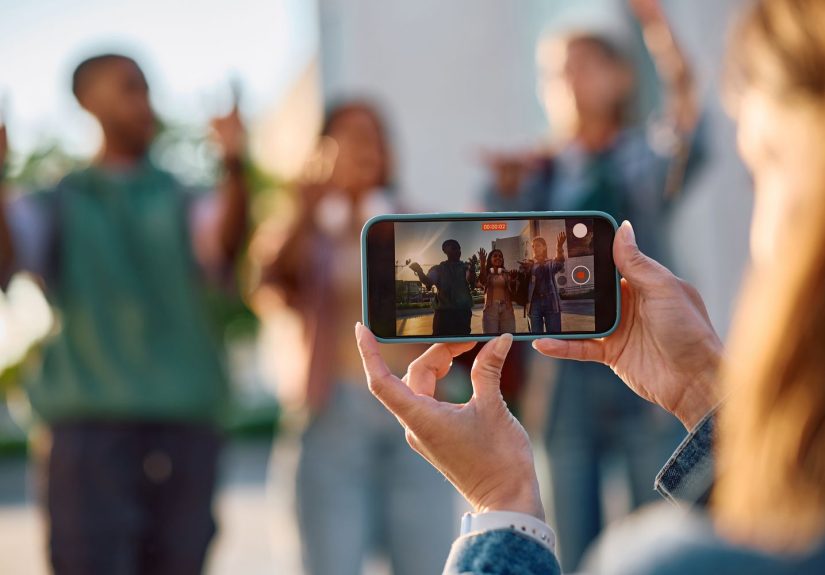
Press the red Record button to begin shooting video. Once recording starts, the interface changes slightly. The record control remains visible, and you should also see a white shutter button nearby.
3. Tap the white shutter button during recording
While the video continues to roll, tap the white shutter button any time you want to capture a still image. The video does not stop. Your iPhone simply saves the photo while continuing the recording in the background. It is multitasking without the emotional damage.
4. Check Photos afterward
When you are done, open the Photos app. Your video will be saved as a video clip, and your captured stills will also appear in your library. Depending on your settings and iOS version, they may appear near the video in Recents, which makes them easy to review together.
The QuickTake Alternative in Photo Mode
There is another handy option if you need to move fast: QuickTake. In Photo mode, you can press and hold the shutter button to start recording video without switching fully into Video mode. If you slide to lock the recording, you can keep filming hands-free and then take still photos during that recording too.
This is great for unexpected moments when you opened the Camera app planning to take a photo, but the scene suddenly becomes more interesting in motion. A toddler dancing, a street performer spinning fire, or your cat making a highly suspicious leap toward a houseplant are all excellent candidates.
QuickTake is convenient, but for longer sessions, regular Video mode is usually more comfortable and easier to manage. Think of QuickTake as the “grab it now” option and Video mode as the “I am intentionally filming this” option.
What Quality Should You Expect?
Here is the important reality check: photos captured while recording video on iPhone are convenient, but they are not always equal to photos taken in standard Photo mode. In many cases, the still image quality is lower than a regular camera shot because the iPhone is effectively grabbing a still while prioritizing video capture.
That does not mean the photos are bad. In good lighting, they can look very nice and be more than good enough for social media, messaging, digital albums, and everyday sharing. But if you are trying to capture the kind of ultra-detailed image you might print, crop heavily, or use professionally, standard Photo mode is still the better choice.
As a rule of thumb, higher-quality video settings can lead to better-looking stills. If your iPhone is recording in 4K, the still image can look noticeably better than one captured during 1080p video. Even so, these in-video photos are best viewed as “smart convenience shots,” not a magical replacement for a dedicated photo session.
Also, these are standard stills, not Live Photos. So if you were hoping to press and hold later for that mini motion effect, this is not that kind of party.
Best Camera Settings Before You Start
Use a higher video resolution when possible
If you care about the quality of the stills, choose a higher video resolution before you begin. Many users prefer 4K at 30 fps as a sweet spot because it gives solid detail without getting quite as heavy as higher frame rate combinations. Just remember: better video settings mean larger files.
Check your storage first
Nothing ruins a great recording like the iPhone version of, “Storage Almost Full.” If you plan to record long clips and capture photos during them, make sure you have enough free space. High-resolution video can fill storage faster than people expect, especially if you are filming for an event or travel day.
Pick your lens before things get hectic
Decide whether you want a wider frame, a tighter shot, or a more natural perspective before you hit Record. Constantly changing your framing during the best moment is a reliable way to miss the best moment.
Use good light whenever you can
The better the light, the better both your video and your still photos will look. Indoor low-light scenes are where in-video snapshots tend to look softer or noisier. If possible, move closer to a window, step outdoors, or shoot where the lighting is more even.
Tips for Sharper Photos While the Video Keeps Rolling
Hold your iPhone as steady as possible
Even though iPhone stabilization is impressive, your still photo will look better if your hands are not bouncing around like you just drank four iced coffees. Brace your elbows, hold the phone with both hands, or lean against something stable.
Tap to focus before the big moment
If your subject is not moving unpredictably, tap the screen to set focus before recording. This gives the camera a better chance of staying locked onto what matters most instead of hunting around right when the moment peaks.
Capture at the peak of the action
Timing matters. If you are photographing motion while recording, try to tap the white shutter button at the top of the action instead of in the blurriest part of it. For example, snap at the top of a jump, the moment a child smiles, or when a performer holds a pose for a split second.
Do not rely on zoom too much
Excessive zoom can make both video and stills look shakier and softer. If possible, get physically closer rather than pinching wildly and hoping your subject turns into National Geographic by sheer optimism.
Use pause strategically on newer iOS versions
If your iPhone supports pausing a video recording, that can help during longer clips. You can pause, reframe, steady yourself, and continue recording without creating a stack of separate clips. It will not directly improve every still, but it can make your overall shooting process far less chaotic.
Common Problems and Easy Fixes
The white shutter button is not showing
Make sure you are actually recording video. In regular Video mode, the white shutter appears after recording starts. In Photo mode, if you are using QuickTake, you may need to lock the recording before you can comfortably keep shooting hands-free and take stills.
The photo looks softer than expected
That is normal. Photos taken while recording video often look less detailed than photos taken in Photo mode. Improve the result by shooting in better light, using higher video resolution, and holding the phone steady.
The image is blurry
Motion blur is the usual suspect. Either your hands moved, your subject moved, or both joined forces against you. Stabilize the phone, reduce zoom, and capture during a cleaner moment in the motion.
Your storage runs low fast
High-resolution video plus extra stills equals larger storage use. Before filming a long event, clear old files, move media to cloud storage, or export older videos you no longer need on the device.
When This Feature Is Actually Worth Using
Taking photos while recording video on iPhone is most useful when the moment matters more than perfect still-photo quality. That includes:
Family events: You can preserve the full moment on video while also grabbing one frame that is easy to text to relatives.
Kids and pets: Because they famously do not accept direction from unpaid photographers.
Travel: Street scenes, moving boats, performers, markets, and scenic lookouts all benefit from having both formats.
Sports and performances: Video tells the story, while a quick still can become the shareable hero image.
Content creation: If you are filming short-form content, tutorials, or behind-the-scenes clips, in-video stills can help create thumbnails, recaps, and promotional posts.
Real-World Experiences With This iPhone Camera Feature
One of the most relatable experiences with this feature happens at family gatherings. Somebody starts singing, candles get lit, everyone leans in, and suddenly you are making a choice between recording the song or grabbing a nice still image of the smile right before the candles go out. Taking photos while recording video on iPhone removes that tiny panic. You can keep the song, the laughter, the background chatter, and still tap out a clean little photo that is easy to share later. It feels less like operating a device and more like staying present while the phone quietly does the extra work.
Travel is another place where this feature shines. Imagine standing on a ferry, filming the skyline as the boat moves, while sunlight bounces off the water and people around you are all doing their best “I am definitely not blocking your shot” routine. Recording video captures the movement of the city, but a tapped still photo can freeze one perfect frame when the light hits just right. It is especially useful in places where the scene changes second by second and you know you may never stand in that exact spot again.
Parents and pet owners probably get the biggest emotional return from this feature. Kids do not repeat magical moments on command, and pets certainly did not read the memo. The dog tilts its head once. The toddler laughs once. The baby takes two wobbly steps and then immediately sits down like a tiny exhausted CEO. In those moments, video preserves the sound and movement, but the in-video photo gives you that quick image you can favorite, print, or send to grandparents five seconds later.
For creators, this feature is also quietly practical. Say you are filming a recipe, a makeup routine, a home project, or a mini vlog. A photo captured while recording can become a thumbnail, a social post, or a simple progress image without forcing you to stop, switch modes, and break your rhythm. It keeps the workflow smooth. That matters more than people think, especially when you are juggling lighting, framing, your own dialogue, and the strong possibility that something is currently burning in the oven.
There is also a psychological benefit. When you know you can capture both formats at once, you tend to stop overthinking. You are less likely to freeze up and miss the moment because you are debating whether the memory belongs in a photo or a video. The answer can simply be: both. That ease makes the camera feel friendlier. It lowers the pressure.
Of course, real-world experience also teaches the limits. If the room is dark, the shot may look softer than you hoped. If you are zoomed way in while walking, the still may come out a bit mushy. If you want a poster-worthy image with maximum detail, you will still prefer Photo mode. But for everyday life, this feature is not about laboratory perfection. It is about catching the moment before it disappears. And honestly, that is what most people wanted in the first place.
Conclusion
If you want the easiest way to take photos while recording video on iPhone, the process is refreshingly simple: start recording in Video mode, tap the white shutter button, and let your iPhone save a still without interrupting the clip. For spontaneous situations, QuickTake offers another fast route from Photo mode.
The feature works best when the moment matters more than perfect still-photo quality. Use it for family memories, travel scenes, pets, performances, tutorials, and anything that moves too quickly for constant mode switching. Just remember to use good light, steady your hands, and set your video quality wisely before you start.
In other words, stop making your iPhone choose sides. Let it shoot the movie and the movie poster.