
Table of Contents >> Show >> Hide
- First: Identify What “Permission Denied” Means in Your Case
- Fix #1: Make the Script or File Executable (The Classic chmod Move)
- Fix #2: Run It with the Right Interpreter (And Check the Shebang)
- Fix #3: Fix Ownership and Folder Permissions (Especially After sudo or Installs)
- Fix #4: Remove Quarantine Flags from Trusted Files (Yes, macOS Is the Bouncer)
- Fix #5: Give Terminal the Right macOS Privacy Permissions (Full Disk Access, Files & Folders)
- Extra Tips to Prevent “Permission Denied” from Coming Back
- Real-World Experiences: What This Error Usually Looks Like (And How People Actually Fix It)
- Conclusion
Few things make your brain instantly go from “productive genius” to “confused raccoon in a trash can” faster than this message:
zsh: permission denied. The good news? On macOS, it’s usually not a mysterious curseit’s your system being very literal:
“I’m not allowed to do what you just asked.”
This guide walks through five quick fixes that solve the vast majority of “zsh permission denied” cases on a Macwhether you’re trying
to run a script, load shell completions, write to a folder, or execute something you downloaded. We’ll keep it clear, practical, and just
slightly sarcastic (as the Terminal gods intended).
First: Identify What “Permission Denied” Means in Your Case
“Permission denied” can happen for a few different reasons, and the best fix depends on what you were doing when it happened.
Before changing anything, take 30 seconds to run these checks.
30-second diagnosis checklist
-
Are you trying to run a file? Example:
./script.shor./tool -
Are you trying to access a folder? Example:
cd Desktop,cat ~/Documents/file.txt, or writing into/usr/local -
Is it a Zsh startup/completion error? Example:
zsh compinit: insecure directoriesorpermission denied: ~/.zsh_history - Did you download the file from the internet? That can trigger macOS security flags (quarantine).
Run these commands (copy/paste friendly)
If ls -l shows something like -rw-r--r--, that file is not executable (no x), and Zsh is right to refuse.
If it’s a folder issue, you’ll usually see ownership or write permission problems. And if there’s a quarantine flag, you may see “permission denied”
or “operation not permitted” even when permissions look fine.
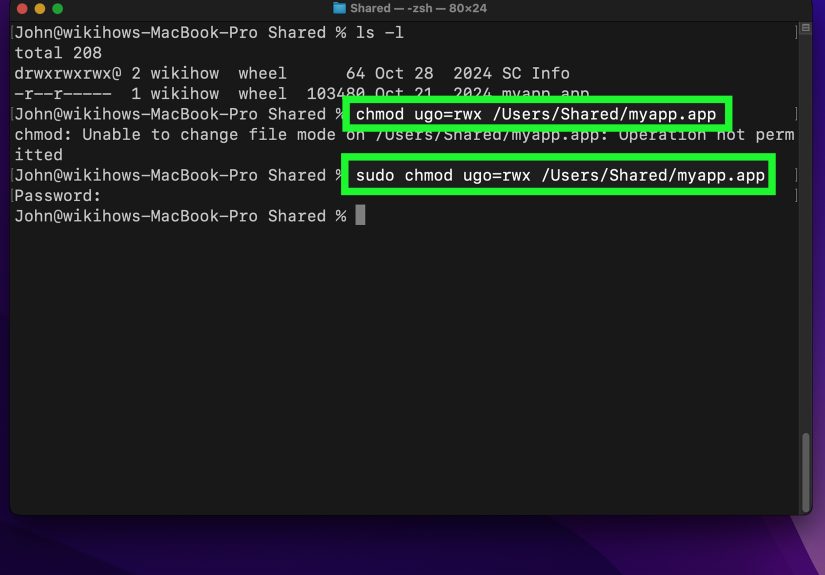
Fix #1: Make the Script or File Executable (The Classic chmod Move)
This is the most common scenario: you have a script, you try to run it, and macOS says “Nope.” Usually the file simply doesn’t have execute permission.
Think of it like trying to drive a car that has no wheelsnice paint job, still not going anywhere.
How to tell
If the permissions start with something like -rw-r--r--, you’re missing execute permission.
You want to see an x in there, like -rwxr-xr-x (or at least -rwx------).
Quick fix
If you want it executable for everyone (usually unnecessary)
Common gotchas
-
You ran the wrong thing. If you type a folder name like it’s a command, you can get permission errors. Use
cdto enter folders. - You’re on a no-exec volume. Some external drives or mounted locations can be configured to block execution. Try copying the file to your home folder and retry.
Pro tip: Don’t “fix” this with chmod 777. That’s like solving a squeaky door by removing the entire wall.
Over-permissive settings can create real security problems.
Fix #2: Run It with the Right Interpreter (And Check the Shebang)
Sometimes your file is executable, but it still won’t run because macOS can’t interpret it correctlyespecially if it’s missing a proper
shebang line (the first line that tells the system which interpreter to use).
Check the first line
Good examples:
#!/bin/zsh#!/bin/bash#!/usr/bin/env python3
Quick fixes
- Add a shebang to the top of your script (if it’s a shell script):
- Or run it explicitly with an interpreter (especially handy when testing):
Another sneaky issue: line endings
If a script was created or edited with Windows-style line endings, you might see weird failures (often “bad interpreter” errors).
If things look suspicious, convert the file to Unix line endings using a trusted editor, or run:
If the error is truly “permission denied,” interpreter fixes may not be the only issuebut they’re worth checking because they’re fast and harmless.
Fix #3: Fix Ownership and Folder Permissions (Especially After sudo or Installs)
If you see permission denied while writing files, installing packages, or loading Zsh completions, the underlying issue is often
ownership. On macOS, it’s easy to accidentally create files owned by root (the admin superuser) if you ran something with sudo.
Then your normal user tries to edit those files later and gets deniedlike being locked out of your own apartment because you gave the key to a raccoon.
Spot the problem
If you see root as the owner of files you regularly use, or if you see group/other write permissions in Zsh completion directories,
you’re in “fix ownership” territory.
Safe-ish ownership fix for files in your home folder
If the error involves a project folder you own, fix that folder (replace ~/path/to/project):
Special case: Zsh completions / compinit “insecure directories”
If your Terminal shows something like:
zsh compinit: insecure directories and files, run compaudit for list.
that’s Zsh refusing to load completion definitions from directories that are writable by group/others (a security risk).
Run:
Then fix what it reports (common pattern):
If those directories require admin rights to change (often the case after package manager installs), use:
Important: Don’t randomly chown system directories unless you know exactly what you’re changing.
For Homebrew-managed paths, follow Homebrew’s recommended ownership patterns and avoid running brew as sudo.
Fix #4: Remove Quarantine Flags from Trusted Files (Yes, macOS Is the Bouncer)
macOS uses a security mechanism commonly called quarantine for files downloaded from the internet (browsers, AirDrop, some messaging apps, etc.).
That’s why a script you created locally might run fine, but a script you downloaded or unzipped might throw permission errors even when permissions look correct.
You can check for extended attributes (including quarantine) using:
If you see com.apple.quarantine and you trust the file (seriouslytrust it), you can remove that attribute:
For an entire folder (use caution)
After removing quarantine, try again:
Safety note: Quarantine exists for a reason. If you’re not sure where a file came from, don’t remove security flags to “make it work.”
Verify the source first, or scan it, or ask the person who sent it what it does. Curiosity is greatmalware is not.
Fix #5: Give Terminal the Right macOS Privacy Permissions (Full Disk Access, Files & Folders)
Modern macOS versions protect certain locations (like Desktop, Documents, Downloads, removable volumes, and system-managed directories).
Even if Unix permissions look okay, macOS privacy controls can still block access and trigger errors.
This is especially common if you’re using a third-party terminal app (like iTerm2) or a developer tool that touches protected folders.
Symptoms that point to privacy controls
- You can access a folder in Finder, but Terminal says “permission denied.”
xattror file operations fail with “operation not permitted.”- You’re trying to work inside Desktop/Documents/Downloads or certain Library paths.
What to do
- Open System Settings → Privacy & Security.
- Check Files & Folders and Full Disk Access.
- Add or enable your terminal app (Terminal, iTerm2, VS Code, etc.) only if you understand why it needs access.
Best practice: Don’t give Full Disk Access to everything. Treat it like giving someone a master key to your house.
Useful for the right tool, risky for the wrong one.
Shortcut workaround when you don’t want to change privacy settings
Move your scripts into a less-protected location (like a folder under your home directory):
Extra Tips to Prevent “Permission Denied” from Coming Back
1) Avoid unnecessary sudo
If you only remember one thing: running commands as admin can create files owned by root, which later causes permission issues for your normal user.
Use sudo only when the command truly needs it.
2) Keep your home folder tidy (and sane)
Your home directory is designed to be user-owned. If you start seeing permission issues inside ~, it’s a sign something changed ownership or modes.
Fixing those early is much easier than debugging a broken shell environment at 2 a.m.
3) Use “least privilege” permissions
- Scripts you run:
chmod u+xis often enough. - Sensitive config/history files:
chmod 600is common (rw-------). - Shared team scripts: consider group-based permissions rather than opening it to everyone.
4) When in doubt, read the exact error text
macOS errors are often annoyingly precise. “Permission denied” and “operation not permitted” can point to different causes.
Copy the full line, and check whether it’s a file mode issue (chmod), an ownership issue (chown), a security flag (xattr), or a privacy control (System Settings).
Real-World Experiences: What This Error Usually Looks Like (And How People Actually Fix It)
In real life, “zsh: permission denied” rarely shows up in a perfectly clean, textbook scenario. It tends to appear during moments of peak momentum
right when you’re trying to ship something, automate something, or prove to yourself you’re a “Terminal person” now. Here are a few common
experiences people run into, and how the fix usually plays out.
Experience #1: The “But It’s Right There!” script.
You download a script from a trusted repo, unzip it, run ./install.sh, and Zsh shuts you down instantly. You check permissions,
see -rw-r--r--, and realize the file isn’t executable. Two seconds later: chmod u+x install.sh, and it runs.
The emotional arc is short but intense: confusion → mild annoyance → instant victory → irrational confidence.
Experience #2: The “It worked yesterday” folder mystery.
This one hits after you ran something with sudo (or an installer did). Today, your build tool can’t write to a directory it used fine before.
You run ls -ld and notice the folder is owned by root. Suddenly it clicks: yesterday’s “quick admin fix” became today’s
“why is my own computer rejecting me” drama. The resolution is usually a calm sudo chown -R $(whoami) ...followed by a promise
to “stop using sudo for everything.” (A promise that may or may not survive the next inconvenience.)
Experience #3: The compinit guilt trip.
You install Homebrew, oh-my-zsh, bun, or another tool that adds completions. Then Zsh refuses to load them and prints a warning about “insecure directories.”
It feels like being scolded by a librarian who’s also a cybersecurity expert. The usual path to peace:
run compaudit, remove group/other write permissions with chmod go-w, restart Terminal, and suddenly tab completion works again.
The funny part? Nothing “looks” brokenZsh is just being careful, which is both annoying and correct.
Experience #4: The quarantine plot twist.
Everything looks perfect: the file is executable, the shebang is correct, you’re in the right directory… and yet macOS still refuses.
Then you run ls -l@ and spot com.apple.quarantine. This is the moment you realize macOS is not only a Unix system;
it’s a Unix system wearing a security guard uniform. If the file is trusted, removing quarantine with xattr -d clears the roadblock.
People often describe this as “maddening but fair,” like airport security.
Experience #5: The privacy settings facepalm.
You can open a file in Finder, but Terminal can’t read it. Or your automation can’t touch Documents/Downloads. The fix isn’t chmod or sudo
it’s macOS Privacy & Security permissions. Once the terminal app is granted the correct access (or the files are moved into a dev folder under your home directory),
everything works. This experience usually ends with someone saying, “Oh… macOS has two permission systems,” followed by a deep sigh and a coffee refill.
The main takeaway from all these scenarios is surprisingly comforting: most “permission denied” problems are not your fault, not Zsh being petty, and not your Mac “breaking.”
They’re almost always a mismatch between what you’re asking for and what the system is allowed to dofile mode, ownership, quarantine, or privacy controls.
Once you learn the pattern, you stop fearing the message and start treating it like a helpful warning label: “Check the lock before you kick the door.”
Conclusion
When macOS says zsh: permission denied, it’s not trying to ruin your dayit’s trying to prevent the wrong file from executing,
the wrong user from writing, or the wrong app from accessing protected data. Start with the simple stuff:
make the file executable, verify the interpreter, then move on to
ownership, quarantine, and macOS privacy permissions.
If you want a simple rule of thumb: use the smallest change that fixes the problem. Avoid global permission changes, avoid “chmod 777,”
and only remove quarantine when you truly trust the source. Your future self will thank youpreferably without sending a “why did past me do this?” email.







 Close
Close