Table of Contents >> Show >> Hide
- What Is a Macro in Microsoft Excel?
- Macro vs. VBA: What Is the Difference?
- Why Learn to Write a Simple Macro?
- Step 1: Turn On the Developer Tab
- Step 2: Plan the Task Before Recording or Writing
- Step 3: Record Your First Simple Macro
- Step 4: Run the Macro
- Step 5: View the VBA Code Behind the Macro
- Step 6: Write a Simple Macro from Scratch
- Understanding the Basic Parts of a Macro
- Save the Workbook Correctly
- Macro Security: Be Smart, Not Scared
- Common Beginner Mistakes When Writing Excel Macros
- A Practical Simple Macro for Beginners
- How to Assign a Macro to a Button
- When Should You Use Macros?
- Beginner Experience: What It Feels Like to Learn Excel Macros
- Conclusion
Learning how to write a simple macro in Microsoft Excel is a little like discovering that your spreadsheet has been wearing a superhero cape under its gridlines this whole time. One minute, you are manually formatting reports, copying data, resizing columns, and muttering at your monitor. The next minute, Excel does the boring stuff for you while you sip coffee and pretend you planned this level of productivity all along.
An Excel macro is a small set of recorded or written instructions that automates a task. Most macros are written in VBA, which stands for Visual Basic for Applications. Do not let that name scare you. It sounds like something guarded by a dragon in the basement of the IT department, but your first macro can be surprisingly simple.
In this guide, you will learn what macros are, how to enable the Developer tab, how to record a macro, how to write a basic VBA macro from scratch, how to run it, how to save it correctly, and how to avoid common beginner mistakes. By the end, you will be able to create a simple Excel macro that saves time, reduces repetitive work, and makes your spreadsheet life much less dramatic.
What Is a Macro in Microsoft Excel?
A macro in Microsoft Excel is a stored command or sequence of commands that performs a task automatically. For example, if you regularly format sales reports by bolding headers, adding colors, adjusting column widths, and applying currency formatting, you can record those steps once and replay them whenever needed.
Macros are especially helpful for repetitive Excel tasks such as cleaning data, formatting tables, creating reports, inserting formulas, sorting information, applying filters, or moving data between sheets. Instead of clicking the same buttons every Monday morning like a spreadsheet hamster on a wheel, you can let a macro do the clicking for you.
Macro vs. VBA: What Is the Difference?
People often use the words “macro” and “VBA” as if they are the same thing, but there is a small difference. A macro is the automation itself. VBA is the programming language Excel uses to create many of those automations.
Think of a macro as a recipe and VBA as the language the recipe is written in. You can use Excel’s Macro Recorder to create a macro without writing code manually. Excel watches what you do and writes the VBA code behind the scenes. Later, you can open that code, study it, edit it, and eventually write your own macros from scratch.
Why Learn to Write a Simple Macro?
Writing a simple macro in Excel is useful because it helps you work faster and more consistently. Humans get tired. Excel does not. Humans forget whether the header row should be dark blue or medium blue. Excel remembers exactly what you told it, even if your morning coffee has not clocked in yet.
Macros can help you:
- Automate repetitive formatting tasks
- Clean and organize large data sets
- Apply the same steps to multiple worksheets
- Reduce manual errors
- Save time on weekly or monthly reports
- Create simple workflow buttons for other users
The key is to start small. Do not try to build a financial forecasting robot on day one. Begin with a macro that formats a heading, inserts the date, cleans blank rows, or applies a simple formula. Small wins are how Excel confidence grows.
Step 1: Turn On the Developer Tab
Before you can write or record a macro, you need access to the Developer tab. In many Excel installations, this tab is hidden by default. It is not gone; it is just being shy.
How to enable the Developer tab in Excel for Windows
- Open Microsoft Excel.
- Click File.
- Select Options.
- Choose Customize Ribbon.
- On the right side, check the box for Developer.
- Click OK.
You should now see the Developer tab in the Excel ribbon. This is where you can record macros, open the Visual Basic Editor, manage add-ins, and adjust macro security settings.
Step 2: Plan the Task Before Recording or Writing
Before creating a macro, decide exactly what you want it to do. This may sound obvious, but many beginner macros go sideways because the user starts recording first and starts thinking second. Excel records your actions faithfully, including unnecessary clicks, wrong selections, and that awkward moment when you accidentally open the wrong menu.
Ask yourself:
- What task do I repeat often?
- Which worksheet or range should the macro affect?
- Should the macro work only on selected cells or on a fixed range?
- Will the data size change from one use to another?
- Do I need formatting, formulas, sorting, or cleanup?
For your first macro, choose something simple and predictable. A great beginner project is formatting a basic report header.
Step 3: Record Your First Simple Macro
The Macro Recorder is the easiest way to create a simple Excel macro. It records your actions and converts them into VBA code. This is a helpful learning tool because you can see how Excel translates clicks into commands.
Example: Record a macro that formats a report title
- Open a blank Excel workbook.
- Click the Developer tab.
- Click Record Macro.
- Enter a macro name such as FormatReportTitle.
- Choose where to store the macro. For beginners, select This Workbook.
- Add a short description, such as “Formats the report title in cell A1.”
- Click OK.
- Select cell A1 and type Monthly Sales Report.
- Make the text bold.
- Increase the font size to 16.
- Apply a fill color.
- Adjust the column width.
- Click Stop Recording on the Developer tab.
Congratulations. You have recorded a macro. No confetti will fall from the ceiling, but spiritually, there should be confetti.
Step 4: Run the Macro
To test your recorded macro, clear the formatting or open a new sheet in the same workbook. Then run the macro.
- Go to the Developer tab.
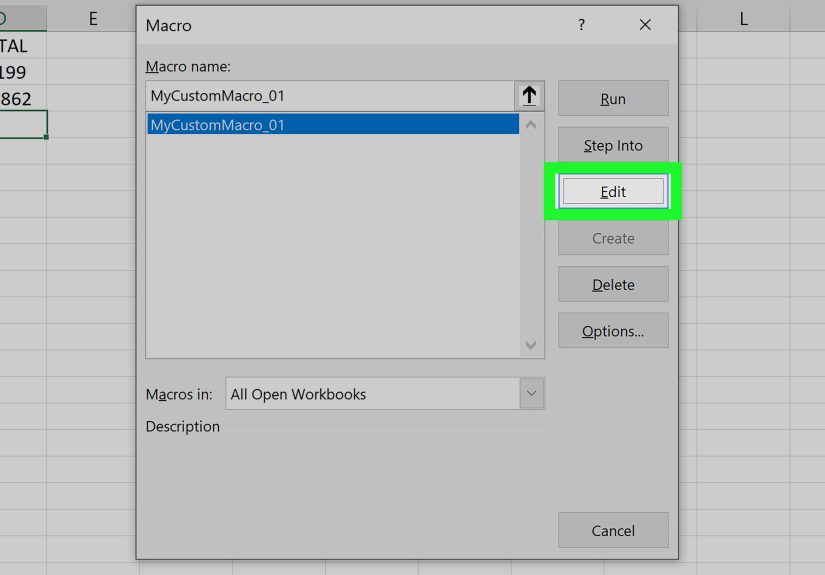
- Click Macros.
- Select FormatReportTitle.
- Click Run.
Excel will repeat the actions you recorded. If it works correctly, you will see your report title formatted automatically. If it does something unexpected, do not panic. That is part of learning macros. Excel is not judging you. Probably.
Step 5: View the VBA Code Behind the Macro
One of the best ways to learn how to write a simple macro in Microsoft Excel is to inspect the code created by the Macro Recorder. To do this, open the Visual Basic Editor.
- Click the Developer tab.
- Click Visual Basic, or press Alt + F11.
- In the Project Explorer, find your workbook.
- Open the Modules folder.
- Double-click the module that contains your macro.
You may see VBA code that looks something like this:
This code starts with Sub FormatReportTitle() and ends with End Sub. In VBA, a Sub procedure is a block of code that performs actions. The lines between the start and end tell Excel what to do.
Step 6: Write a Simple Macro from Scratch
Recording a macro is useful, but writing one from scratch gives you more control. Let’s create a simple macro that formats a small report header without relying on recorded selections.
Simple VBA macro example
This macro places the text “Monthly Sales Report” in cell A1, makes it bold, changes the font size, adds a background color, and autofits columns A through D. It is simple, practical, and not trying to conquer the world before lunch.
How to insert this macro
- Press Alt + F11 to open the Visual Basic Editor.
- Click Insert.
- Select Module.
- Paste the VBA code into the module window.
- Close the Visual Basic Editor.
- Run the macro from Developer > Macros.
Understanding the Basic Parts of a Macro
A beginner-friendly Excel macro usually has three main parts: the procedure name, the instructions, and the closing statement.
1. The Sub line
The macro begins with a line like this:
Sub tells Excel this is a procedure. CreateReportHeader is the macro name. Macro names cannot contain spaces, so use clear names such as FormatInvoice, CleanData, or SortSalesReport.
2. The action lines
The middle lines tell Excel what to do. For example:
This line puts text into cell A1. Another line might change the font, apply a number format, or autofit columns.
3. The End Sub line
Every basic VBA macro ends with:
This tells Excel that the macro is finished. Forgetting this line is like leaving a sentence without a period, except Excel complains faster than your English teacher.
Save the Workbook Correctly
If your workbook contains macros, you need to save it as a macro-enabled workbook. The normal Excel workbook format, .xlsx, does not keep VBA macros. Use .xlsm instead.
- Click File.
- Choose Save As.
- Select a location.
- In the file type dropdown, choose Excel Macro-Enabled Workbook (*.xlsm).
- Click Save.
This step matters. If you save a macro workbook as a regular .xlsx file, your macro may disappear faster than snacks in a break room.
Macro Security: Be Smart, Not Scared
Macros are powerful, which means they should be handled carefully. A macro can automate helpful tasks, but malicious macros can also be used to run unsafe commands. For that reason, Excel includes macro security settings through the Trust Center.
Only enable macros from workbooks you trust. If someone sends you an unexpected file with macros, treat it carefully. Do not click “Enable Content” just because a spreadsheet sounds urgent. Cybersecurity trouble often arrives wearing a boring filename.
Basic macro safety tips
- Use macros only from trusted sources.
- Keep a backup copy of important files.
- Do not enable macros in suspicious email attachments.
- Save test macros in sample workbooks before using them on real data.
- Ask your organization’s IT team before changing security settings on work devices.
Common Beginner Mistakes When Writing Excel Macros
Using too many Select commands
The Macro Recorder often creates code with lots of Select and Selection commands. This works, but it can make macros slower and more fragile. As you improve, try writing direct instructions instead.
Instead of this:
Use this:
The second version is cleaner and easier to understand.
Not testing on a copy
Macros can change data quickly. That is their charm and their danger. Always test a new macro on a copy of your workbook before unleashing it on important files.
Using vague macro names
Names like Macro1, Test2, and FinalFinalMacroReallyFinal are not helpful. Use descriptive names. Future you deserves kindness.
Forgetting where the macro is stored
When you record a macro, Excel asks where to store it. If you store it in “This Workbook,” it is available only in that file. If you use a Personal Macro Workbook, it can be available across Excel workbooks. Beginners should start with “This Workbook” until they understand how storage works.
A Practical Simple Macro for Beginners
Here is a slightly more useful macro that formats a basic data table. Suppose your worksheet has headers in row 1 and data in columns A through D. This macro bolds the header row, adds autofilter buttons, autofits columns, and freezes the top row.
This is a great beginner Excel VBA macro because it solves a real-world problem. Many people receive raw data that needs basic cleanup before it is readable. With one macro, your table becomes easier to scan, filter, and present.
How to Assign a Macro to a Button
If you want your macro to feel more like a mini app, assign it to a button. This is helpful when other people will use the workbook and you do not want them digging around in the Developer tab like spreadsheet archaeologists.
- Go to the Developer tab.
- Click Insert.
- Choose a Button from Form Controls.
- Draw the button on the worksheet.
- Select the macro you want to assign.
- Click OK.
- Right-click the button to edit its text.
You can name the button something clear, such as “Format Report” or “Clean Data.” Then users can run the macro with one click.
When Should You Use Macros?
Macros are best for tasks that are repetitive, rule-based, and consistent. If you do the same steps every day, week, or month, a macro may be a good solution. If the task changes every time and requires human judgment, a macro may not be the right tool yet.
Good macro tasks include formatting reports, preparing imported data, updating formulas, creating worksheets, clearing old values, generating simple summaries, and standardizing layouts. Poor macro tasks include vague decisions, one-time edits, or processes where the data structure changes wildly every time.
Beginner Experience: What It Feels Like to Learn Excel Macros
The first time you write a simple macro in Microsoft Excel, it may feel oddly powerful. You type a few lines of code, press Run, and suddenly Excel follows your instructions like a very obedient intern who never asks for lunch. That moment is exciting, but it can also be confusing because VBA has its own style, rules, and little quirks.
One common beginner experience is realizing that Excel is extremely literal. If you tell it to format cell A1, it formats cell A1. It does not magically know that tomorrow your report title might be in B3. This is why planning matters. The better you understand the shape of your data, the better your macro will behave.
Another experience is discovering that the Macro Recorder is both helpful and messy. It is a fantastic teacher because it shows you real VBA code based on your actions. However, it also records unnecessary steps. If you click three extra cells while thinking, Excel may include those movements in the code. The recorder is not elegant; it is honest. That makes it useful, but not perfect.
Many beginners also learn the hard way that macros should be tested on copies. A macro can change hundreds or thousands of cells in seconds. That is wonderful when the macro is correct and mildly terrifying when it is not. Before running a new macro on an important workbook, duplicate the file and test safely. This habit saves time, stress, and possibly your relationship with your keyboard.
As you practice, you will start recognizing patterns. You will see that Range refers to cells, Value changes what a cell contains, Font.Bold changes formatting, and Columns.AutoFit adjusts column width. These small pieces begin to click together. Eventually, VBA looks less like secret code and more like a set of instructions written in a slightly fussy but understandable language.
A useful personal strategy is to keep a “macro playground” workbook. This is a blank or sample file where you try new code without fear. Record a macro, view the code, delete a few unnecessary lines, run it again, and see what changes. Experiment with formatting, copying, clearing cells, and adding formulas. The goal is not perfection. The goal is familiarity.
Another helpful habit is writing comments in your VBA code. A comment starts with an apostrophe and explains what the next line does. For example:
Comments are not just for other people. They are for you, especially when you reopen the workbook three months later and wonder what past-you was thinking. Past-you may have been brilliant, but past-you was not always great at documentation.
Over time, macros change the way you look at Excel tasks. Instead of thinking, “I have to do this again,” you start thinking, “Can I automate this?” That mindset is valuable. It helps you notice patterns, simplify workflows, and build better spreadsheets. Even a simple macro can make your work feel smoother, faster, and more professional.
The best advice is to start with one annoying task. Do not try to automate your entire job in an afternoon. Pick one repetitive action, create a macro for it, test it, improve it, and use it. Then move to the next task. That is how real Excel automation skills grow: one practical win at a time.
Conclusion
Writing a simple macro in Microsoft Excel is one of the most practical ways to save time and reduce repetitive work. You can begin with the Macro Recorder, inspect the VBA code, and gradually learn to write your own instructions from scratch. Start with small tasks like formatting headers, autofitting columns, or preparing basic reports. Then, as your confidence grows, you can build more flexible macros that handle real business workflows.
The secret is not to become a VBA genius overnight. The secret is to solve one small problem, understand what the code does, and keep practicing. Excel macros reward curiosity. And unlike some coworkers, they do not mind doing the same boring task 400 times in a row.